
TL;DR
1
Access Discounts
Log into Shopify and find Discounts in the dashboard.
2
Create Discount
Click Create Discount and choose a discount type.
3
Set Discount Details
Choose discount amount, code, and eligibility.
4
Configure Options
Set limits, requirements, and active dates.
5
Save Discount
Click Save to finalize your discount.
Let's Do It Together!
Step 1: Access Discounts
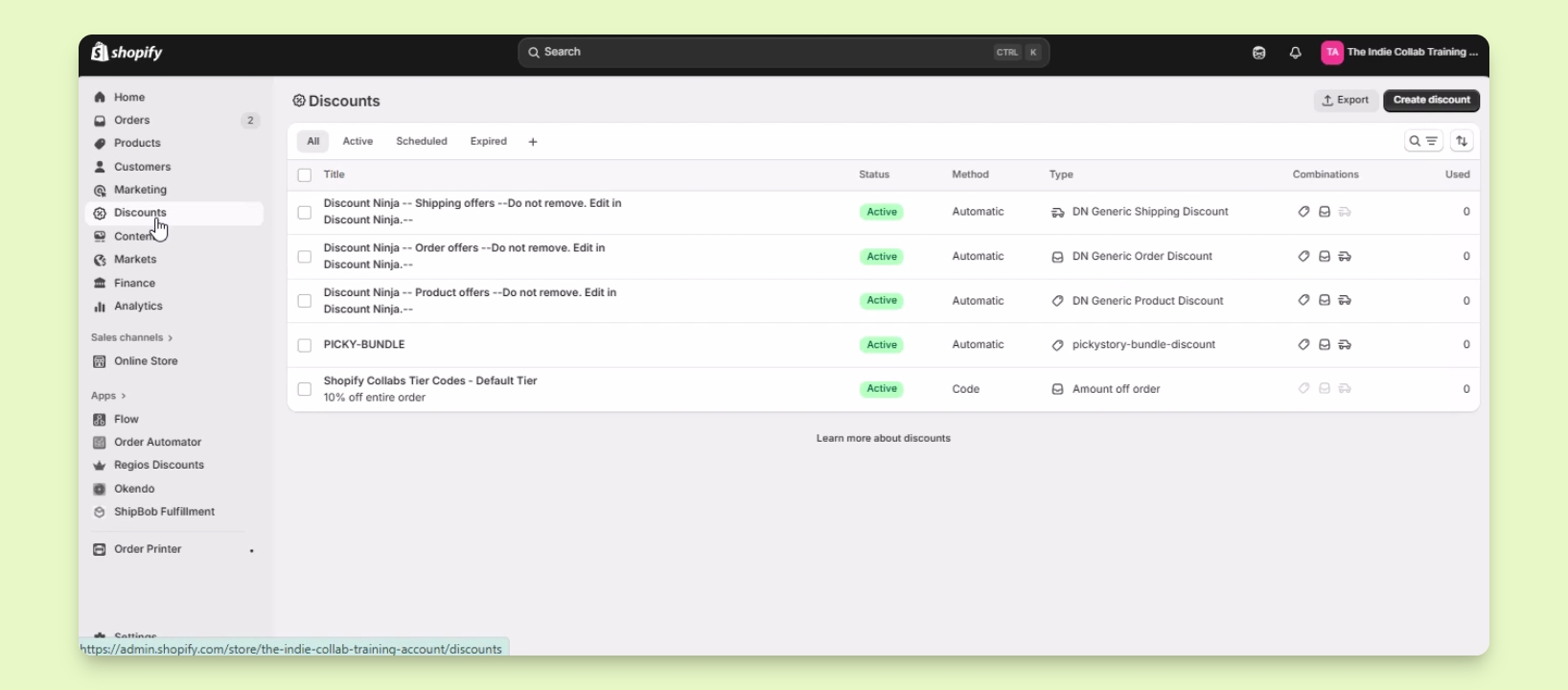
Log in to your Shopify account.
Find and click on Discounts in your account dashboard.
Step 2: Create a Discount
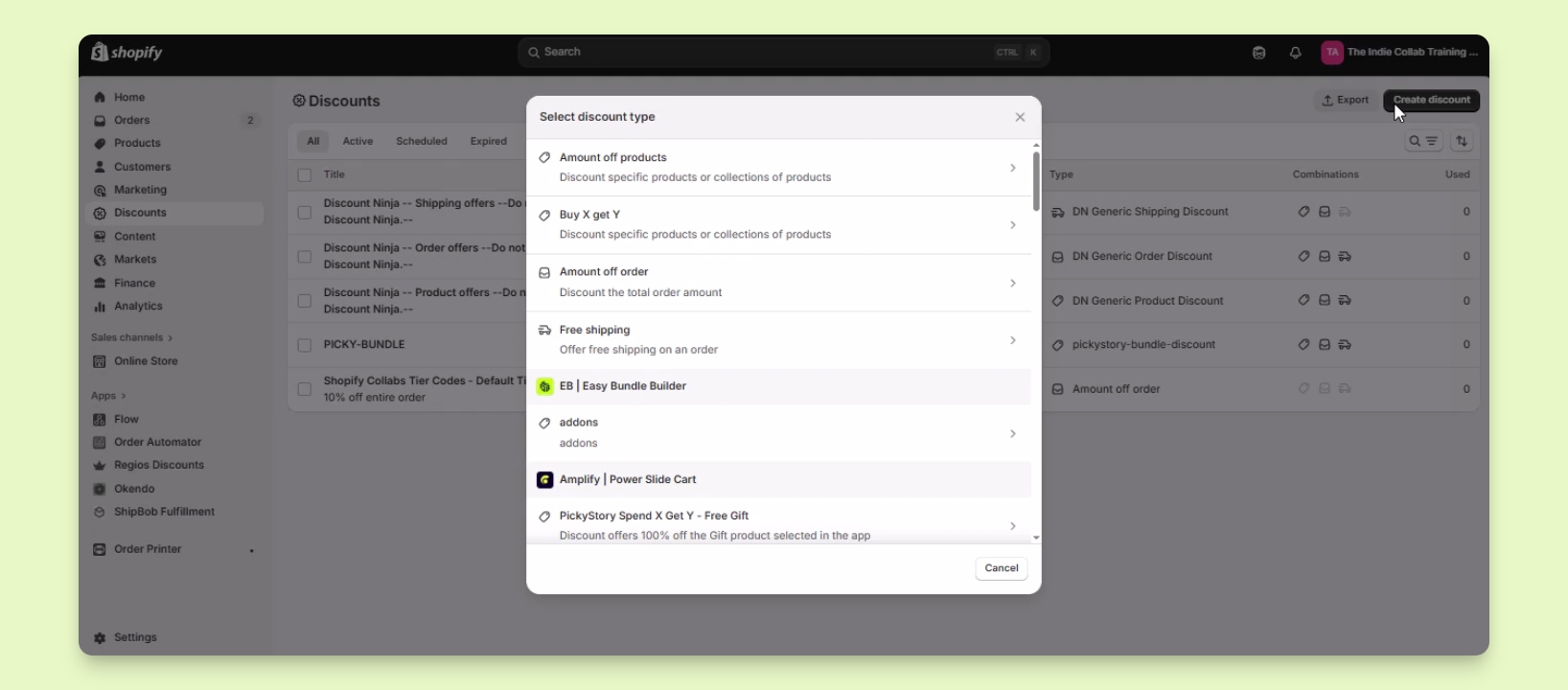
Click on Create Discount.
Select a discount type from the options provided.
Step 3: Set Discount Details
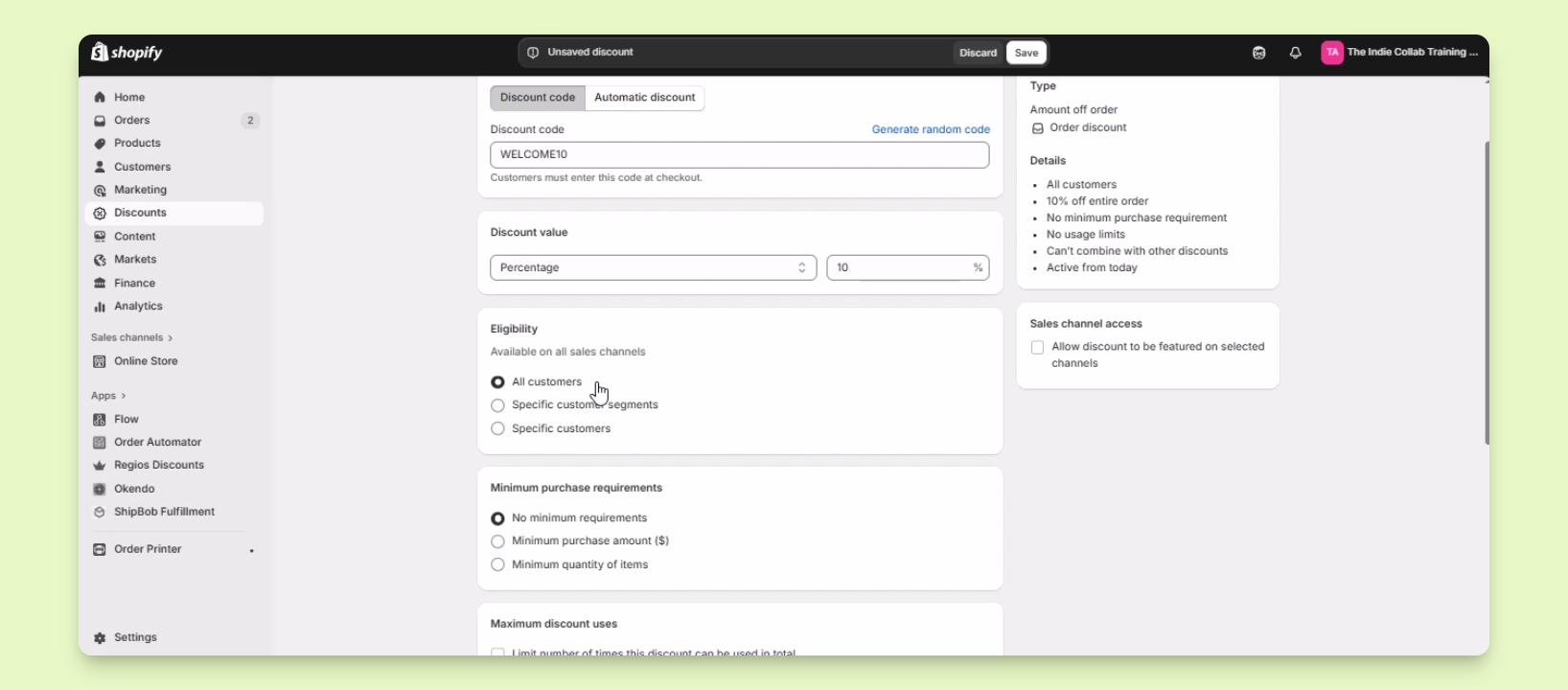
Choose Amount of order to create a discount like 10% off.
Set the discount code to Welcome 10.
Select Percentage as the discount value and enter 10.
Specify the eligibility to All customers.
Step 4: Configure Additional Options
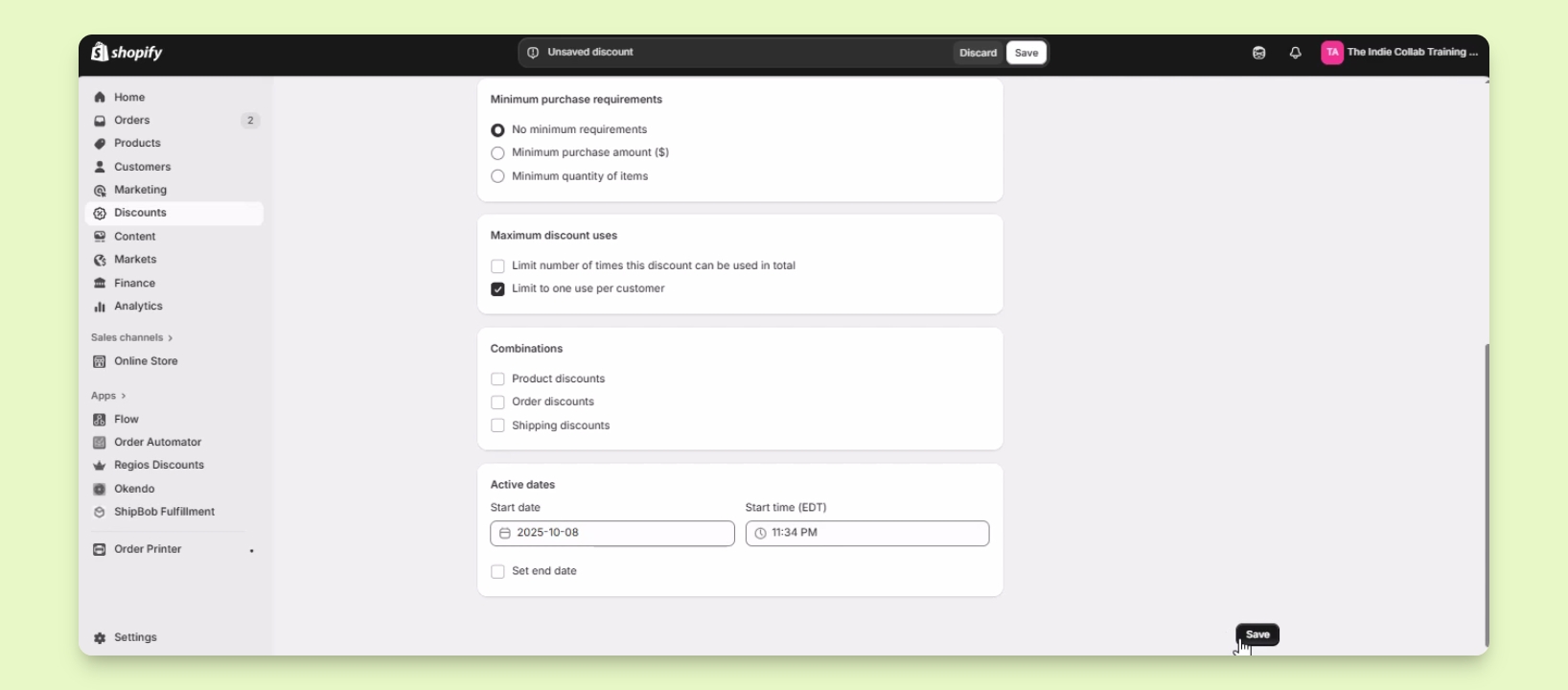
Set any minimum purchase requirements as needed.
Limit the discount to one use per customer.
Decide if the discount can be combined with others.
Set active dates for the discount availability.
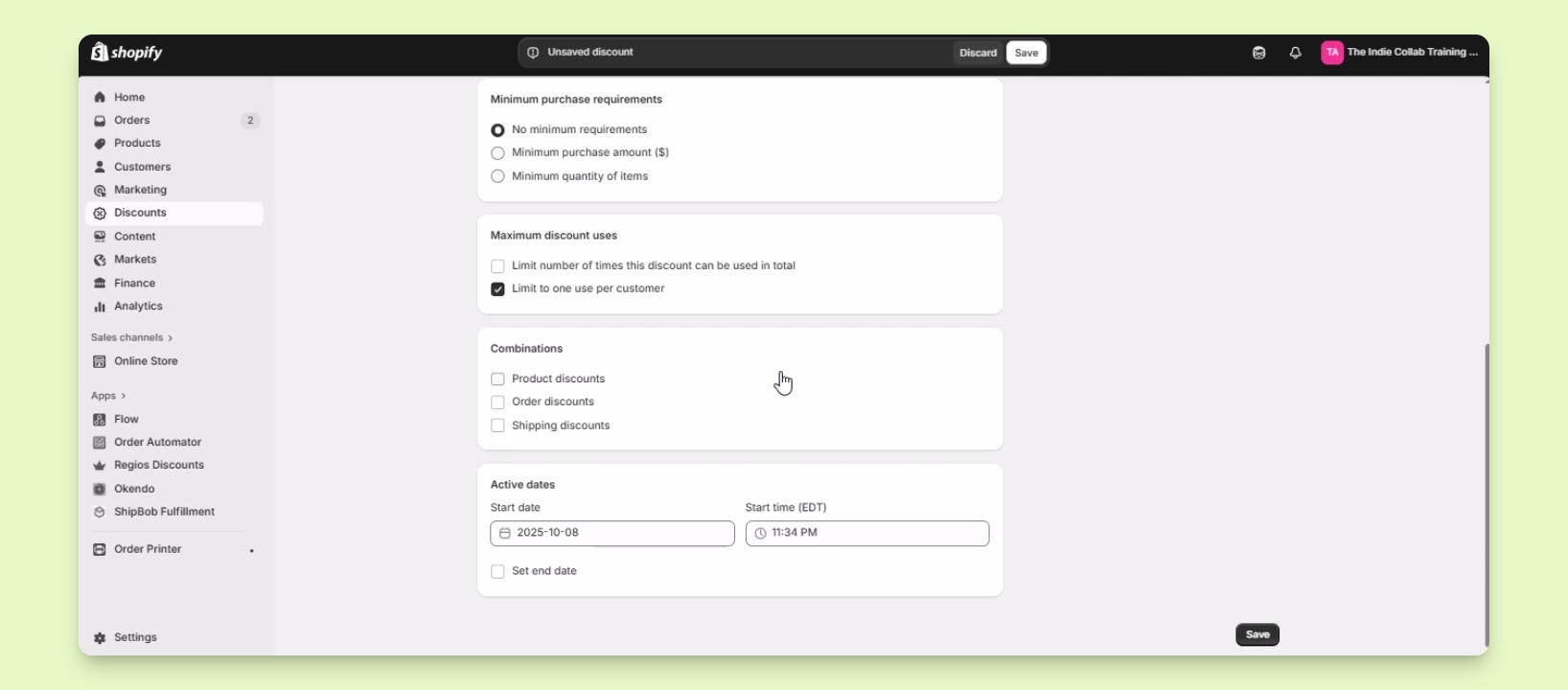
Step 5: Save Your Discount
Click the Save button to finalize your discount.
Your discount code has been successfully created in Shopify.