
TL;DR
Let's Do It Together!
Step 1: Select Products
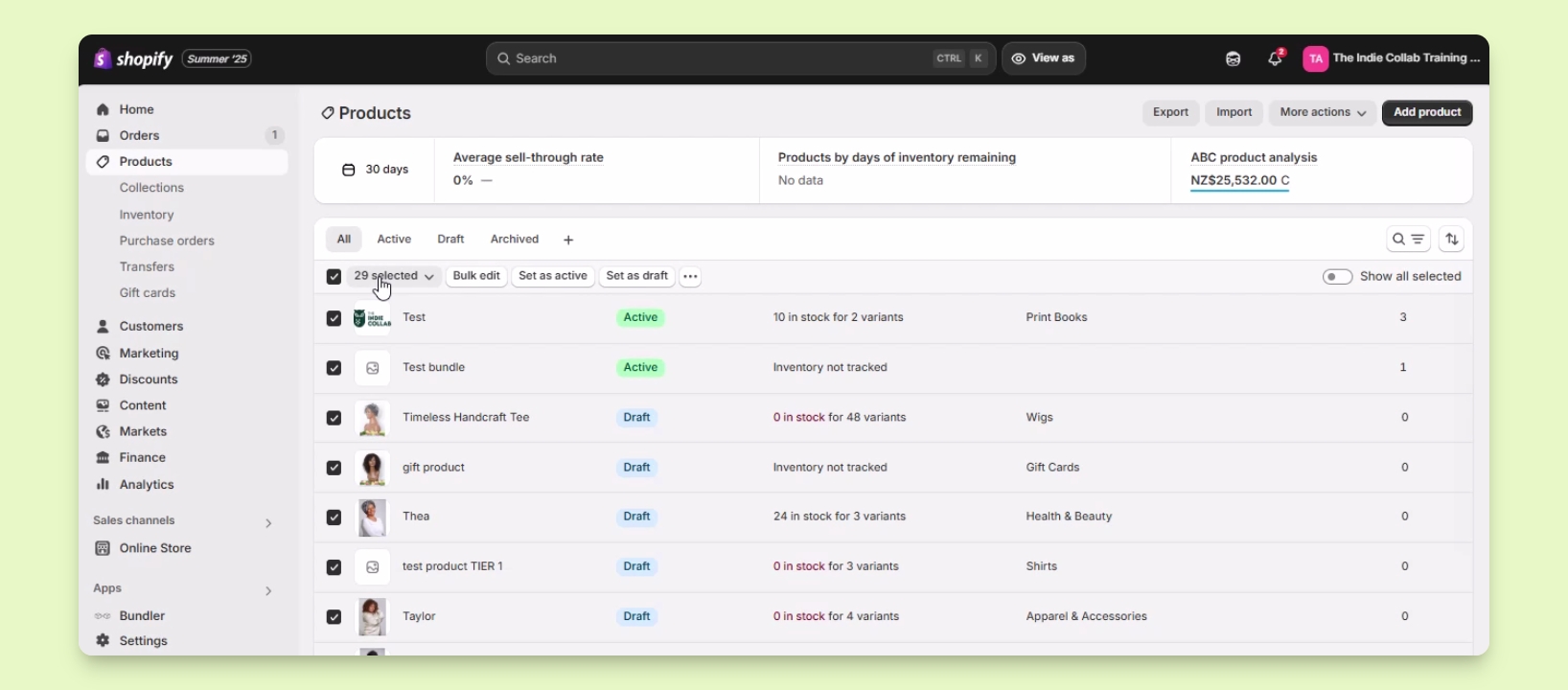
Go to Products in your Shopify admin.
Check the box beside each product you want to edit in bulk.
If editing all products, check the box at the top to select all.
If you have more than 50 products, click Show 50 Products to select all.
Step 2: Access Bulk Edit Page
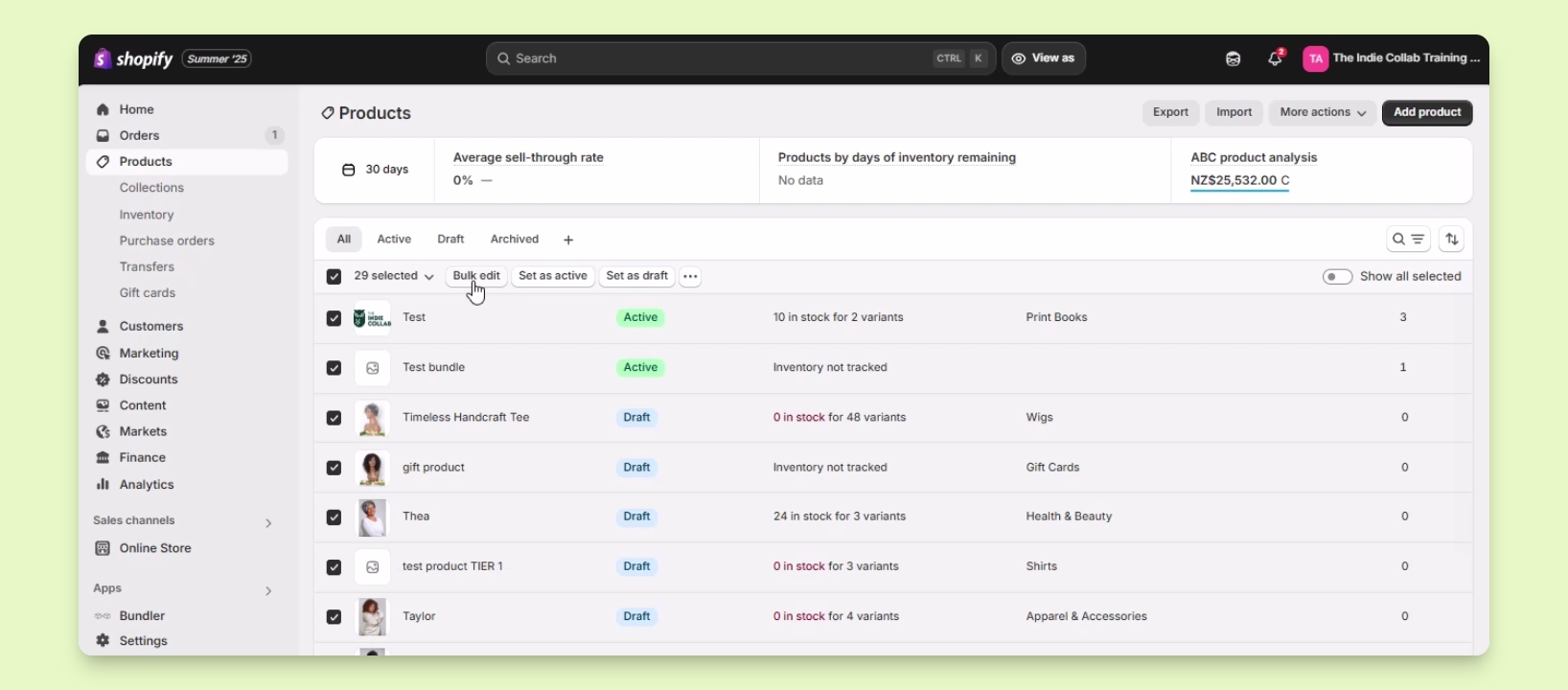
Click the Bulk Edit button to proceed to the bulk edit page.
You will now see the bulk edit page with product information displayed.
Step 3: Edit Product Information
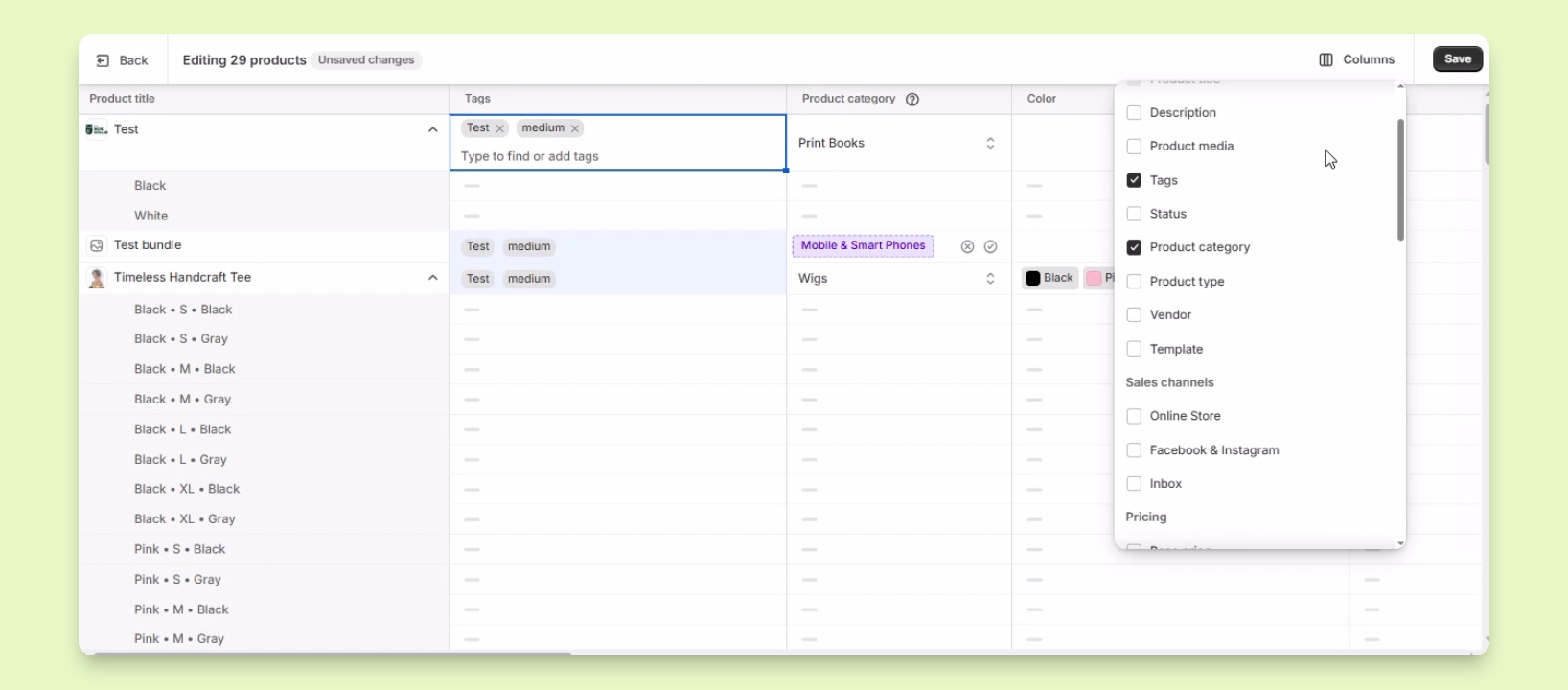
Edit product tags by clicking the field under Tags and entering a new tag.
Click Add Test to add the new tag.
Select existing tags by checking the box beside them.
To add the same tag to multiple products, hover over the cell, hold, and drag to adjacent cells.
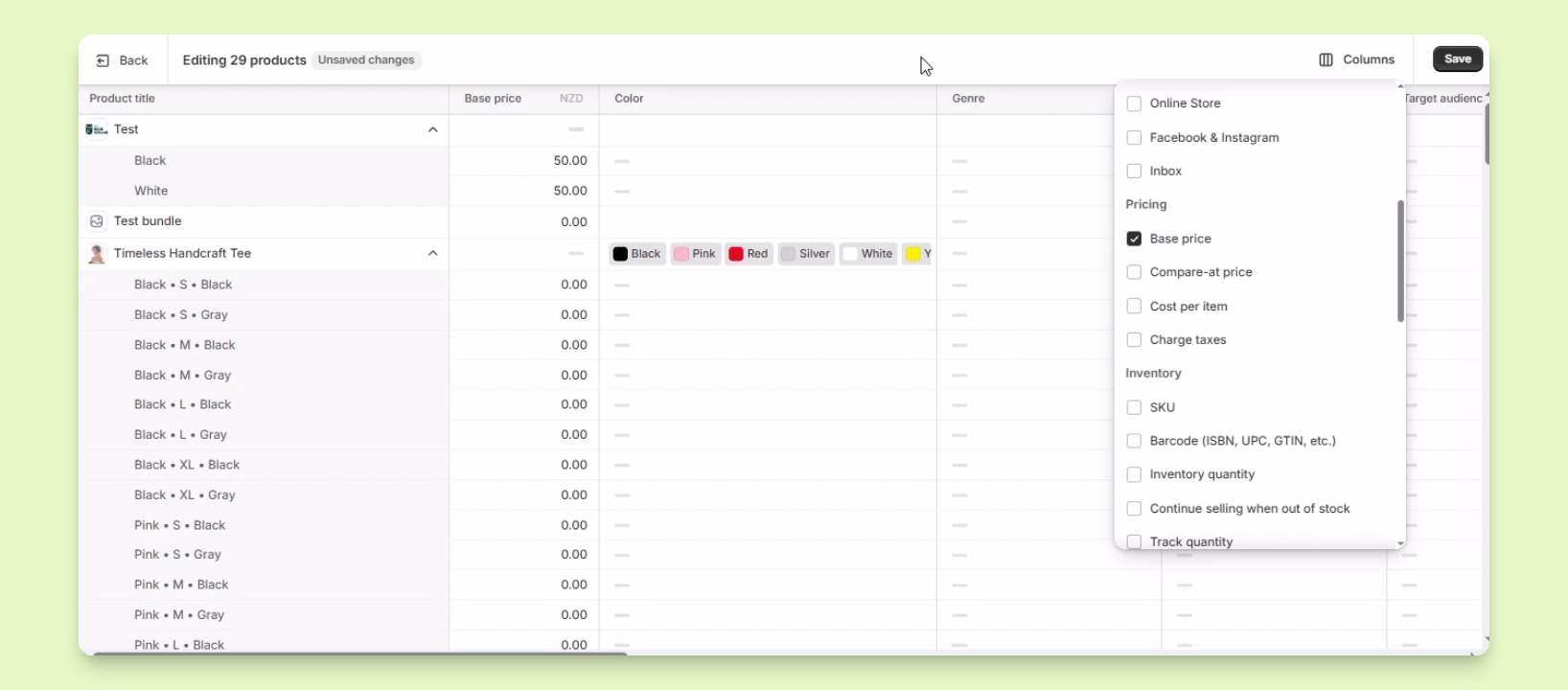
You can also adjust the columns displayed for easier editing.
Step 4: Edit Prices
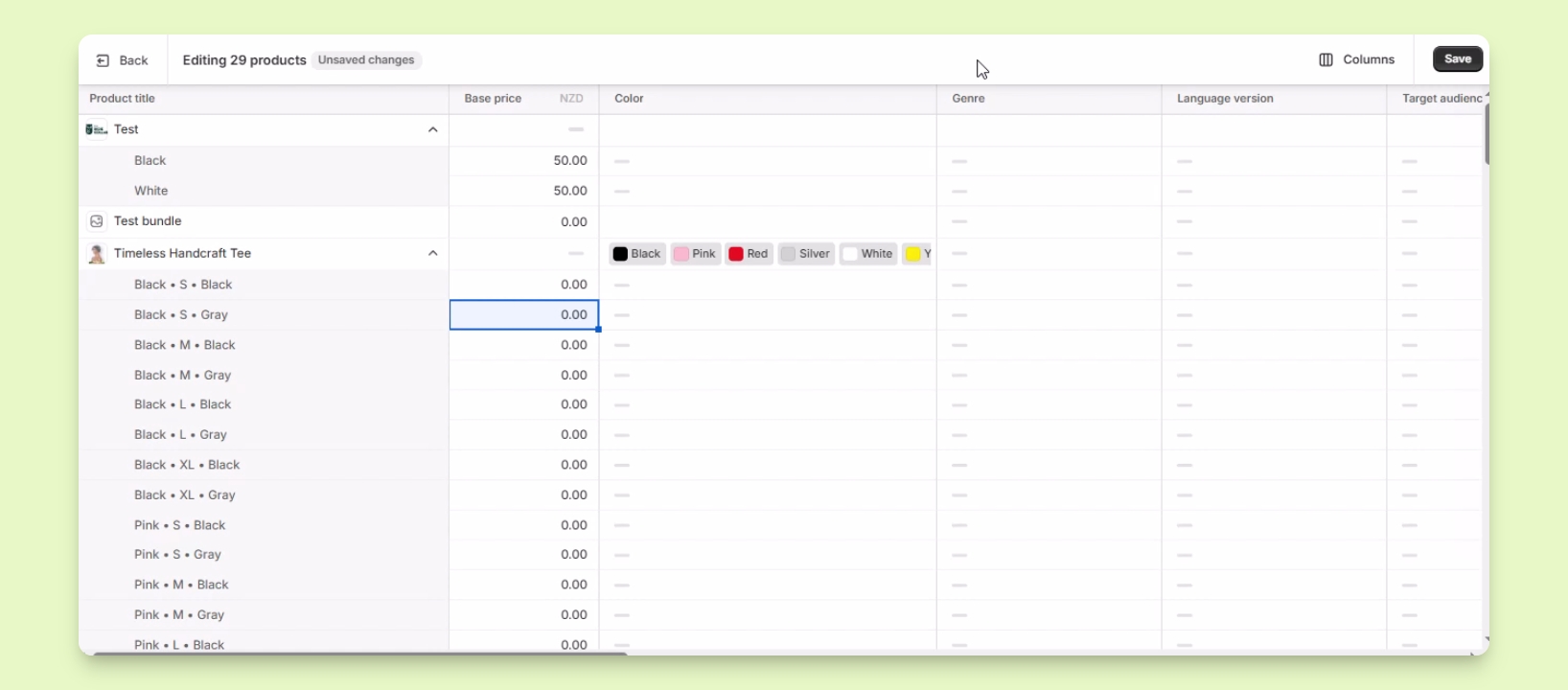
To bulk edit prices, uncheck other columns and check the Base Price column.
This makes it easier to find pricing information to edit.
Step 5: Save Changes
Once you have completed your edits, click Save to apply the changes.