
TL;DR
1
Log in and go to Products
Access your Shopify account and navigate to Products.
2
Edit SKU and Barcode
In the Inventory section, enter or update SKU and barcode.
3
Update Variants
Select a variant and edit its SKU and barcode in Inventory.
4
Save Changes
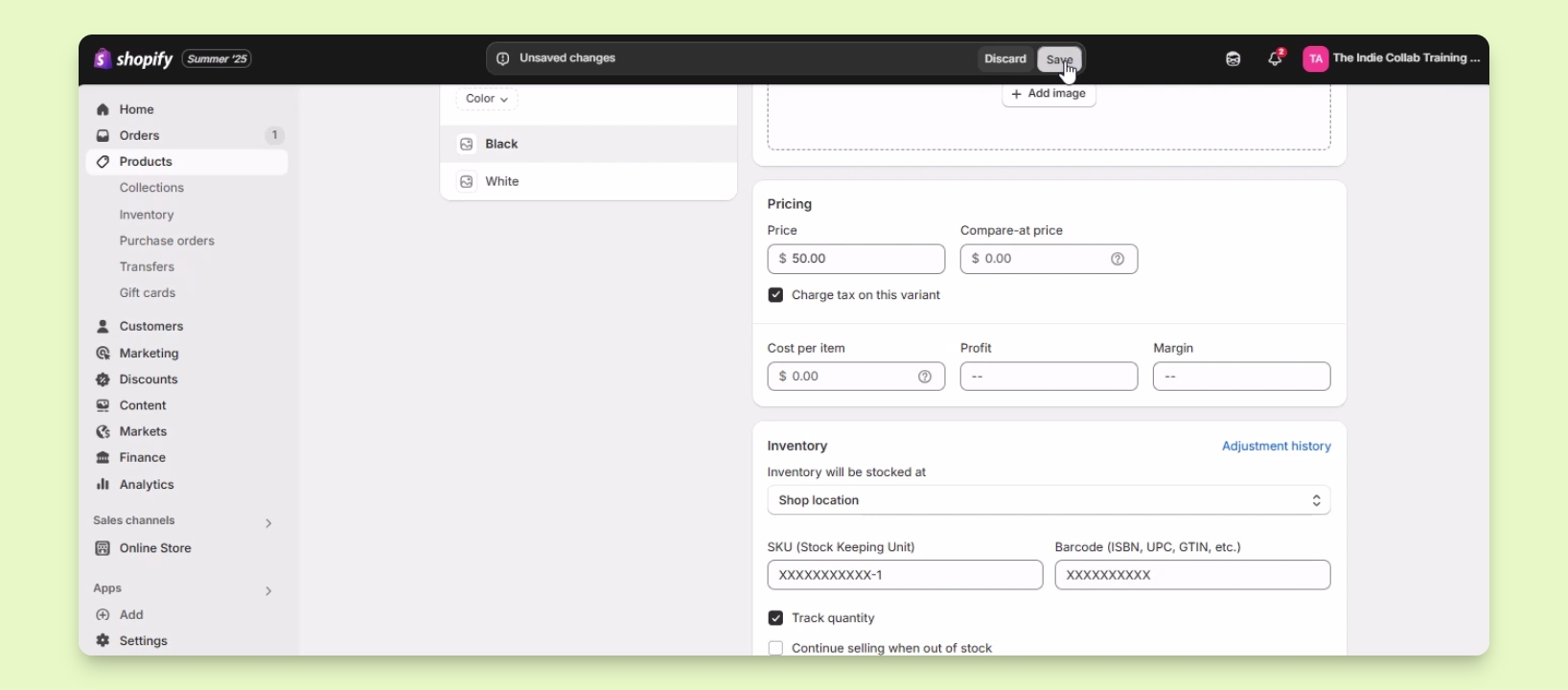
Click Save to apply all changes made.
Let's Do It Together!
Step 1: Access Your Products
Log in to your Shopify account.
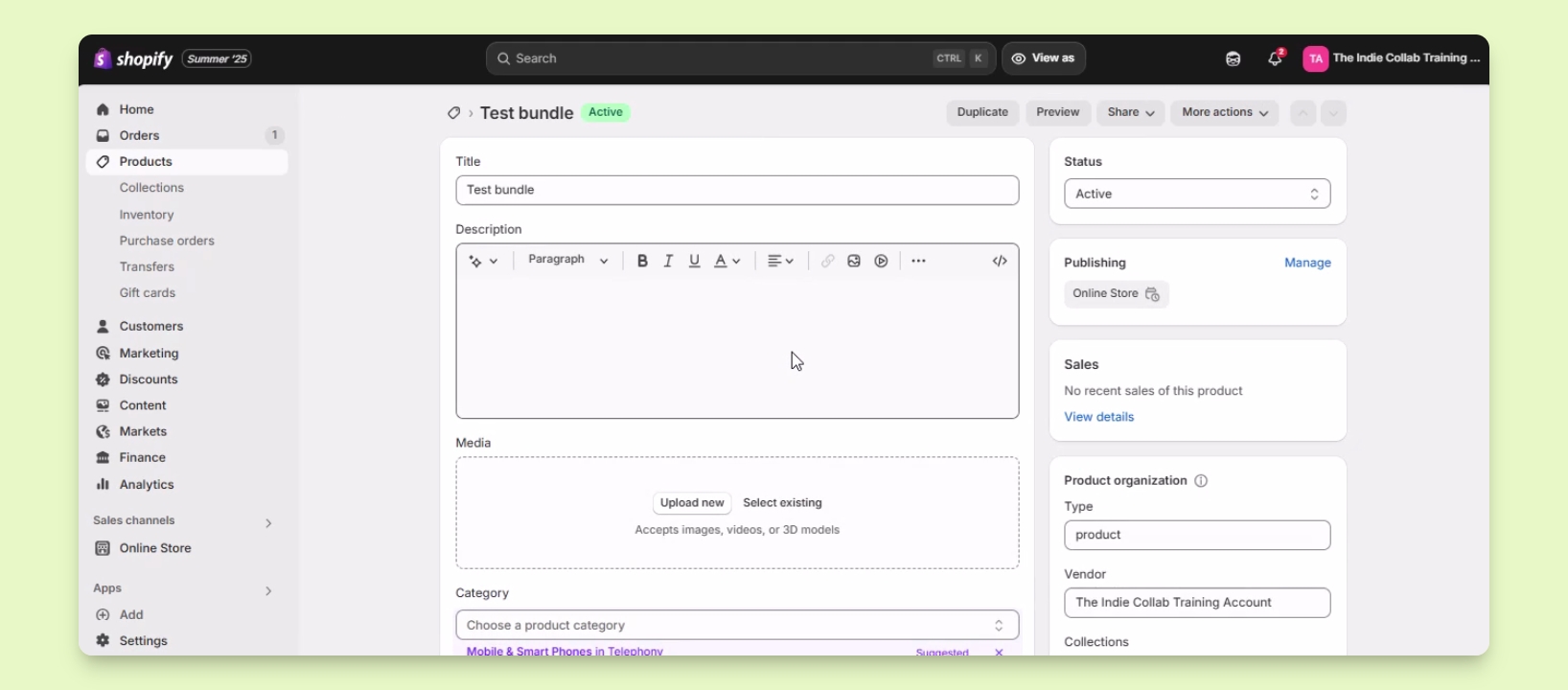
Go to Products and select the product you want to edit.
You are now on the product edit page.
Step 2: Edit SKU and Barcode
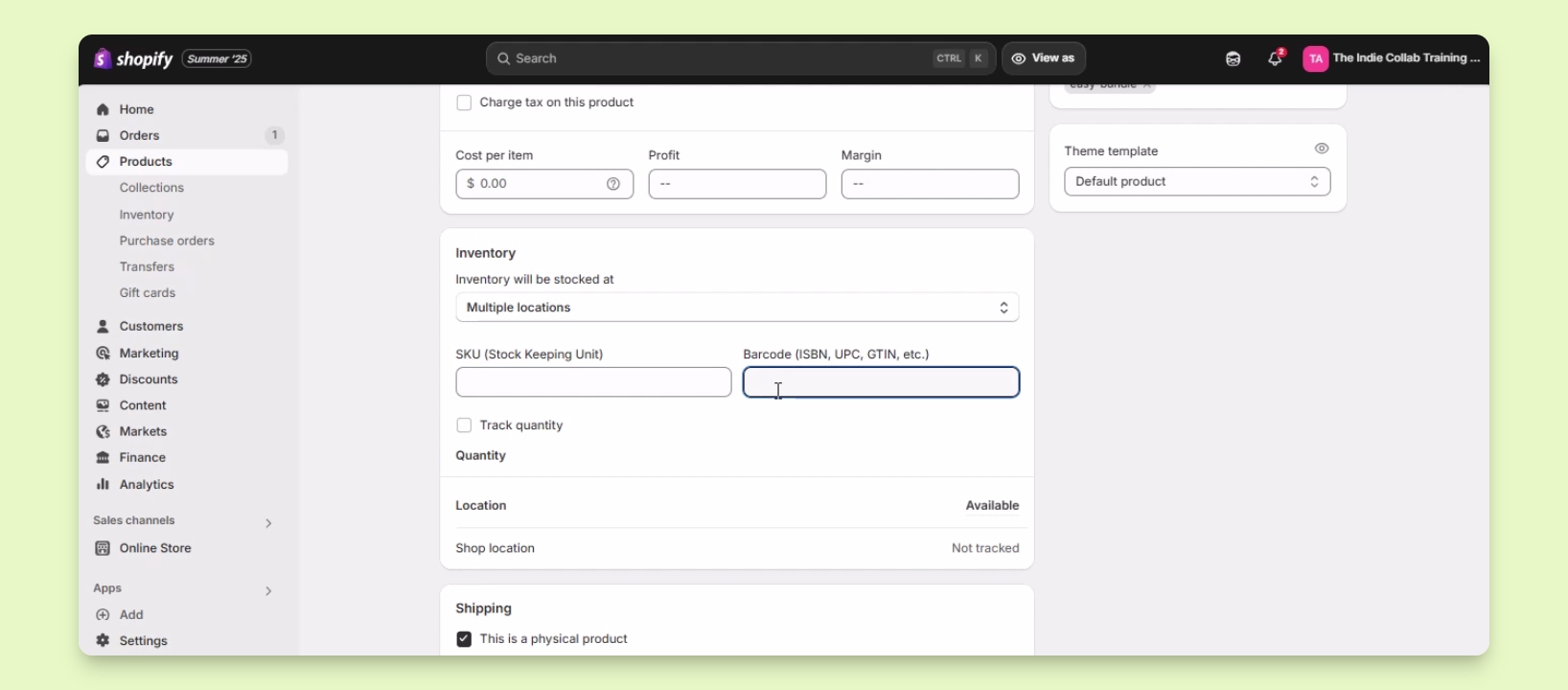
Scroll down to the Inventory section.
Enter or edit the SKU and barcode in the provided fields.
Your SKU and barcode are now updated for the product.
Step 3: Update Variants
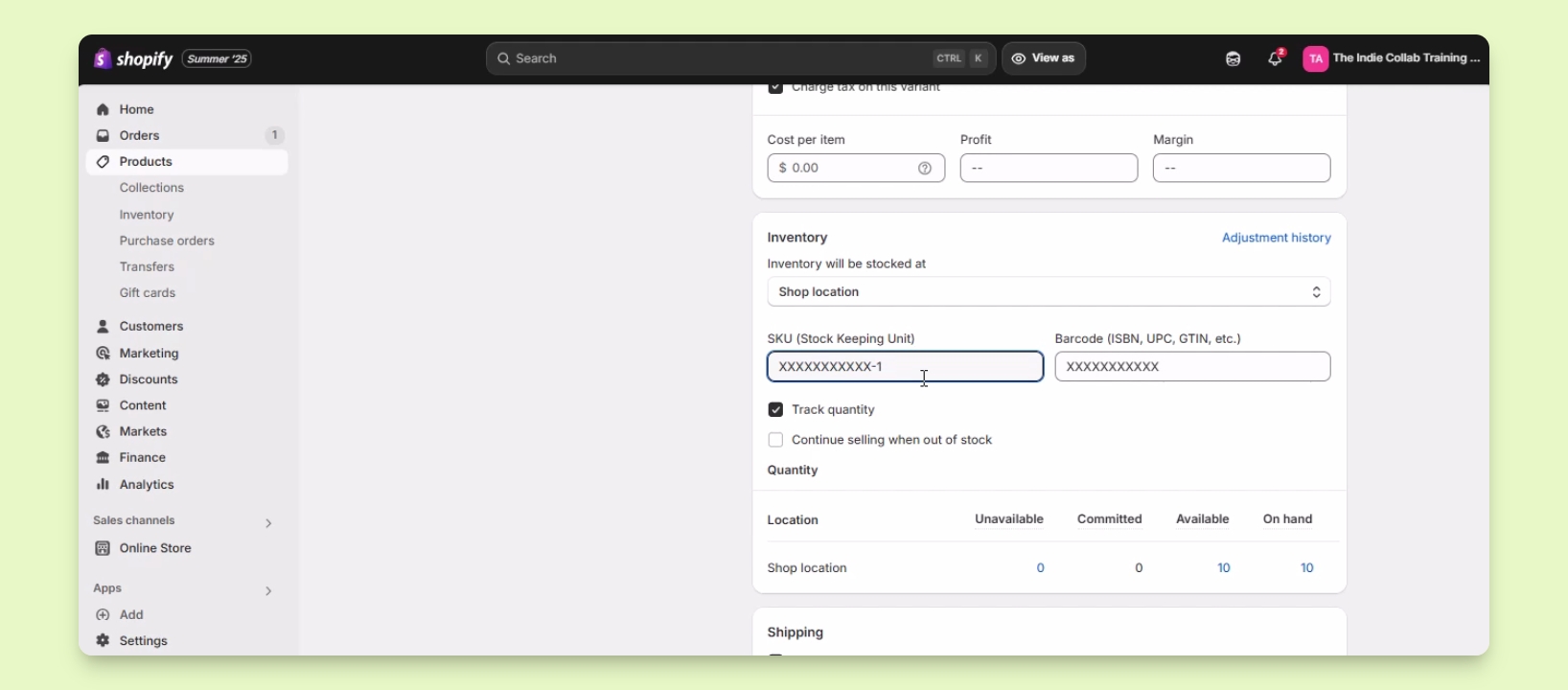
If the product has variants, click on the variant you need to edit.
Scroll down to the Inventory section for that variant.
Edit or add the SKU and barcode as needed.
SKU and barcode for the variant are updated.
Step 4: Save Changes
After making changes, click Save.
You can switch between variants to edit their SKUs and barcodes as necessary.
All changes are saved and you can continue editing other variants.