
TL;DR
1
Go to Online Store
Access the theme customization in your Shopify admin.
2
Use the Inspector
Click Inspector to edit specific homepage sections.
3
Add or Delete Sections
Use the Add section button or trash icon to manage sections.
4
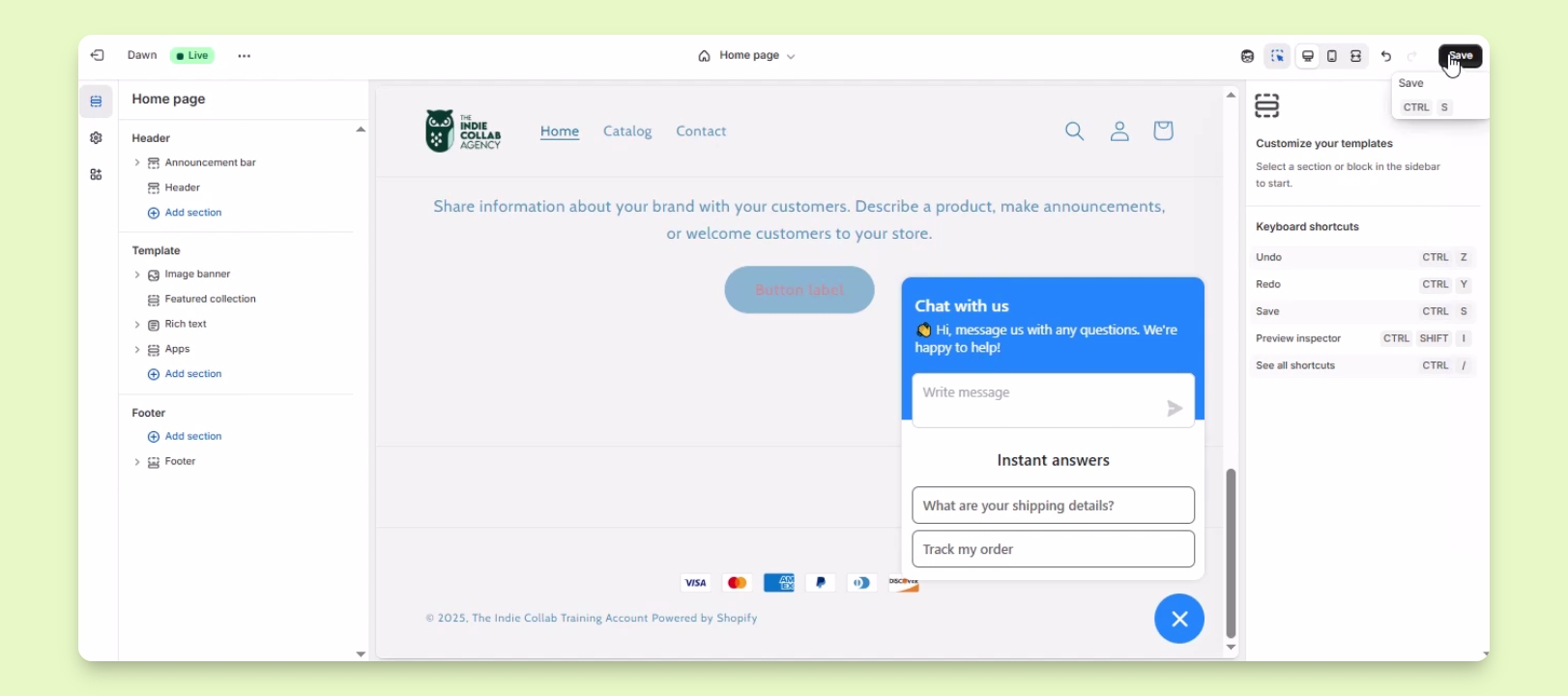
Save Changes
Click Save to apply your edits.
Let's Do It Together!
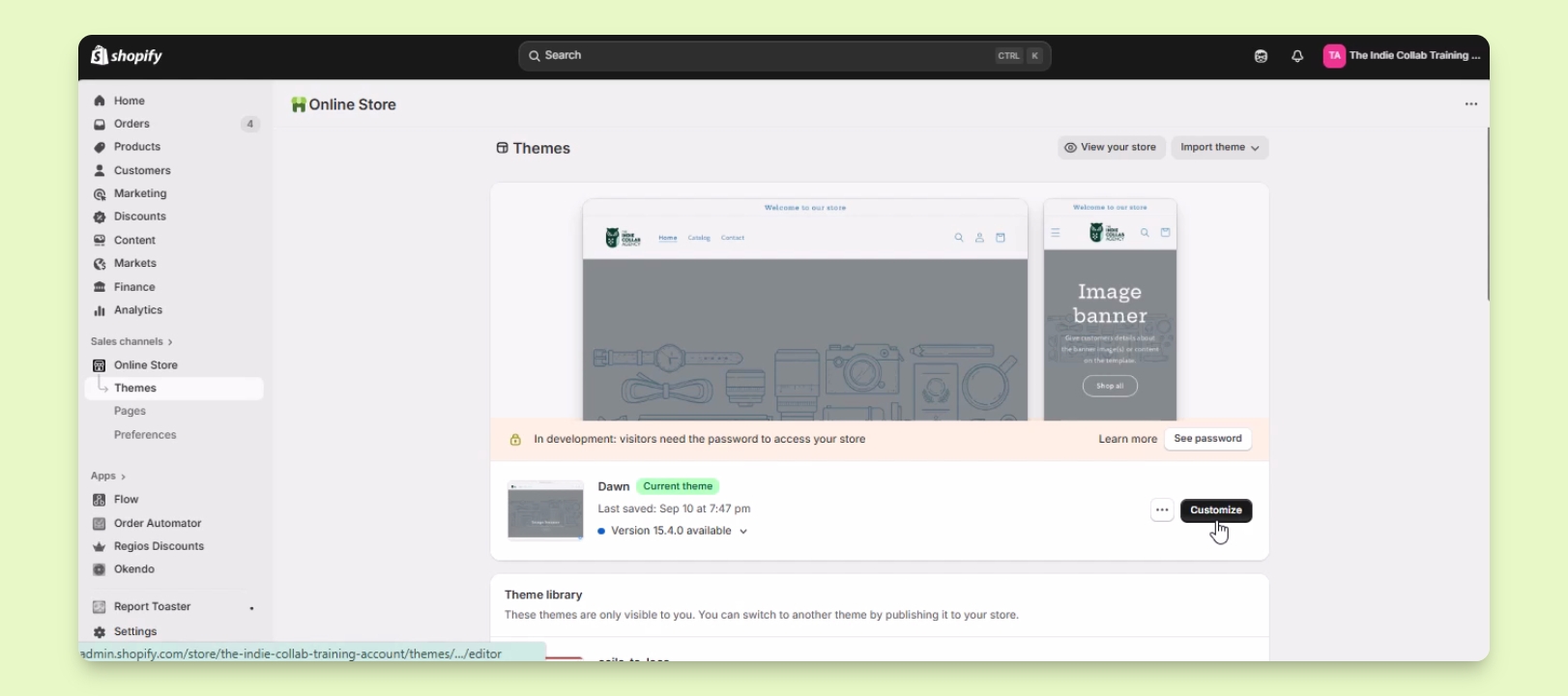
Step 1: Access Theme Customization
In your Shopify admin, go to Online store.
Click the Customize button beside the theme you want to edit.
You will be redirected to the theme editor.
Step 2: Use the Inspector Tool
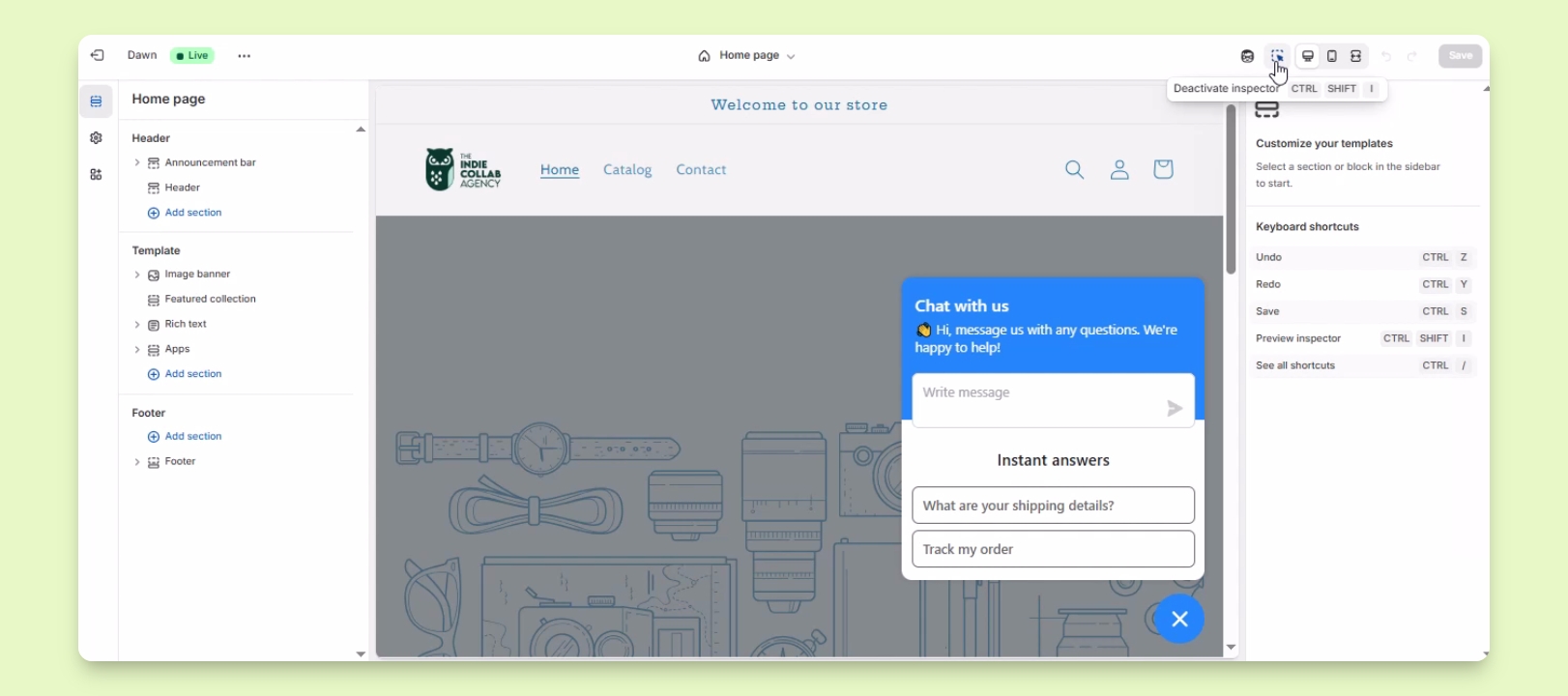
In the homepage section, click on the Inspector option at the upper right.
If it is blue, it is activated. Hover over the section you want to edit.
Click on Will to open the edit options.
Step 3: Add or Delete Sections
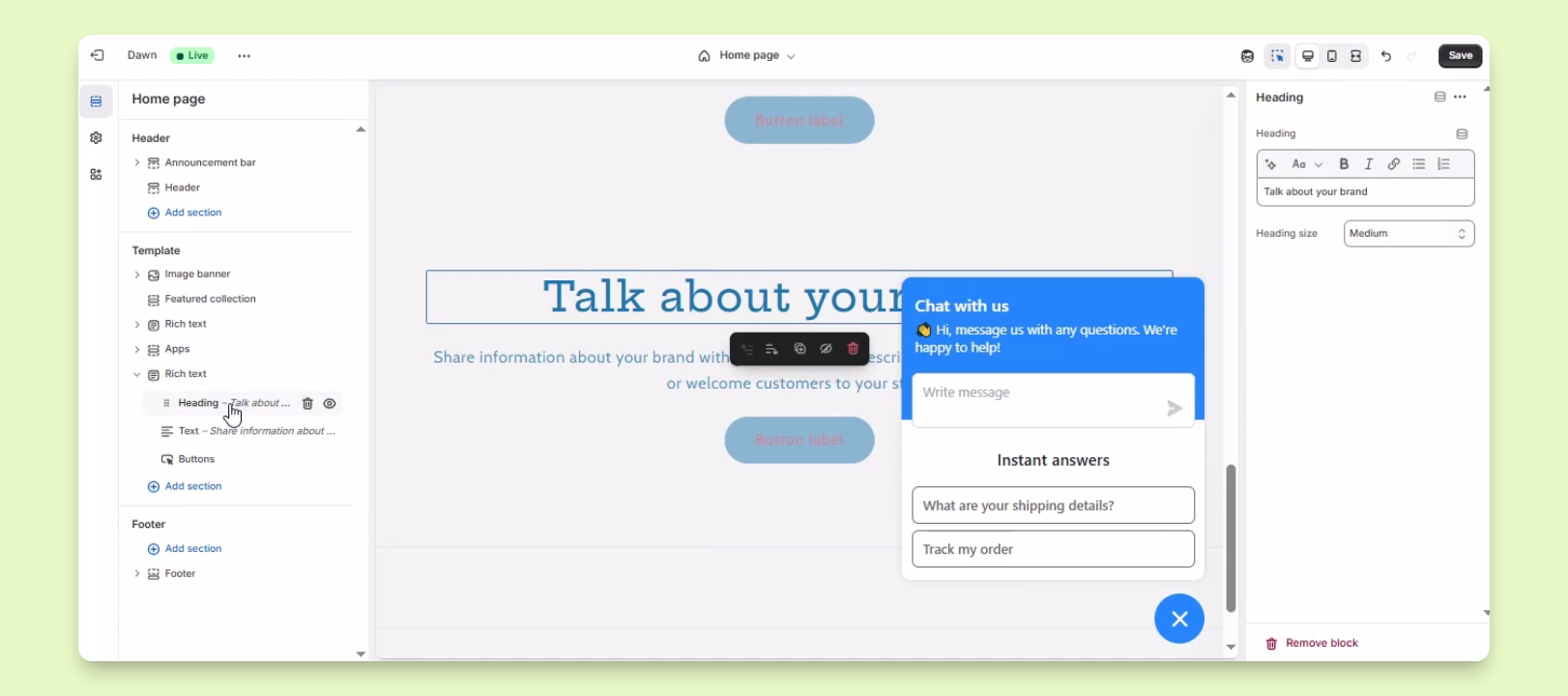
To add a new section, click on the Add section button.
Select the section you want to add and edit the default information.
To delete a section, hover over it and click the trash bin icon.
Step 4: Save Your Changes
Once you're done editing, click Save to save your changes.