
TL;DR
Let's Do It Together!
Step 1: Access Shipping Settings
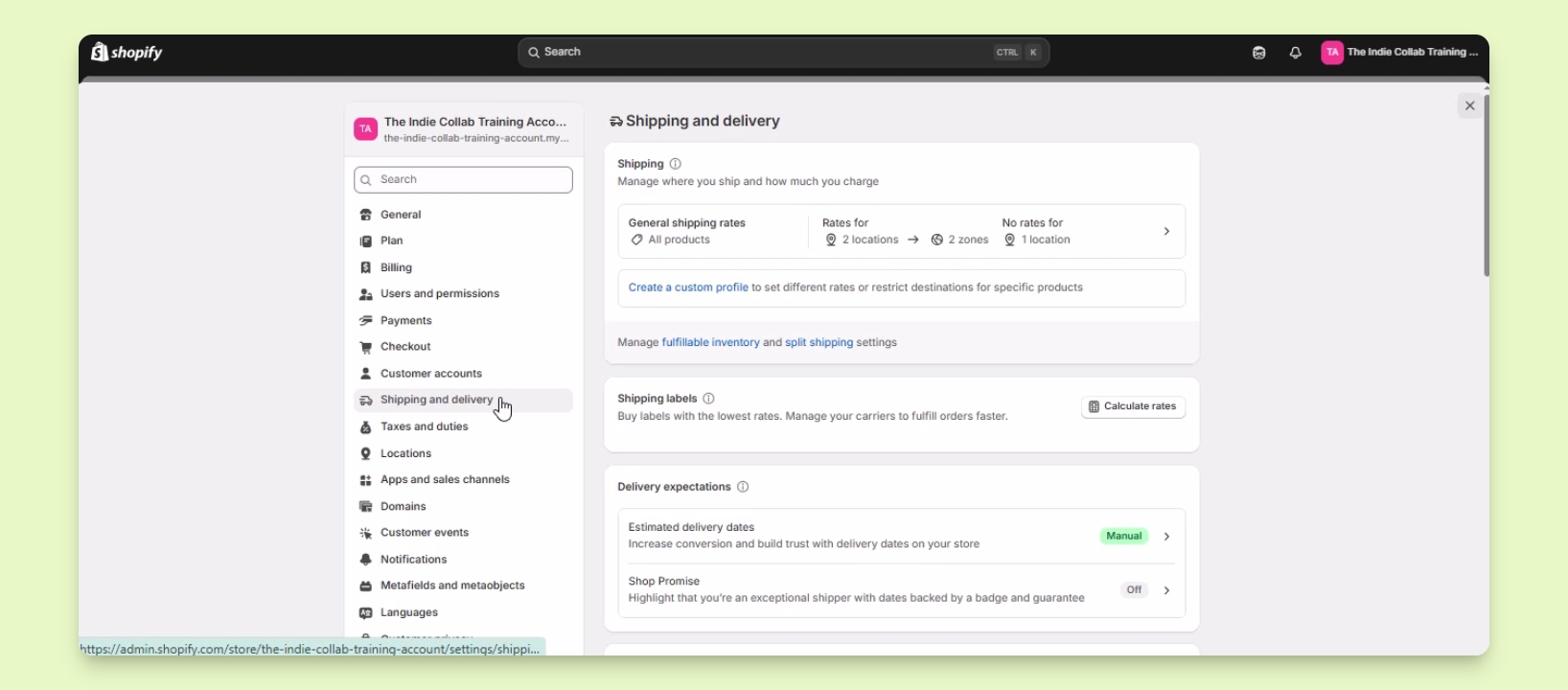
Log in to your Shopify account and click Settings in the lower left corner.
From the settings menu, click Shipping and delivery.
Step 2: Set Up Local Delivery
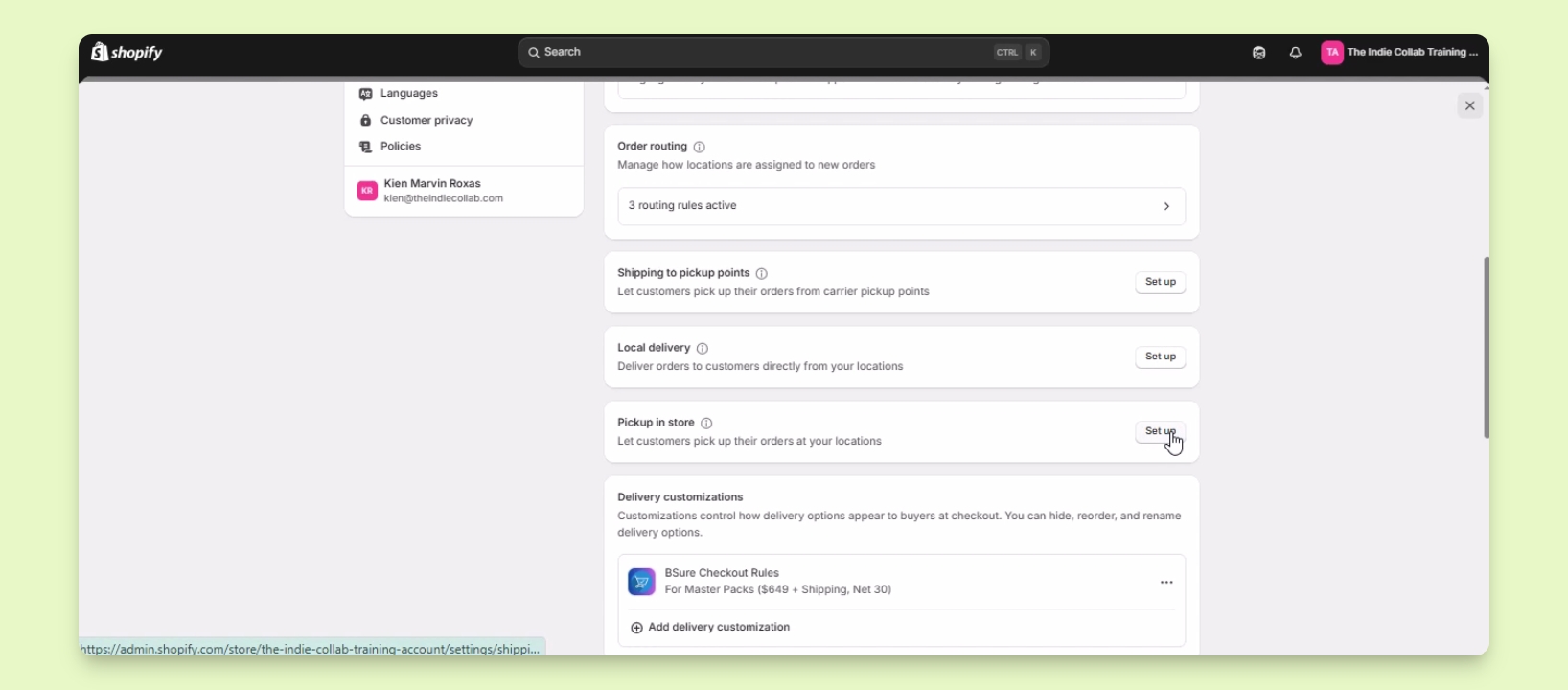
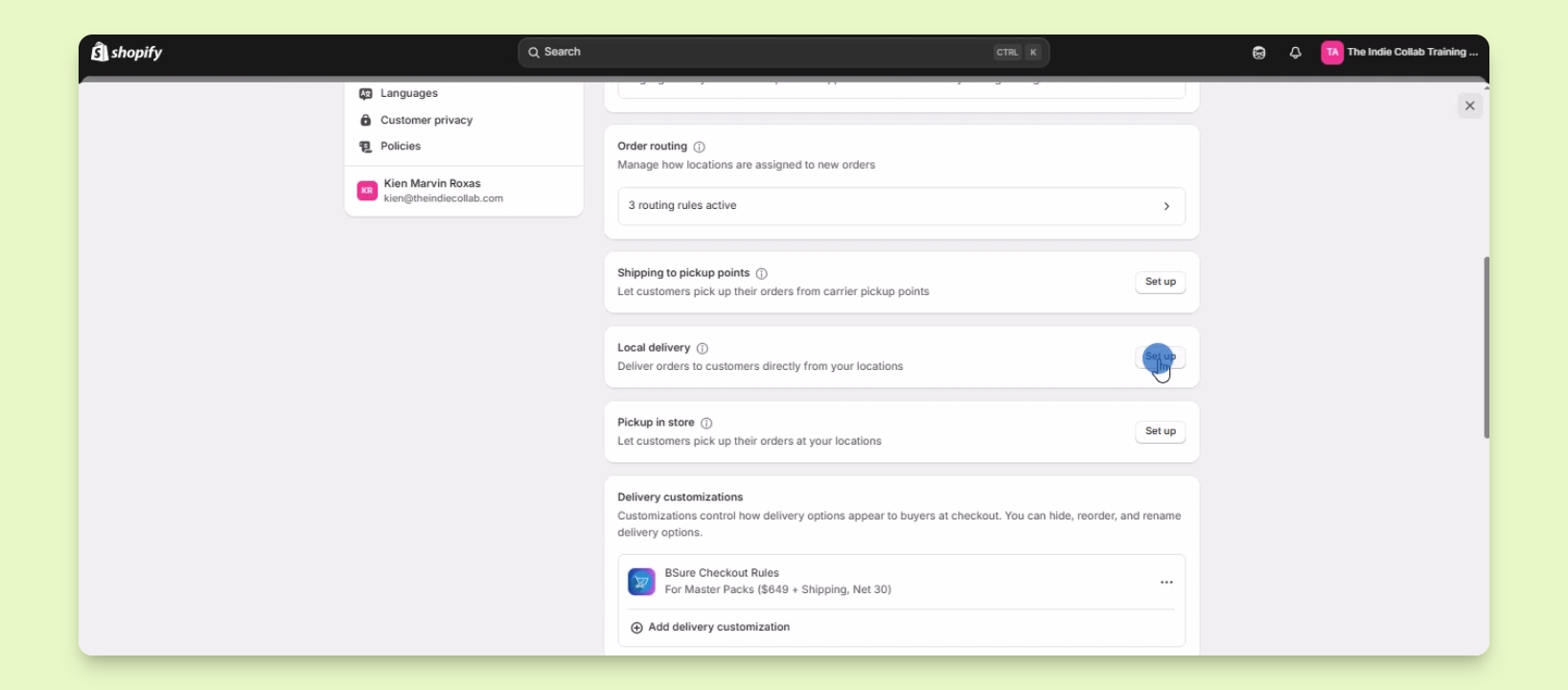
Scroll down to find the options for Local delivery and Pickup in store.
Click the Setup button beside Local delivery.
Select the desired location for local delivery.
Toggle the location status button to set it active.
Set up delivery zones based on postal codes or delivery radius.
Configure the delivery radius in kilometers or miles and add multiple zones as needed.
Set the delivery radius, zone name, and pricing based on distance.
Click Save to finalize your local delivery settings.
Step 3: Set Up Local Pickup
Return to the shipping and delivery settings and click the Setup button beside Pickup in store.
Select the location for local pickup.
Toggle the location status button to turn it on.
Edit the expected pickup date and processing times as needed.
Optionally, add a message for customers when their order is ready for pickup.
Click Save to apply the changes.