
TL;DR
1
Open Collections
Go to Products and select Collections to add a new collection.
2
Select Smart Collection
Choose Smart Collection and enter your collection details.
3
Set Conditions
Define conditions for products to auto-join the collection.
4
Configure Sorting
Sort products by various criteria or manually rearrange.
Let's Do It Together!
Step 1: Access Collections
In your Shopify admin, click on Products.
Then under Products, click on Collections.
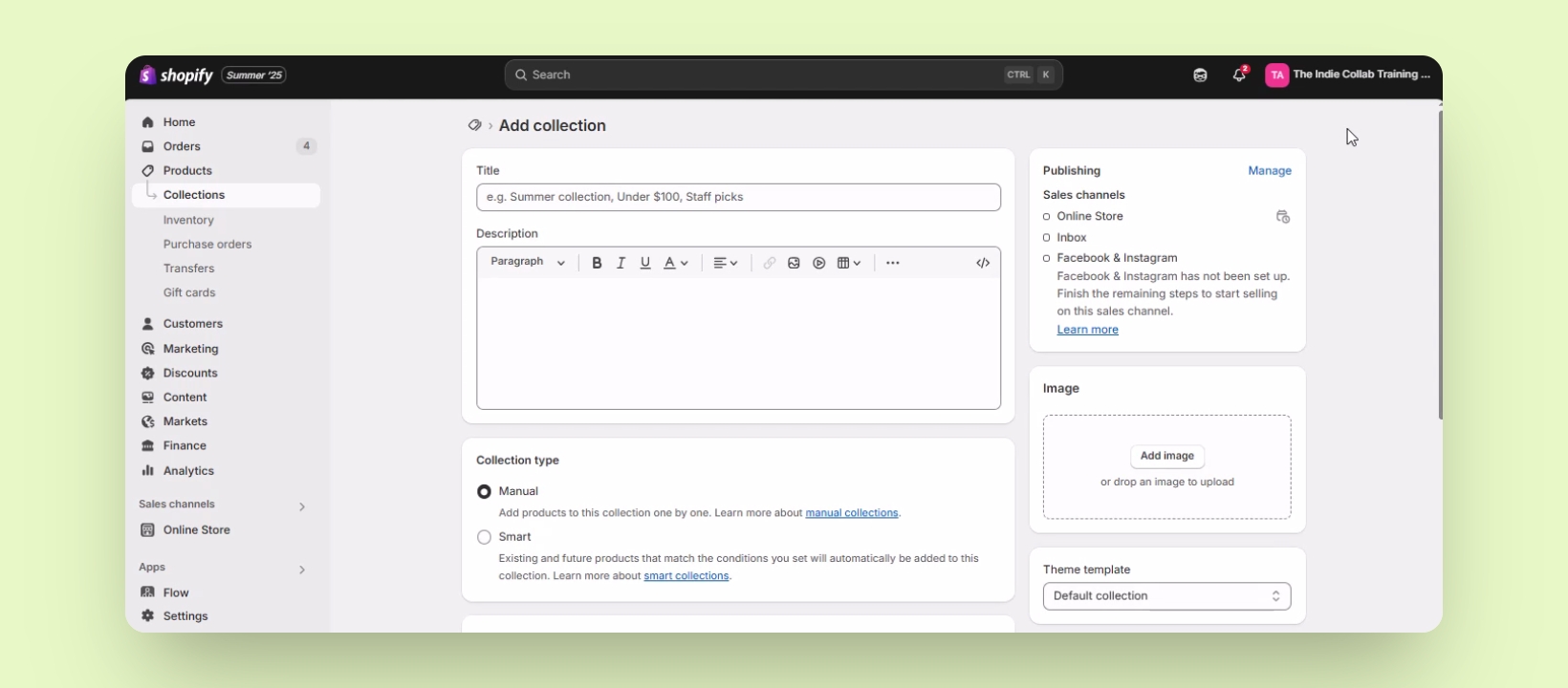
Click on Add Collection on the upper right.
You will be redirected to the collection information page.
Step 2: Set Collection Type
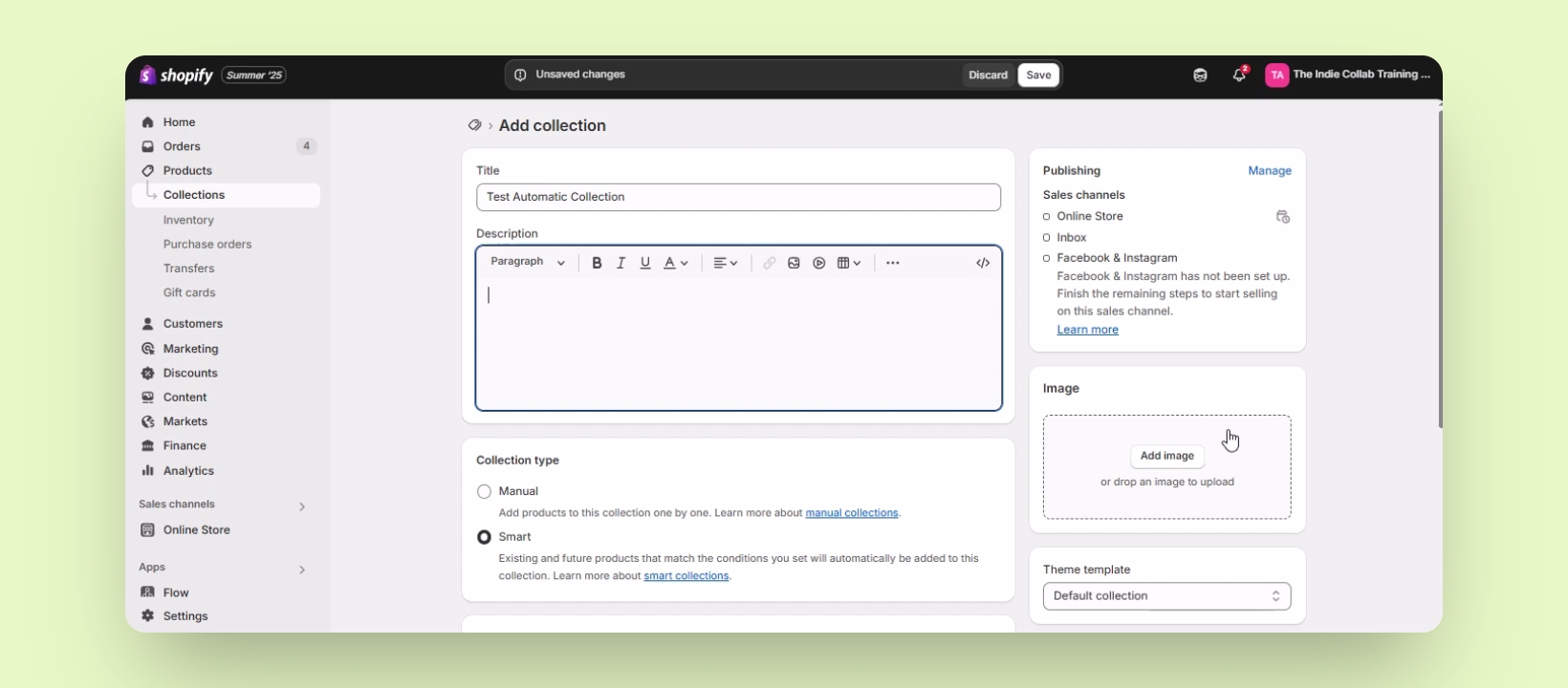
Select Smart under Collection Type.
Set the title and description for your collection, and add an image if desired.
Step 3: Define Conditions
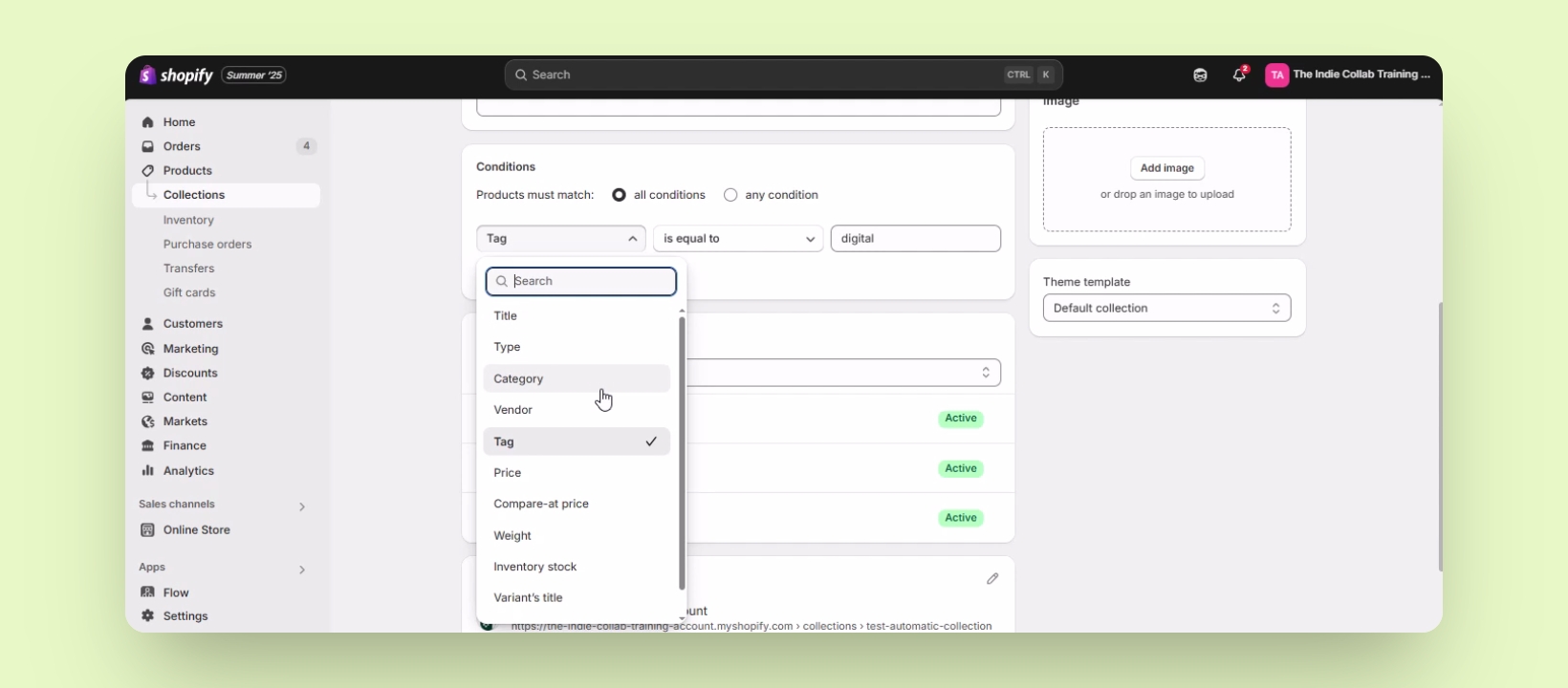
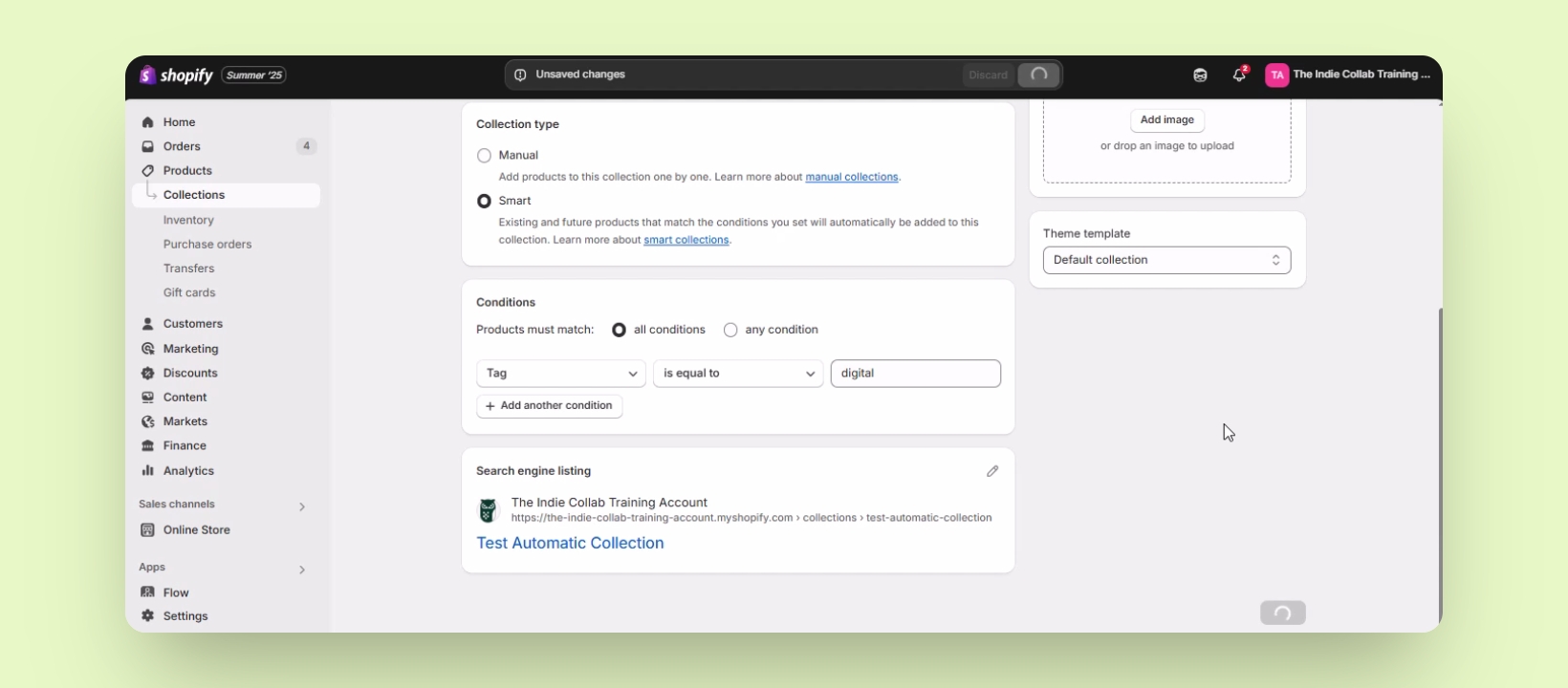
Under Conditions, set the criteria for automatic addition.
For example, set to Tag is equal to and enter digital to create a digital product collection.
Saved changes will automatically add products with the specified tag.
Step 4: Further Configuration
You can set conditions based on title, type, vendor, price, etc.
Sort products by best selling, title, price, or manually.
If sorting manually, drag and drop items as needed.