
TL;DR
Let's Do It Together!
Step 1: Remove Products from a Manual Collection
Log into your Shopify account.
Go to Products → Collections and select the manual collection you want to edit.
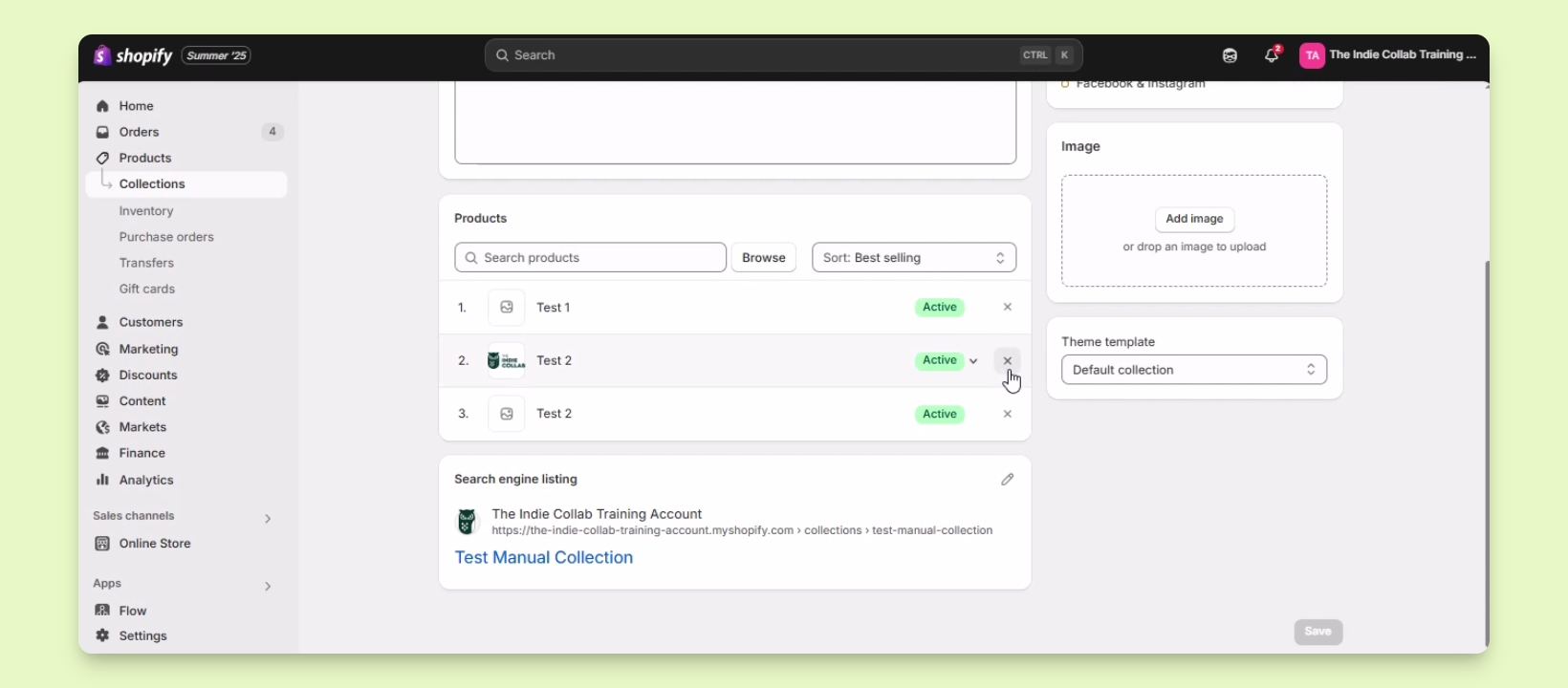
Scroll down to the Products section, and locate the product.
Click the X button next to the product to remove it from the collection.
The product will no longer be part of the manual collection.
Step 2: Add Products to a Manual Collection
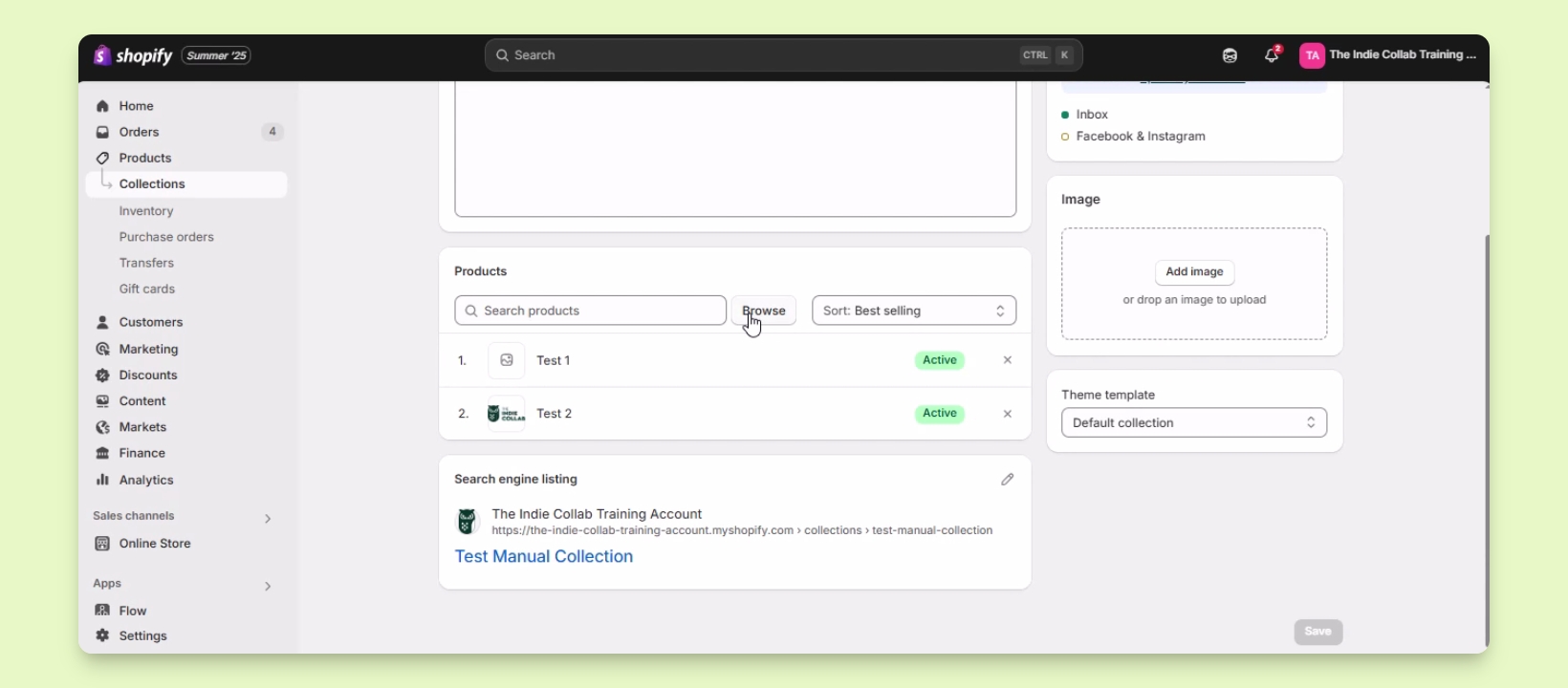
In the same manual collection, click Browse to search for products.
Check the box next to the product you want to add.
Click Done to add the product to the collection.
The selected product is now added to the manual collection.
Step 3: Manage Automatic Collections
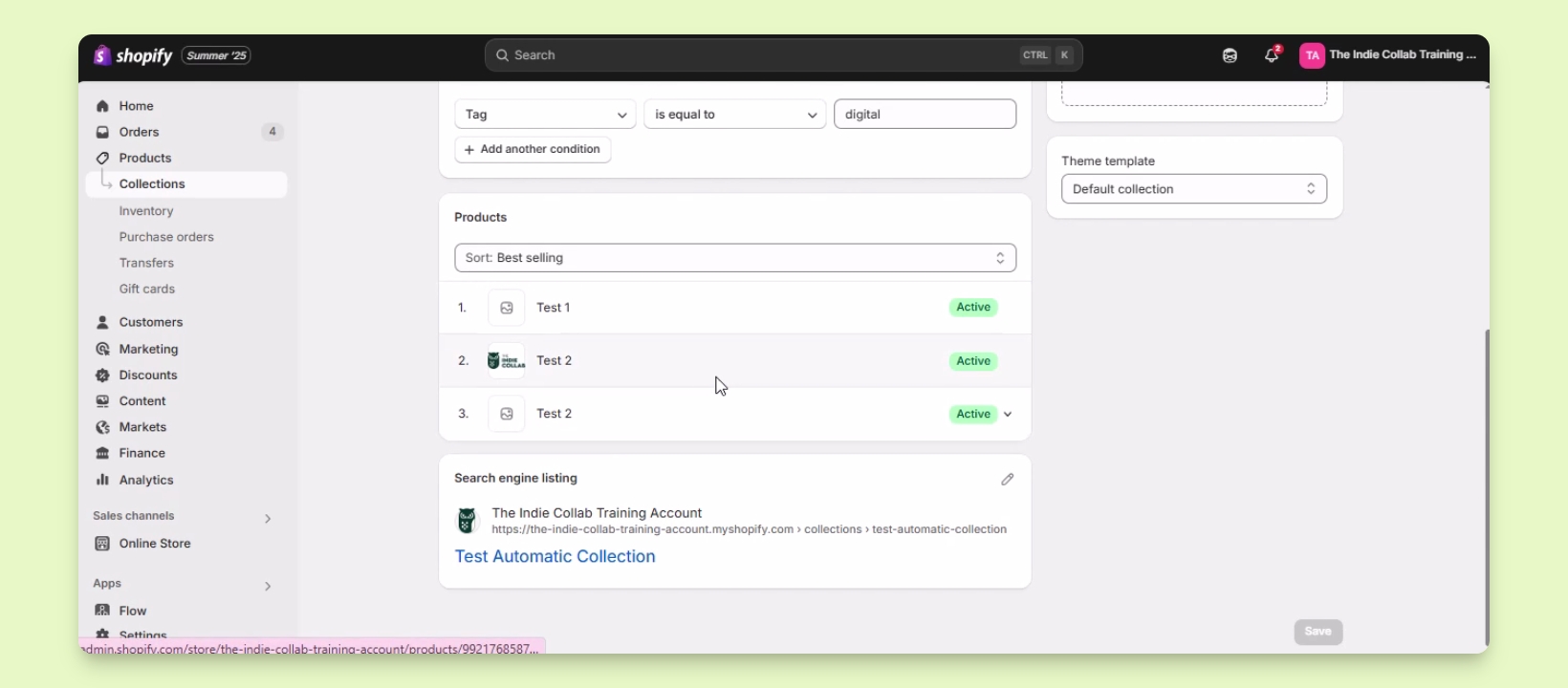
Select the automatic collection you wish to manage.
Check the condition set for the collection (e.g., tag is equal to digital).
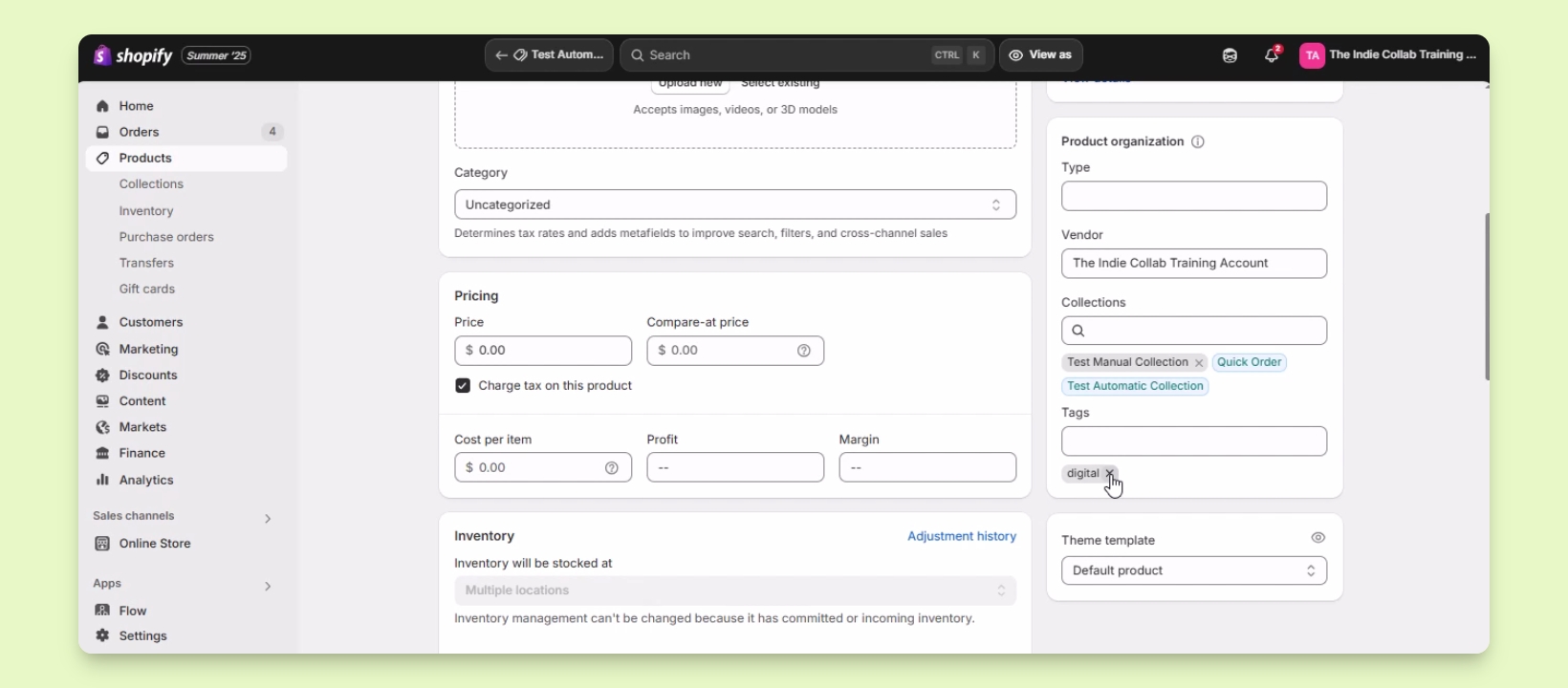
To remove a product, ensure it does not meet the condition by removing the specified tag.
For example, select the product and remove the digital tag.
The product will be removed from the automatic collection once the tag is deleted.
Step 4: Add Products to an Automatic Collection
To add a product to the automatic collection, ensure it meets the set conditions.
Add the required tag (e.g., digital) to the product.
Once added, check the automatic collection to confirm the product has been included.
The product will appear in the automatic collection if it meets the condition.