
TL;DR
1
Access Online Store
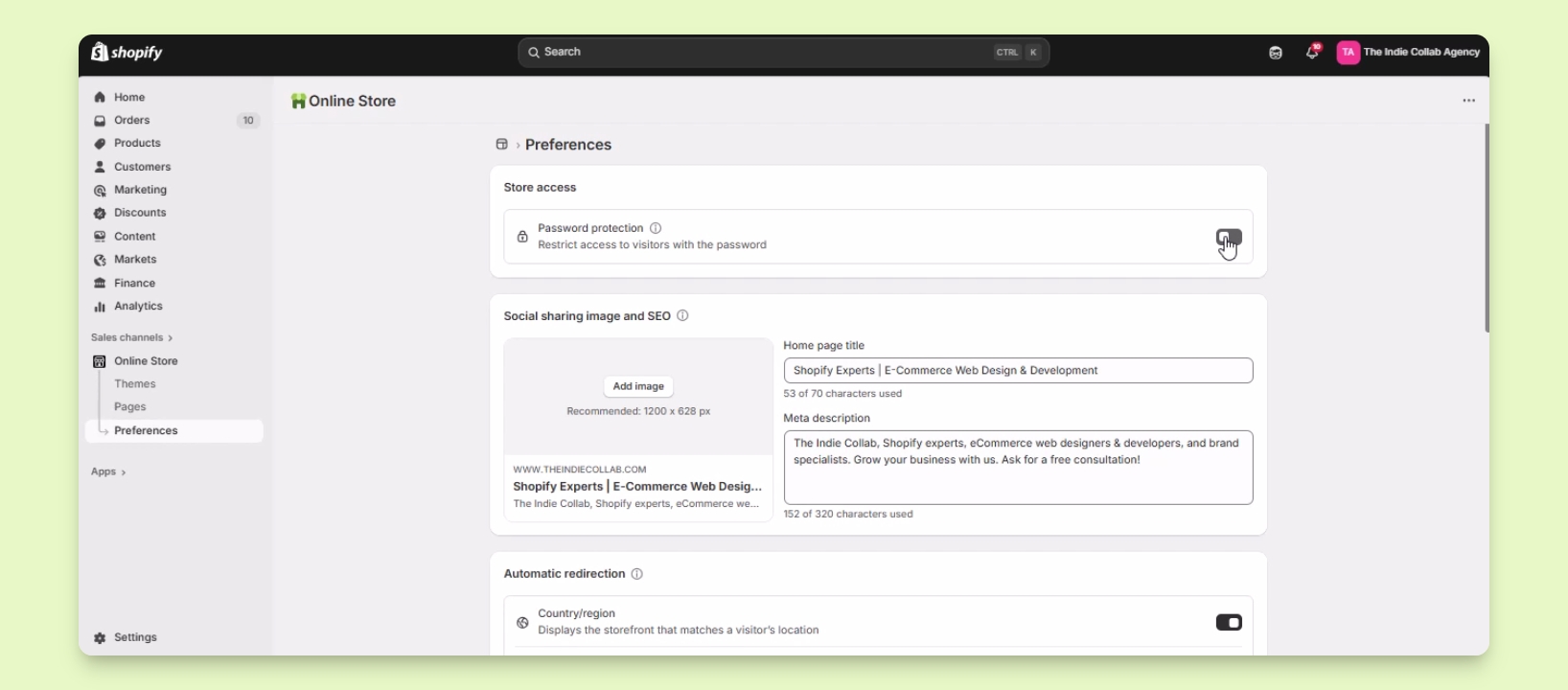
Log into Shopify and navigate to Online Store > Preferences.
2
Enable Password Protection
Toggle on Password Protection and set a password and message.
3
Save Your Changes
Click Save to apply the password protection settings.
4
Disable When Needed
Toggle off Password Protection to remove it.
Let's Do It Together!
Step 1: Access Online Store Settings
Log into your Shopify account.
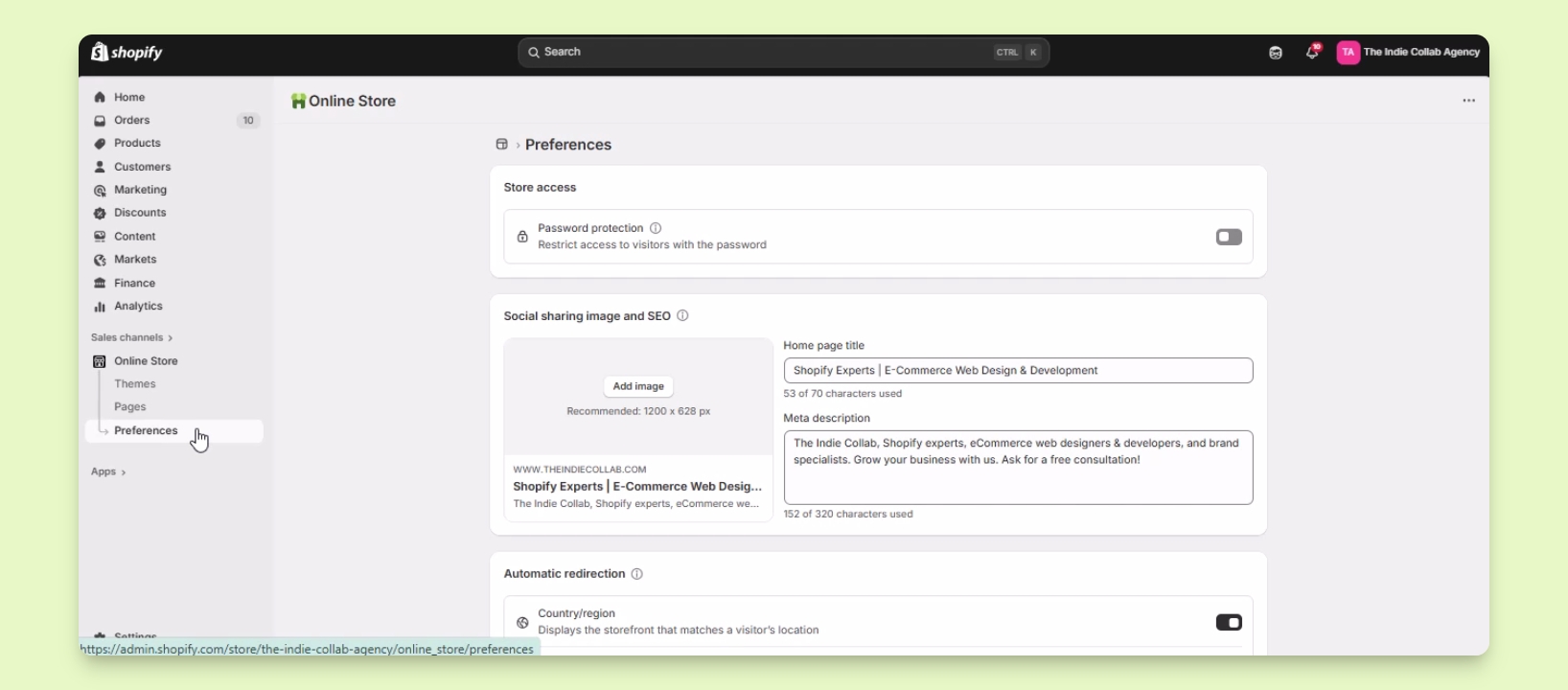
Navigate to Online Store under Sales Channels and click it.
Click on Preferences in the Online Store settings.
Step 2: Enable Password Protection
Locate the Store Access section.
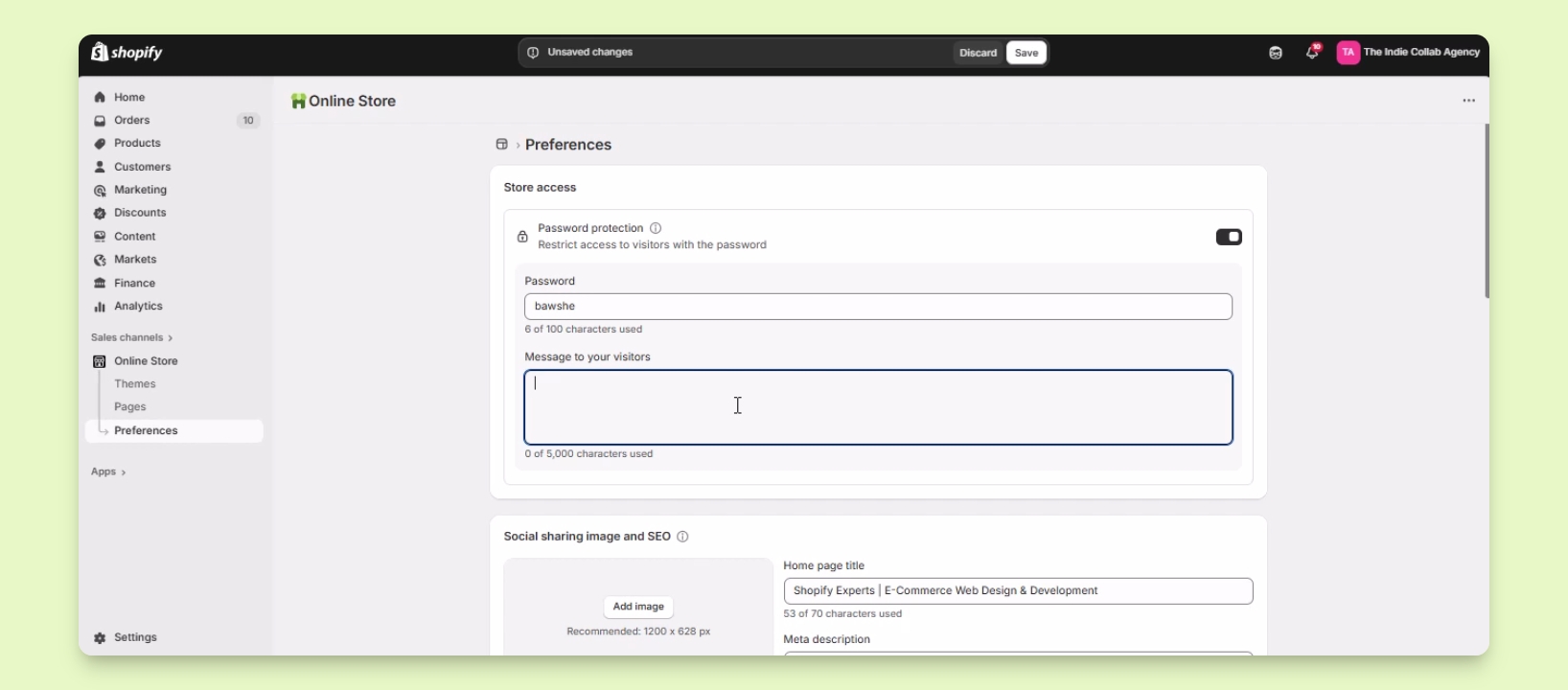
Toggle the option for Password Protection to enable it.
Enter the desired password for customers or staff to access the site.
Set a message for visitors explaining the password protection, like Coming Soon.
Step 3: Save Changes
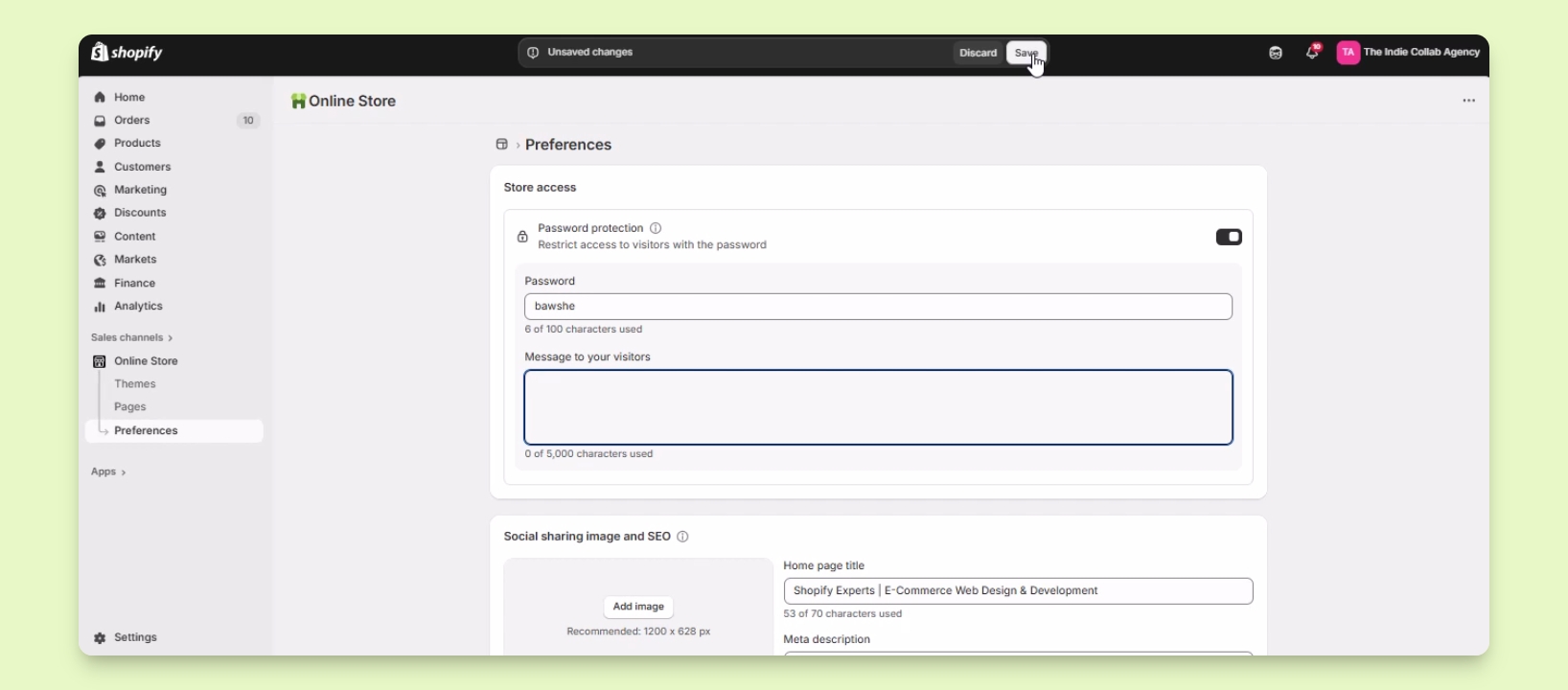
Click the Save button to apply your changes.
Step 4: Disable Password Protection
To disable password protection, toggle the option off.
Password protection will be disabled, allowing full access to your store.