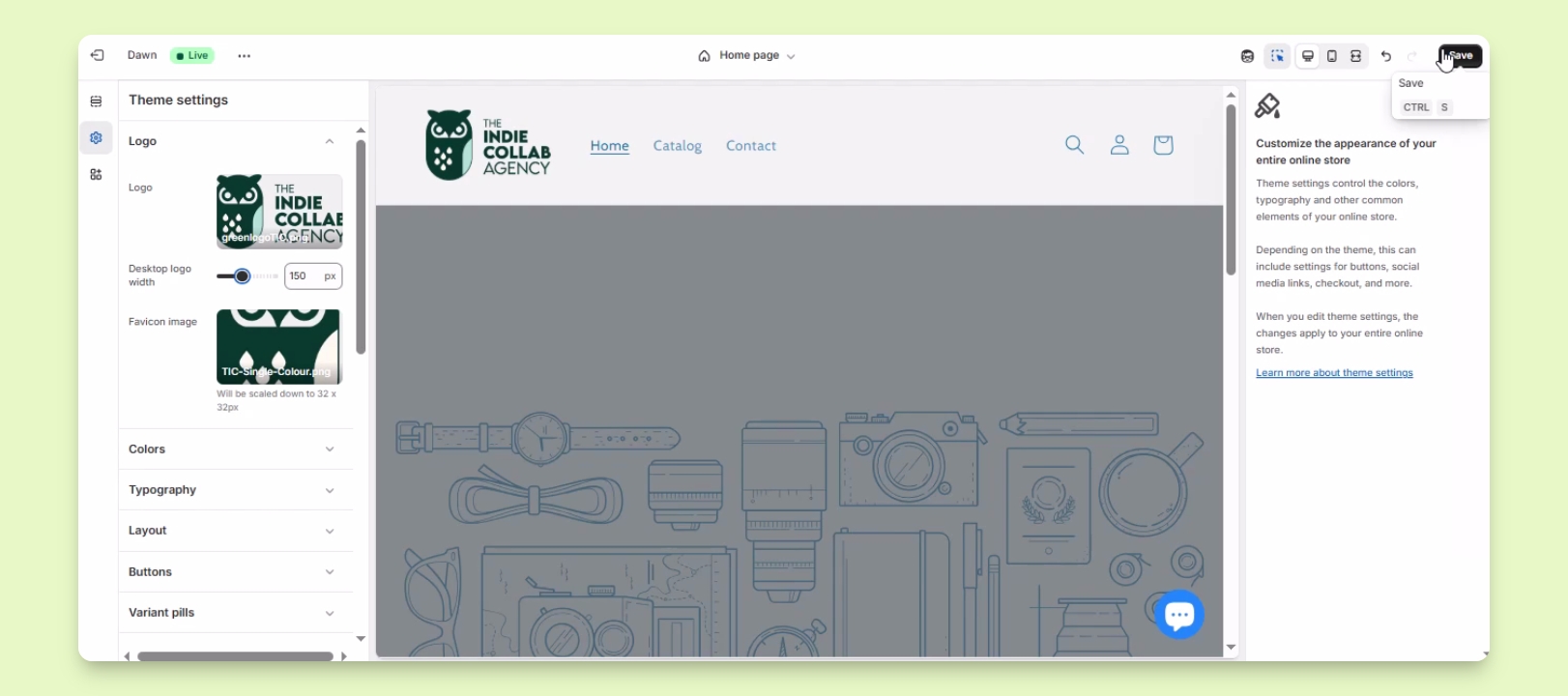

TL;DR
1
Log into Shopify
Access your Shopify account and navigate to Online Store.
2
Open theme editor
Select the live theme and click Customize.
3
Edit font colors
Go to theme settings and adjust typography settings.
4
Update logo
Change logo and its size in the colors section.
5
Save changes
Click save to apply all modifications.
Let's Do It Together!
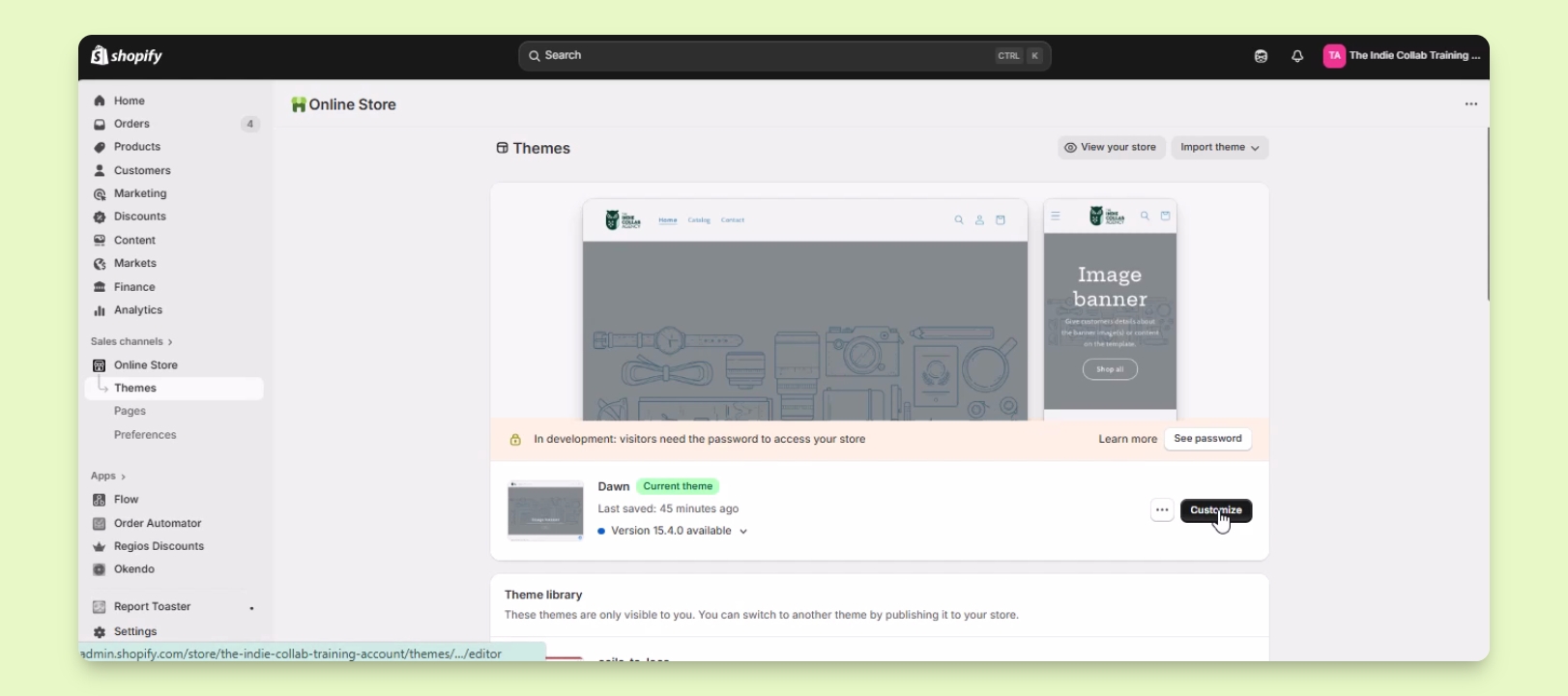
Step 1: Access Theme Editor
Log into your Shopify account.
Under Sales Channels, click on Online Store.
Select the theme you want to edit.
Click on the Customize button beside the live theme.
You will be redirected to the theme editor.
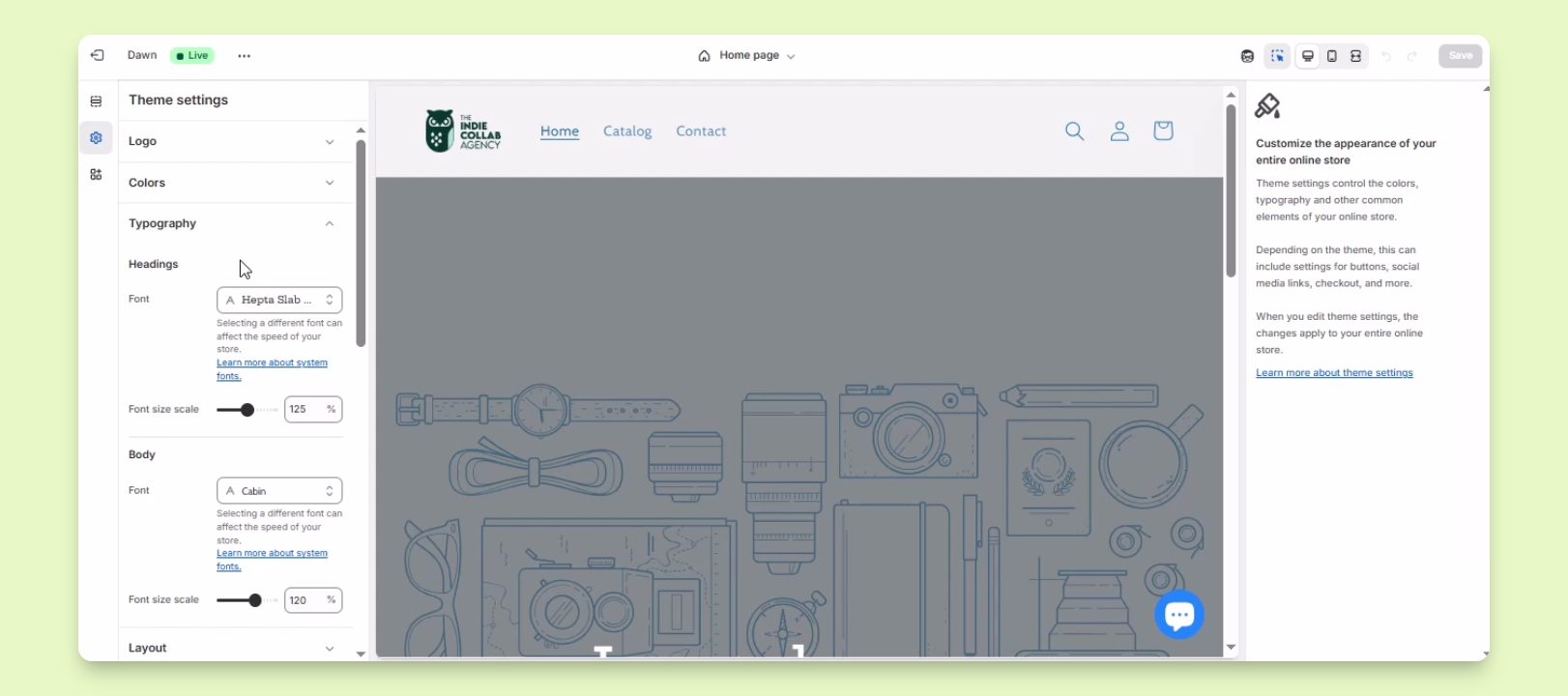
Step 2: Change Font Size and Style
In the theme editor, find the gear icon for theme settings on the left side.
Click on the gear icon.
Under theme settings, select typography.
Edit the font settings for headings and body text, including font size.
Your font size and styles are now updated.
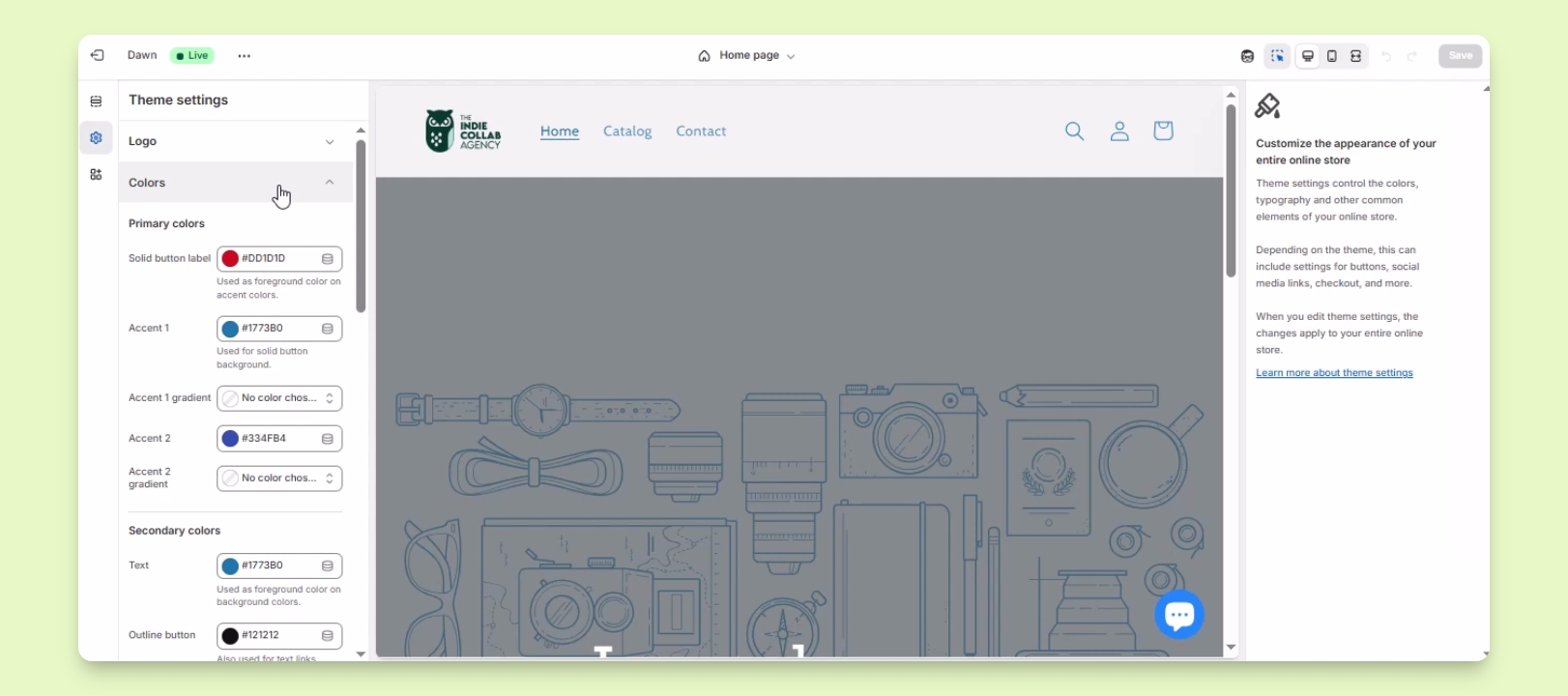
Step 3: Change Logo
Still in theme settings, click on the colors drop down.
Change the color of your website and click on the logo drop down.
Edit your current logo and adjust the size as desired.
Your logo is now updated as per your preferences.
Step 4: Save Changes
Don't forget to click the save button to apply your changes.