
TL;DR
1
Access Orders
Log in and click on Orders to see your list.
2
Select Order
Choose the order set for local pickup.
3
Mark as Ready
Confirm the order is ready and click Ready for pickup.
4
Fulfill Order
After pickup, mark the order as fulfilled.
Let's Do It Together!
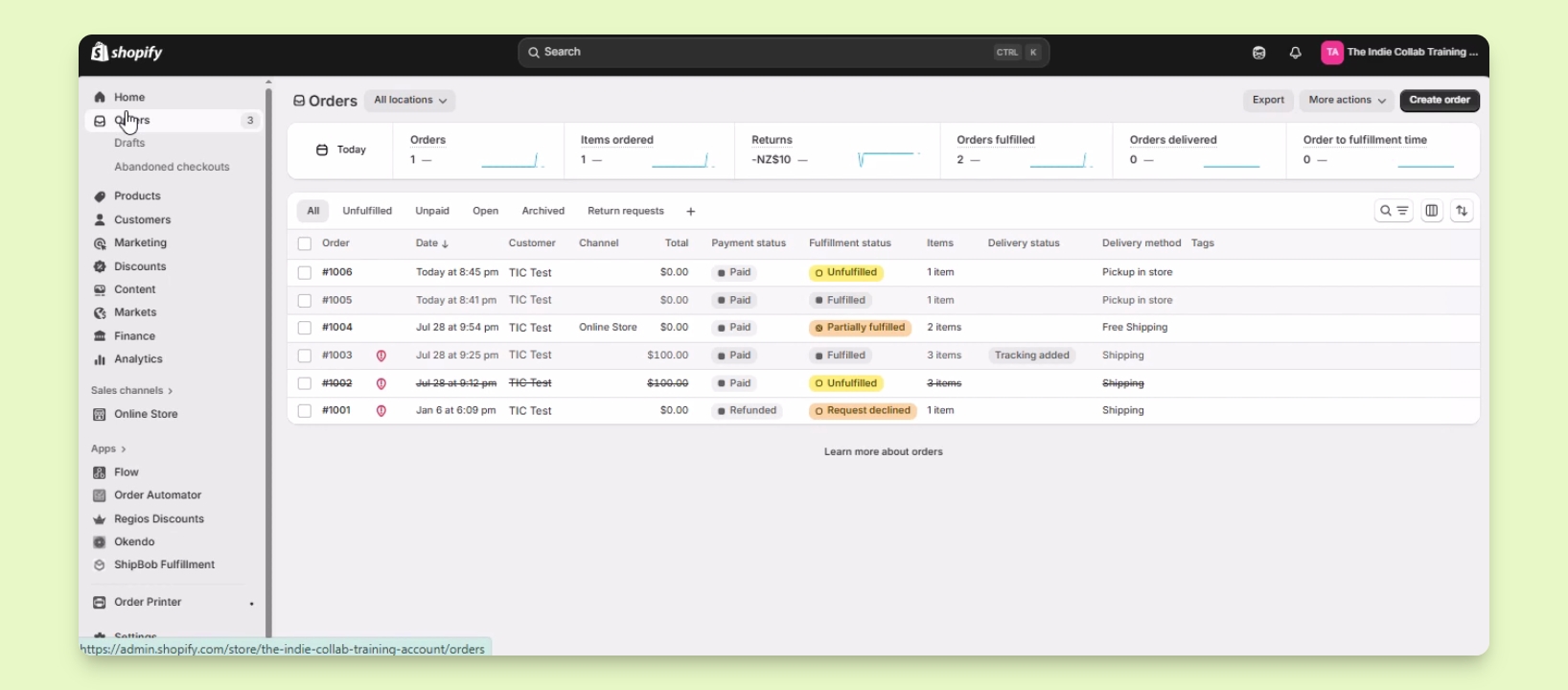
Step 1: Access Your Orders
Log in to your Shopify account.
Click on Orders to view your order list.
You will see the list of orders in your Shopify account.
Step 2: Select the Order
Find and select the order set up for local pickup.
For example, select Order 1006 which is marked for pickup.
You will be taken to the order details page.
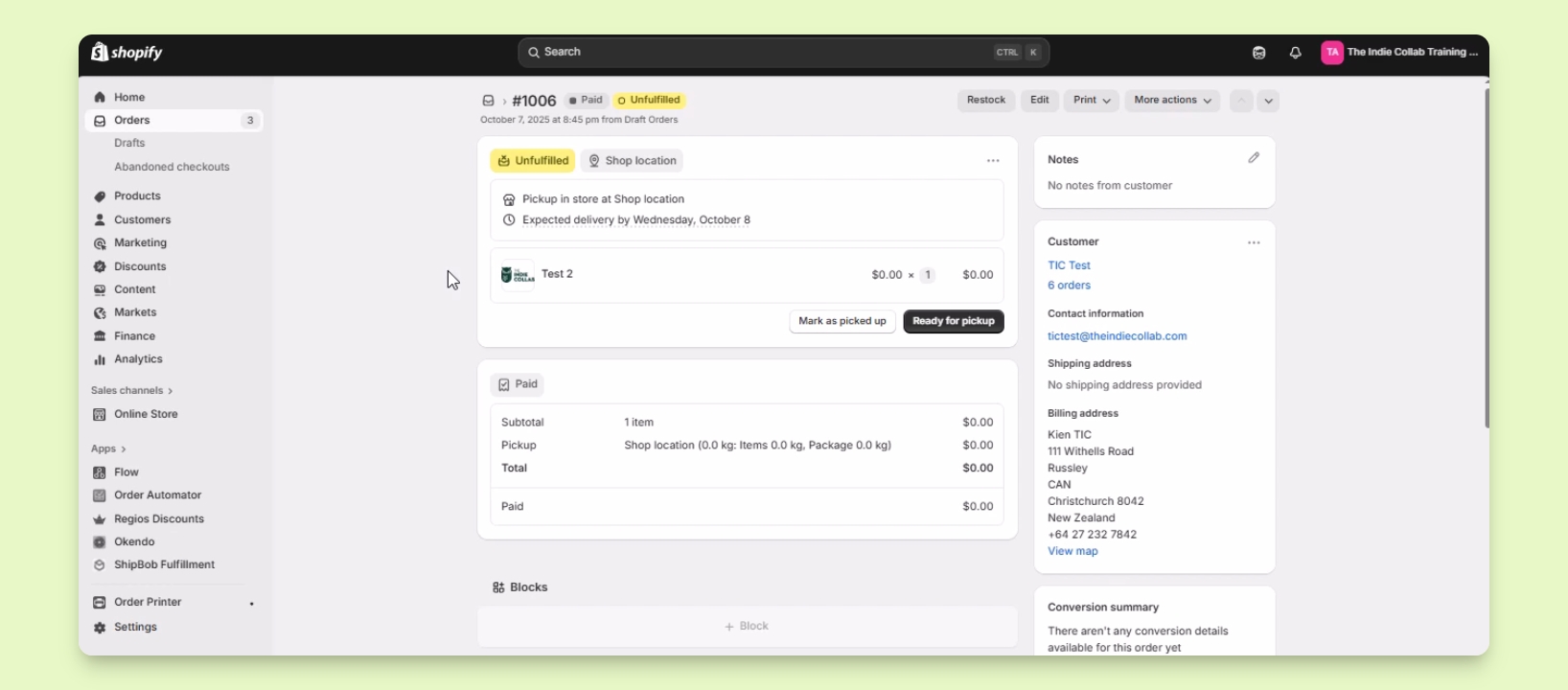
Step 3: Mark Order as Ready for Pickup
Confirm that the customer's order is ready for pickup.
Click on Ready for pickup button.
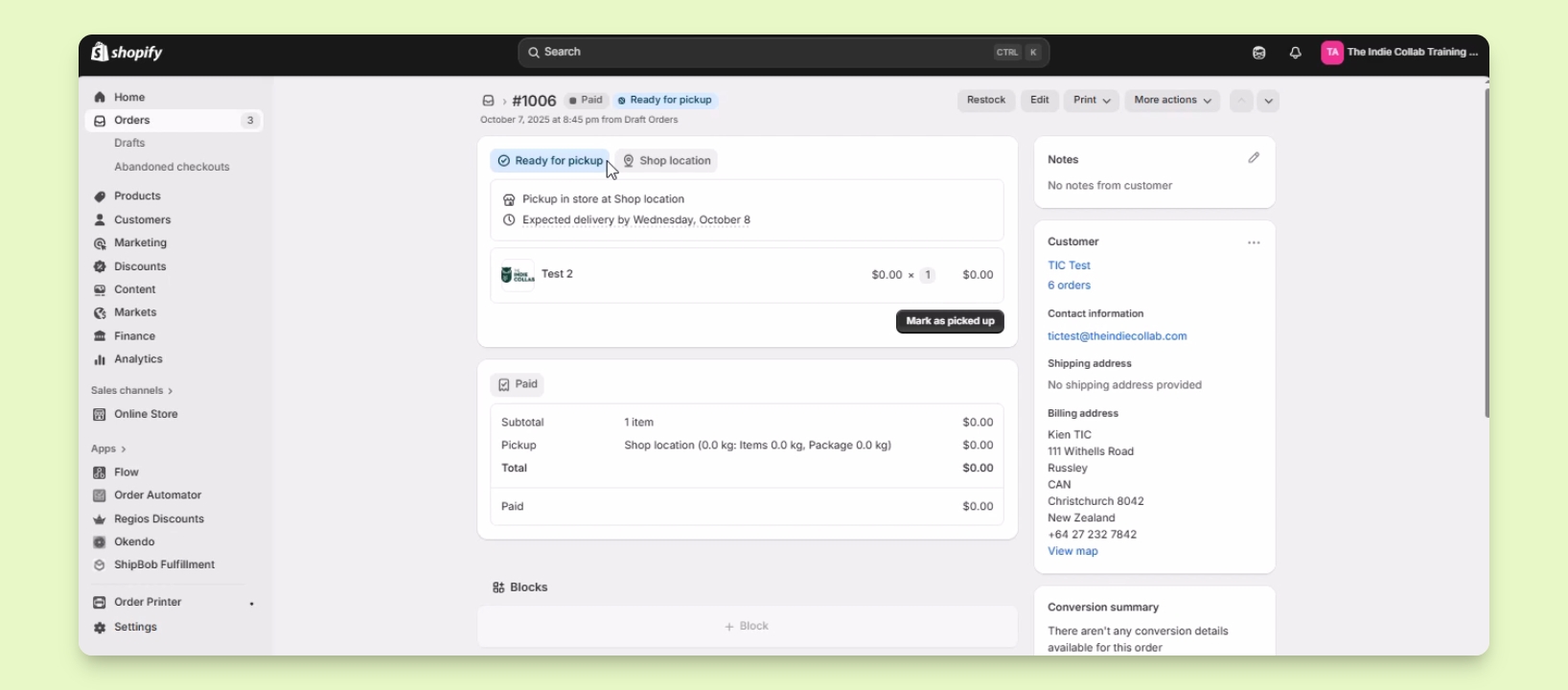
Edit the expected pickup time if necessary.
The order status will now show as ready for pickup.
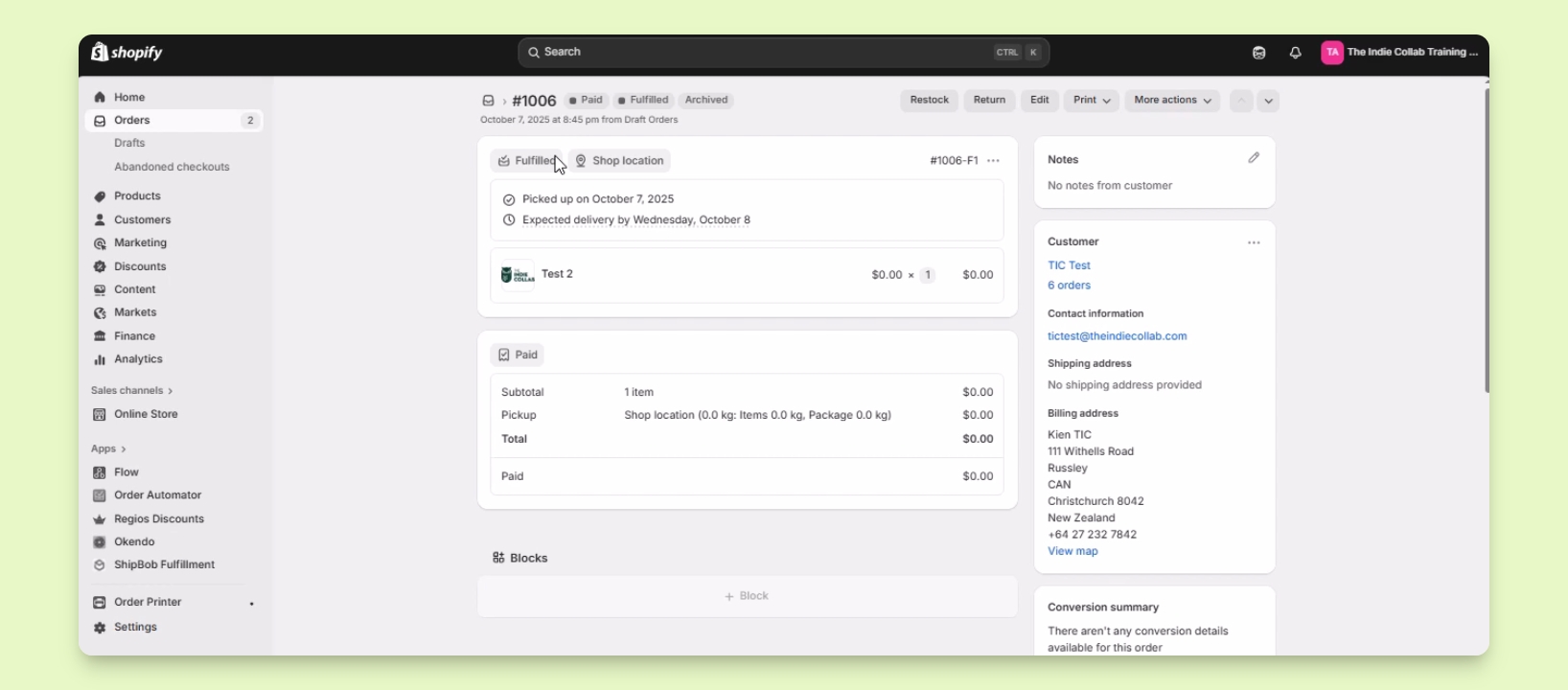
Step 4: Fulfill the Order
Once the customer picks up their order, return to the order.
Click on Mark as pickup to fulfill the order.
The order status will now indicate that it is fulfilled.