
Product Management

Manage Inventory

Manage your inventory quantities and tracking for products in Shopify.

Last updated on 23 Feb, 2026

TL;DR

1
Access Products
Navigate to Products in Shopify admin to manage inventory.
2
Enable Tracking
Select products and enable inventory tracking in Bulk Editor.
3
Edit Quantities
Adjust inventory quantities for products in the Bulk Editor.
4
Save Changes
Click Save to apply your inventory updates.

Let's Do It Together!

Step 1: Turn on Inventory Tracking

  1. Go to Products in your Shopify admin.

  2. Check the box beside the items you want to work on.

  3. After selecting, click on Bulk edit.

  4. In the bulk editor, click the Columns button on the upper right.

  5. Scroll down and check the Track quantity column.

  6. Check the box beside the product that needs inventory tracking.

  7. For example, check the box for Test Bundle.

  8. Press the Save button on the upper right.

Now, inventory tracking is enabled for the selected products.
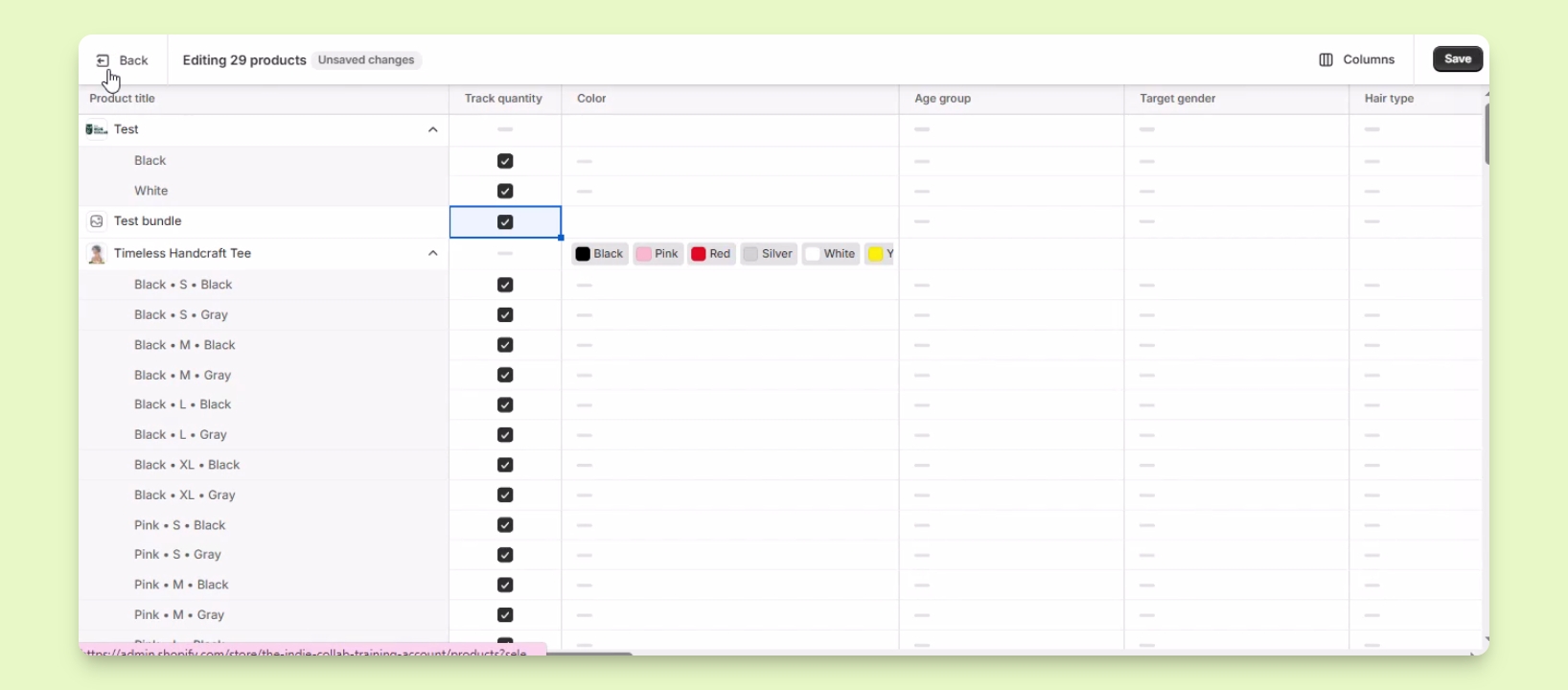
Snapshot

Step 2: Edit Inventory Quantities

  1. In the bulk editor, look for Inventory under the product settings.

  2. Click on Inventory to select a location.

  3. Search for the product you want to adjust, like Test Product.

  4. Adjust the number of available items for a specific color, such as White.

  5. Enter the new number in the field and it will adjust the On Hand inventory accordingly.

  6. Once done, click the Save button.

Your inventory quantities are now updated in Shopify.
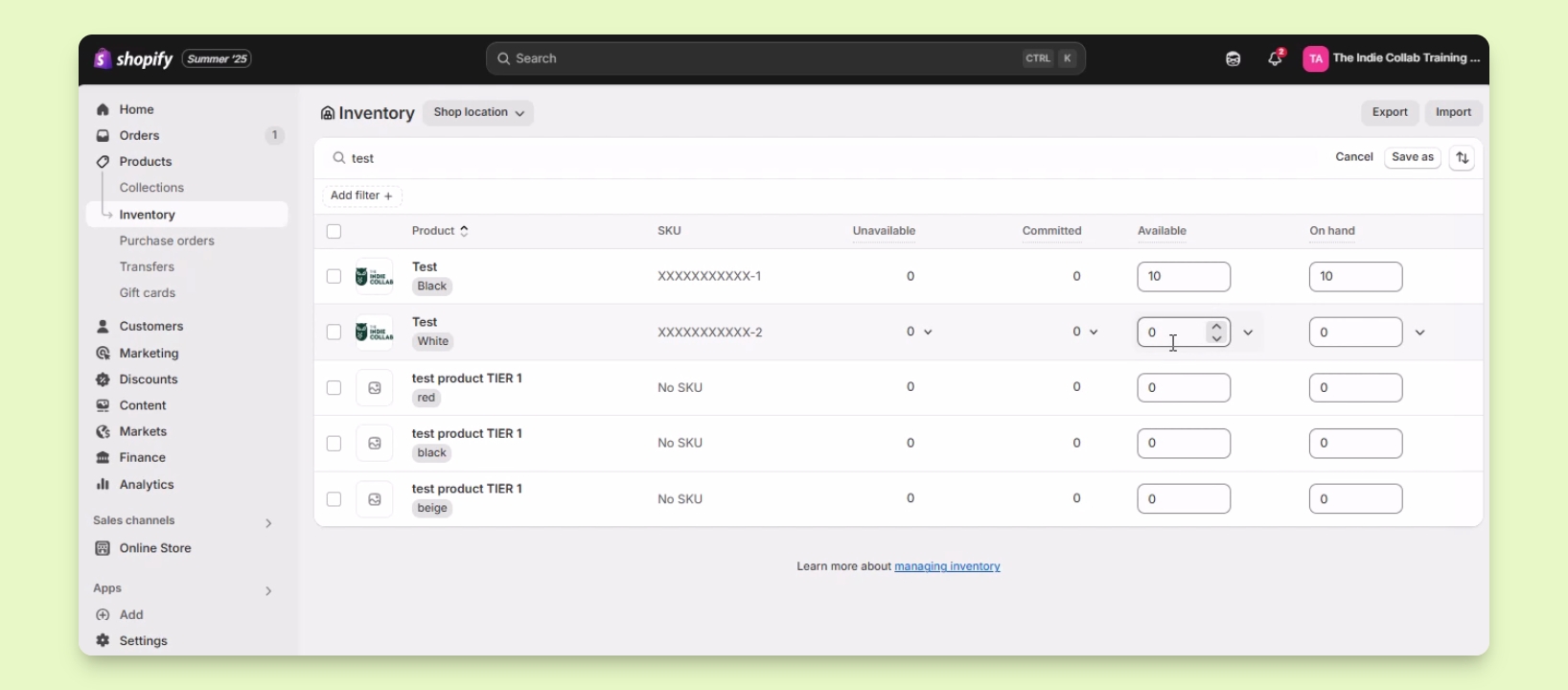
Snapshot

Troubleshooting

Unable to find a product
Ensure the product exists and is listed under your inventory.
Changes not saving
Check your internet connection and try saving again.

FAQ

What is inventory tracking?
It's a method to keep track of stock levels for products.
How do I adjust inventory levels?
Use the Bulk Editor to change available quantities.

Was this page helpful?
Previous

Add or Edit SKU and Barcodes

Next

Powered by InstantDocs