
TL;DR
Let's Do It Together!
Step 1: Access Your Orders
Log in to your Shopify account.
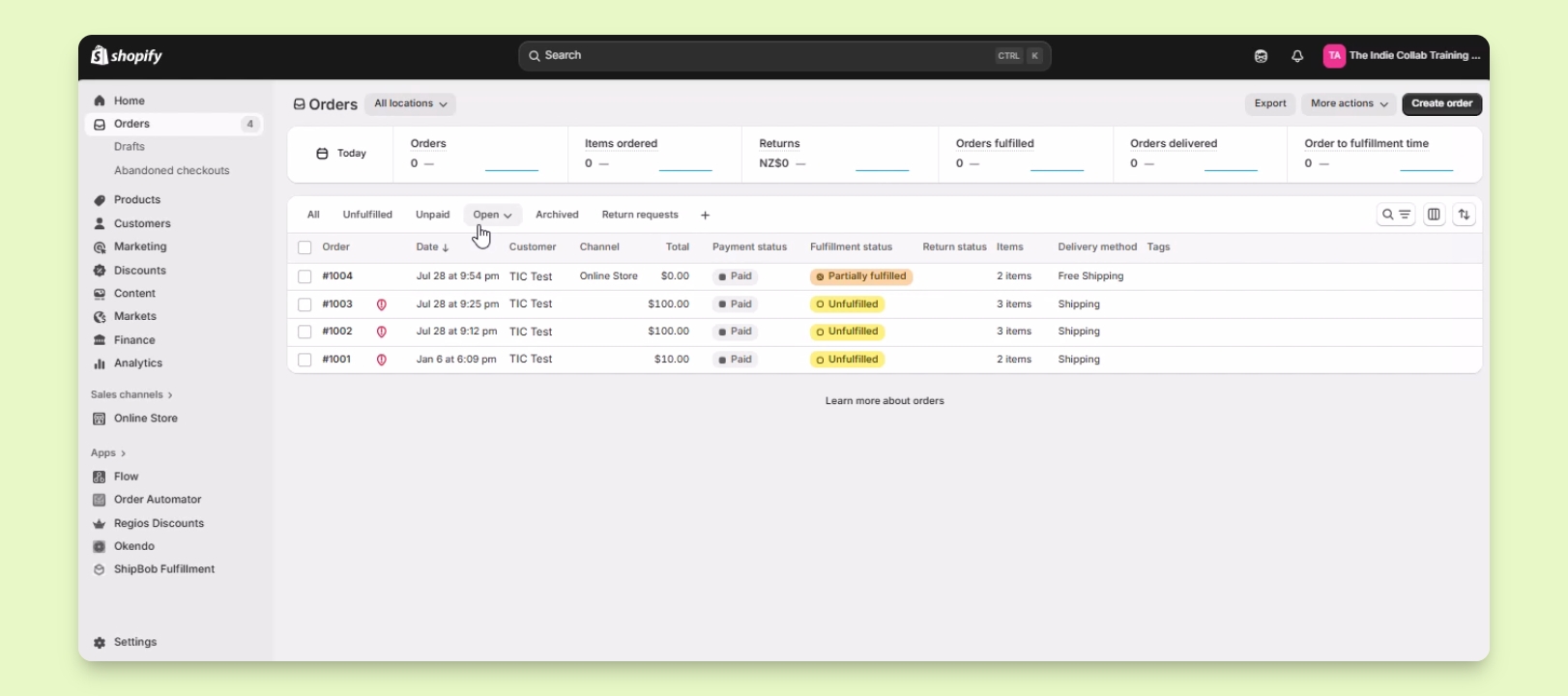
Navigate to Orders and click on Will.
Open the Open section to view unfulfilled orders.
Step 2: Select an Order
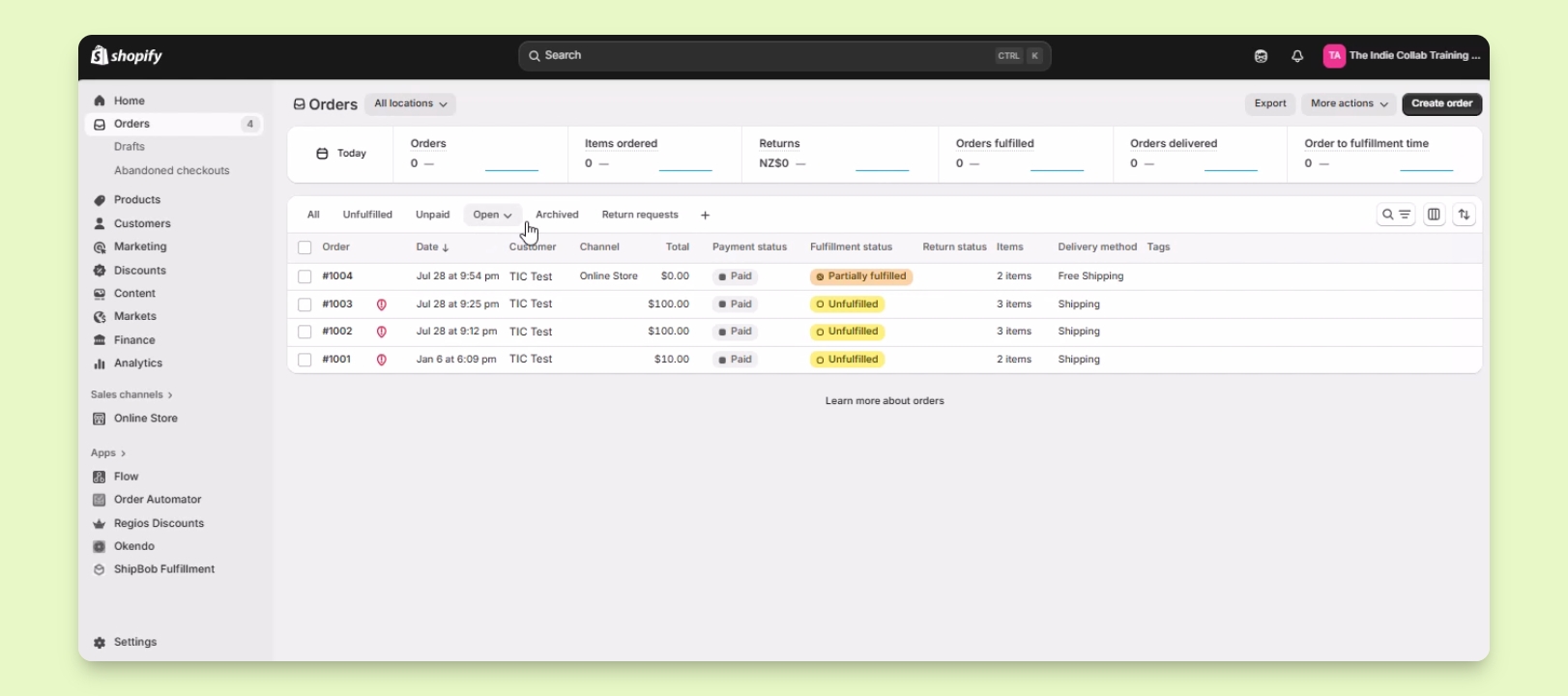
Select an unfulfilled order from the list.
In this example, click on order 1001.
Step 3: Manually Fulfill the Order
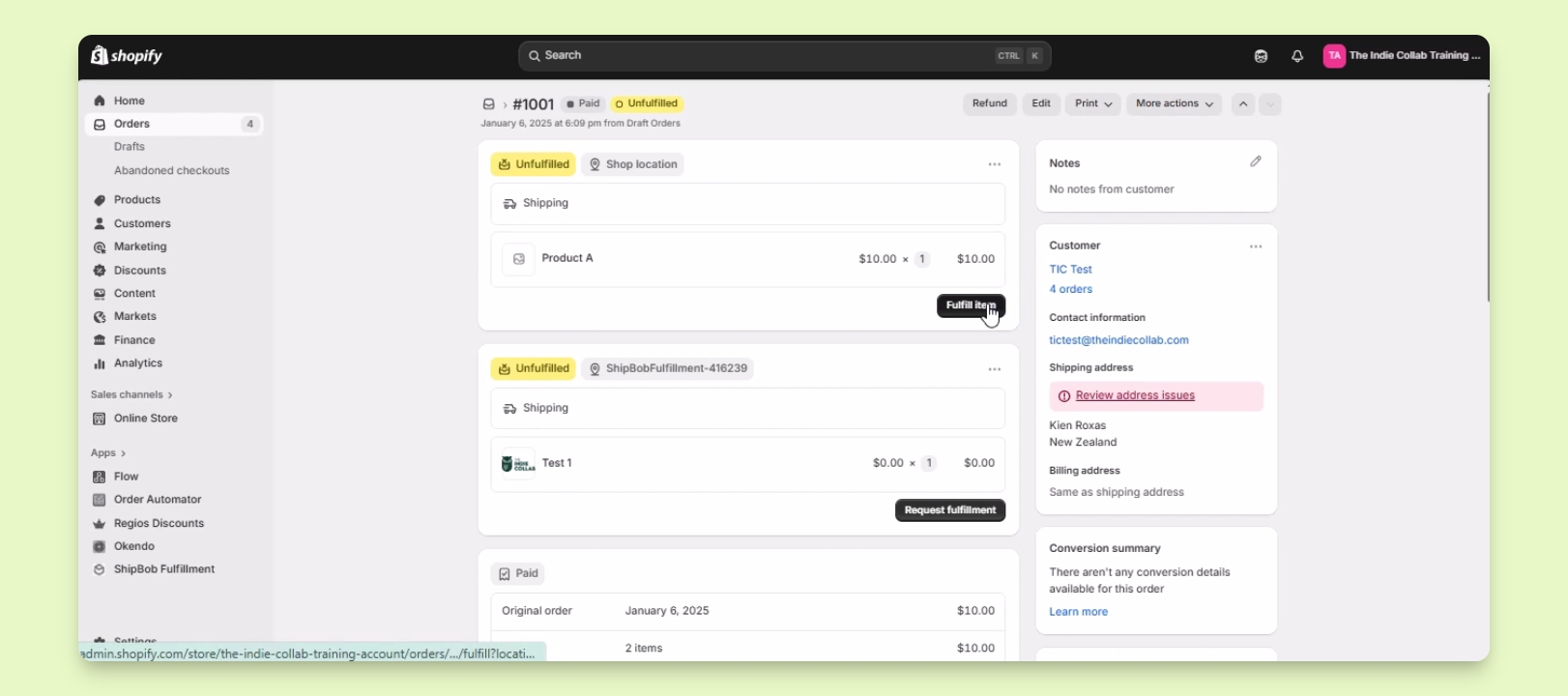
Check if the item can be fulfilled manually.
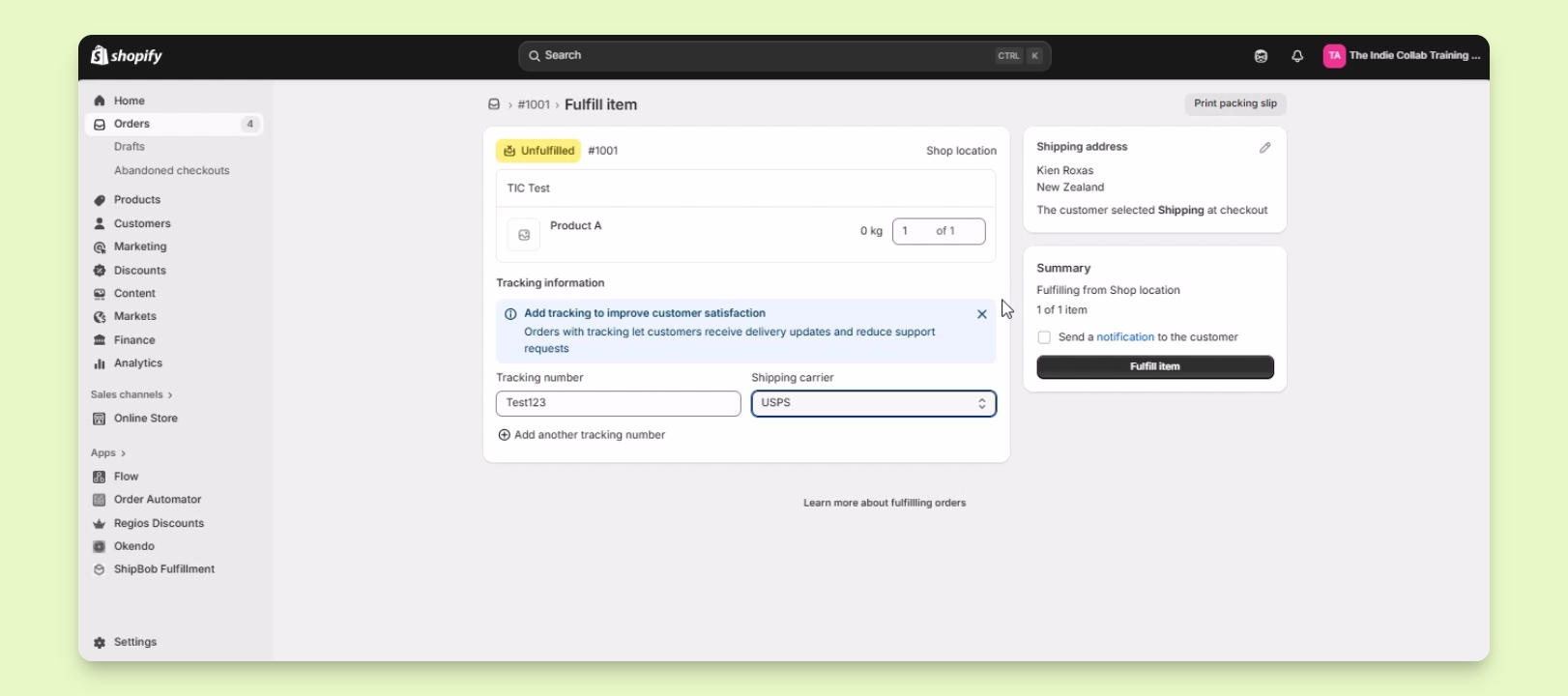
Click the Fulfill item button for the item.
You will be redirected to a page to edit fulfillment details.
Step 4: Edit Fulfillment Details
Edit the quantity and add the tracking number.
Select the Shipping carrier you will use.
If your carrier is not listed, select Other.
Details will help in processing the shipment.
Step 5: Notify Customer
Check the box to send a notification to the customer.
Click Fulfill item to complete the process.
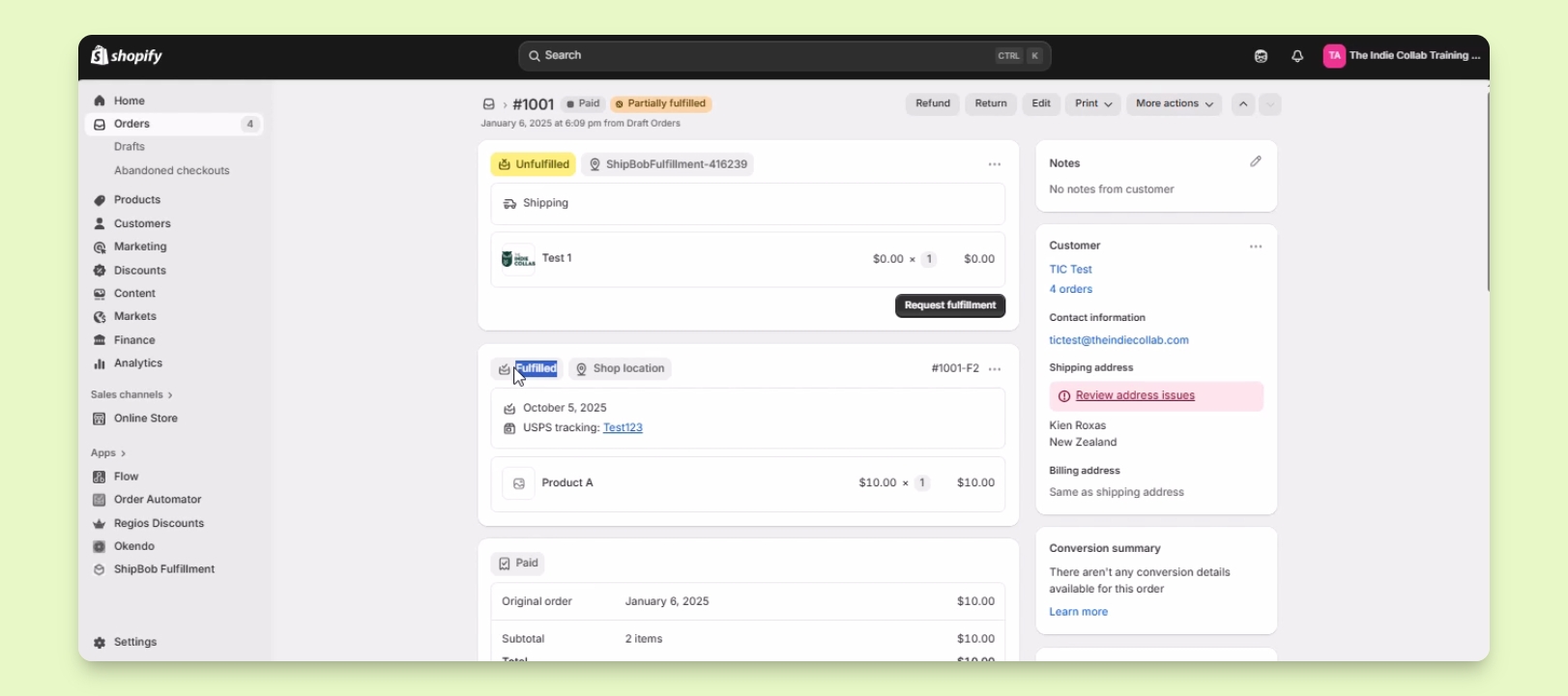
The order is now marked as fulfilled and the customer will be notified.
Step 6: Fulfill Using an App
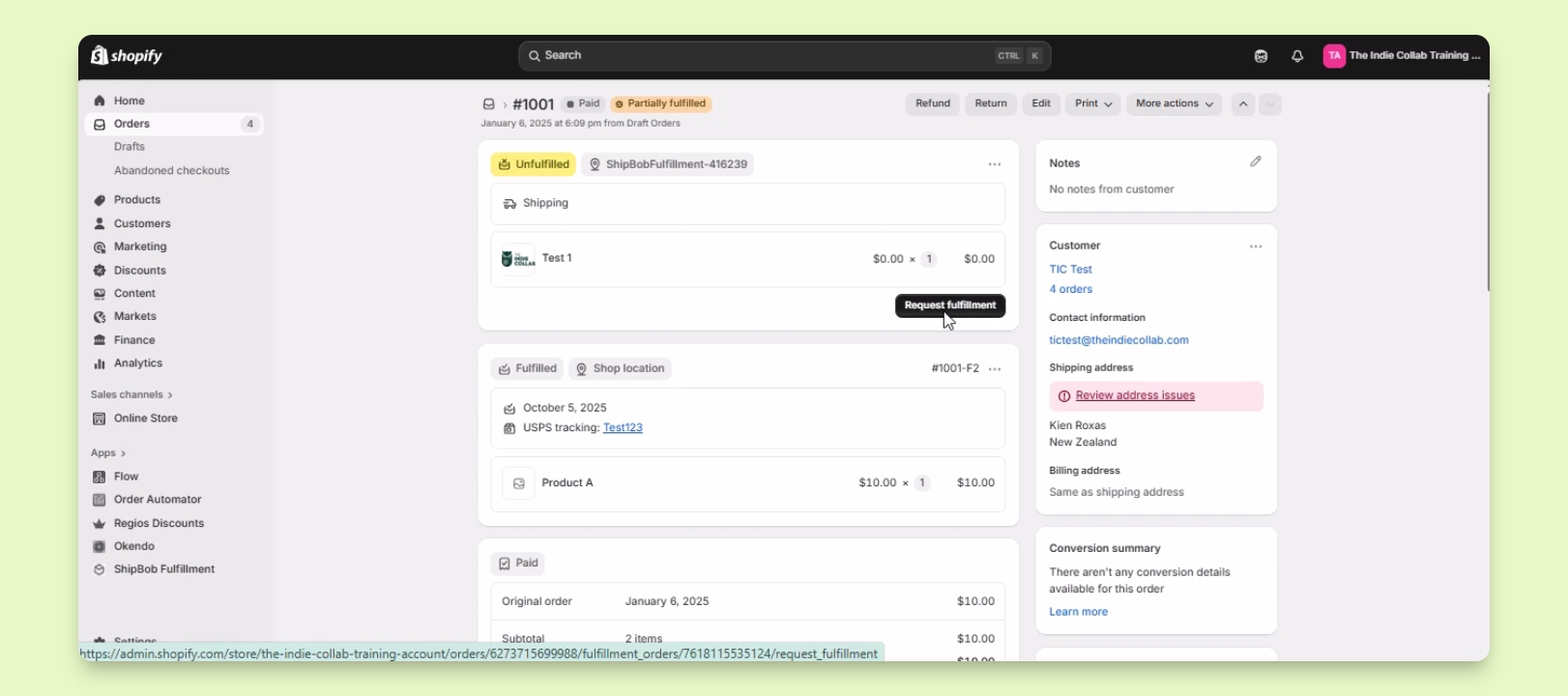
Select a product synced with an app, e.g., Test one.
Click on the Request Fulfillment button.
You will be redirected to edit details for fulfillment through the app.
Step 7: Complete the Fulfillment Request
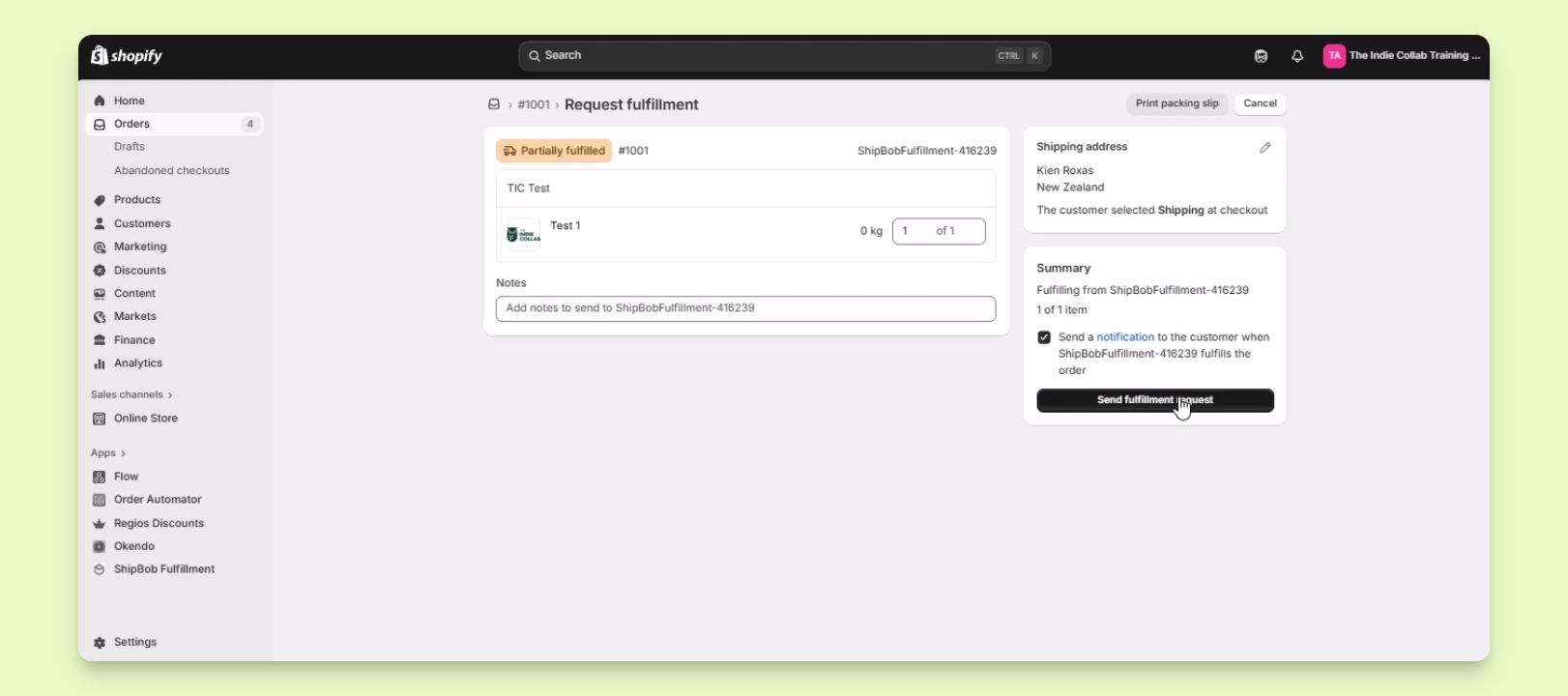
Edit quantity and add any notes for the fulfillment app.
Decide whether to notify the customer.
Click Send Fulfillment Request.
The fulfillment request is sent to the application.
Step 8: Handle Errors
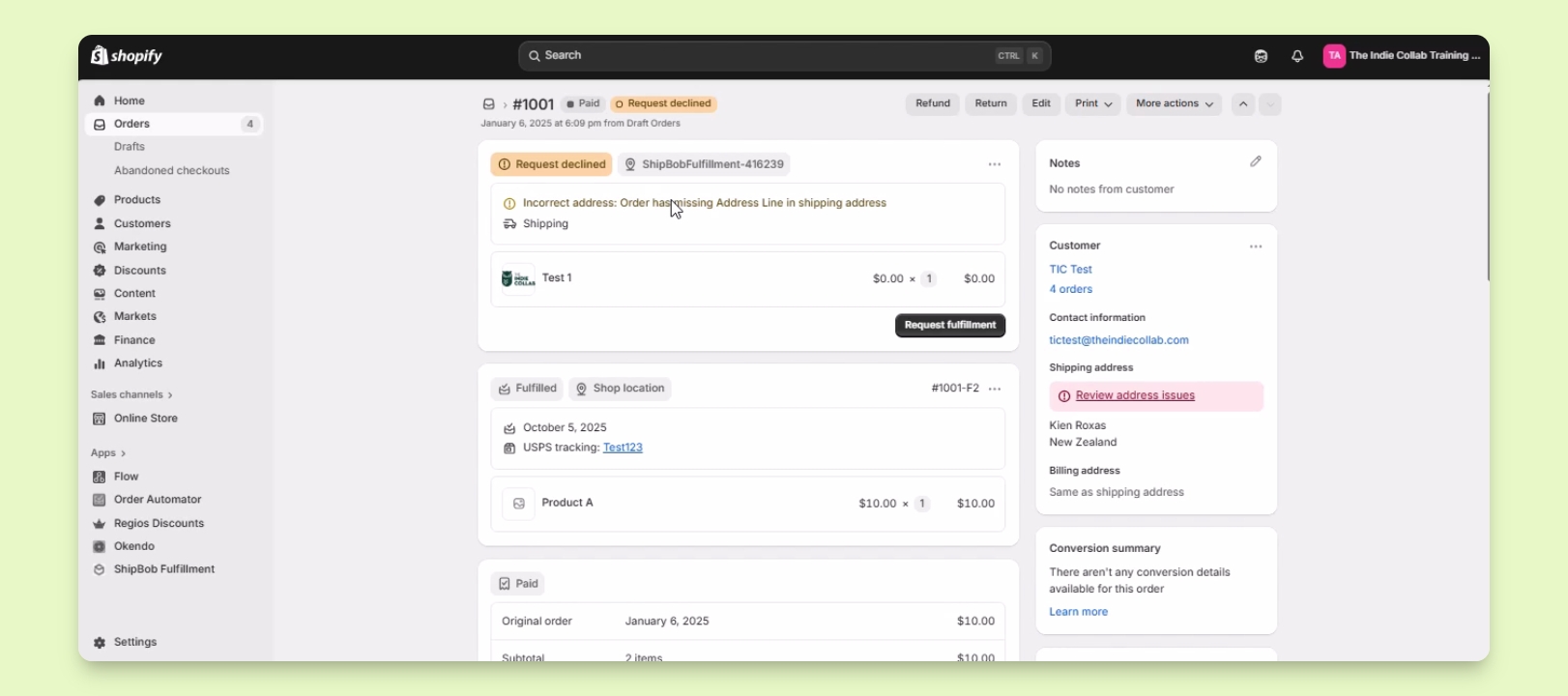
Address any errors that occur during fulfillment.
Make the necessary changes and resubmit the request.