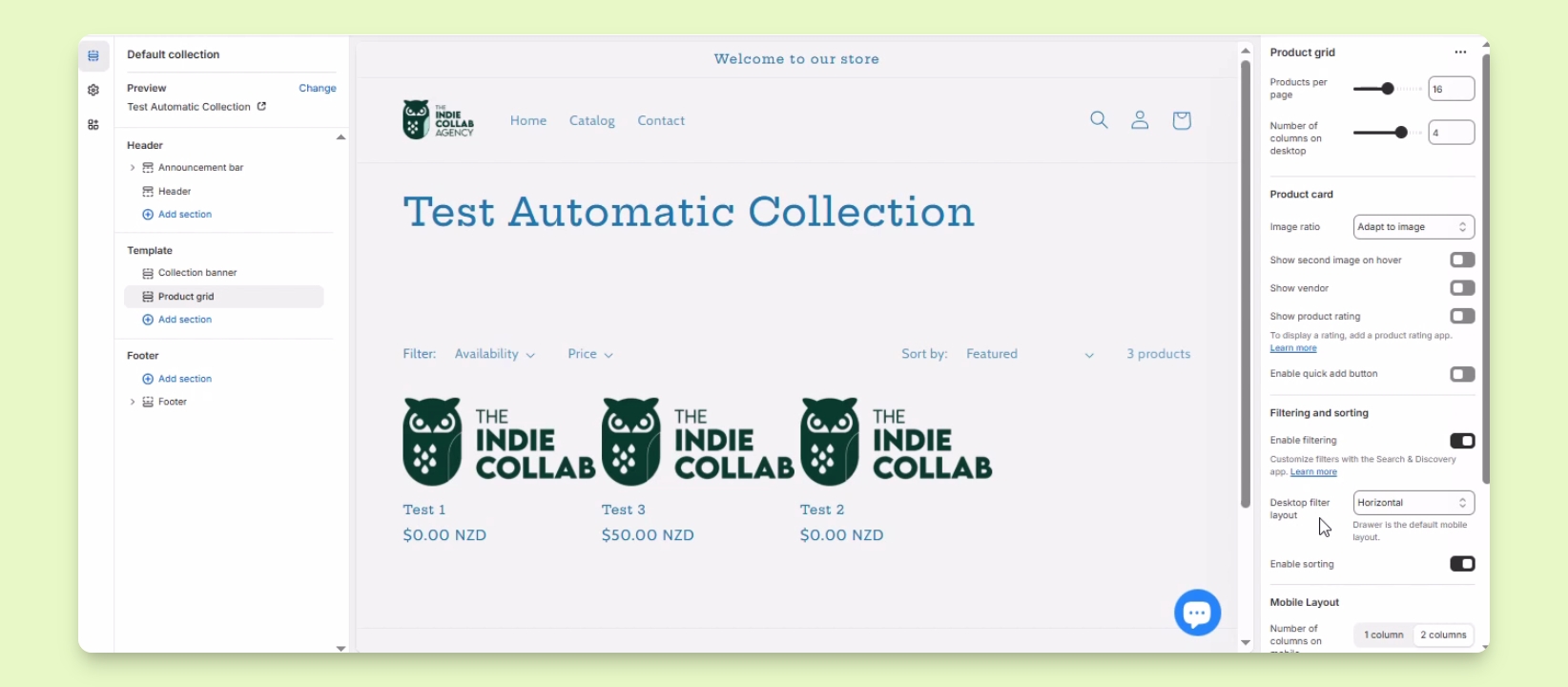

TL;DR
Let's Do It Together!
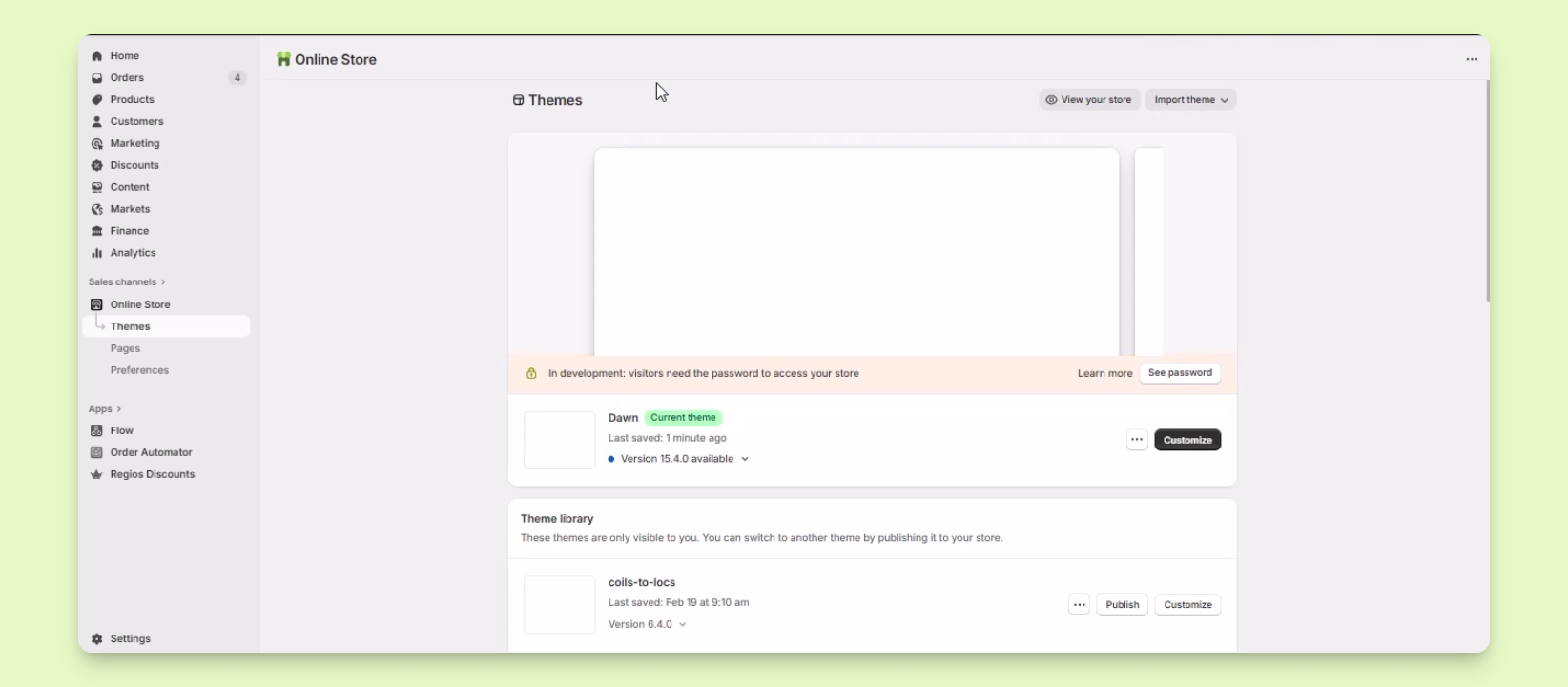
Step 1: Open Online Store
In your Shopify admin, locate Sales channels.
Under Sales channels, click on Online Store.
You will see a list of themes in your Shopify account.
Step 2: Customize Theme
Click on the customize button next to the theme you want to work on.
In this video, we will select the live theme.
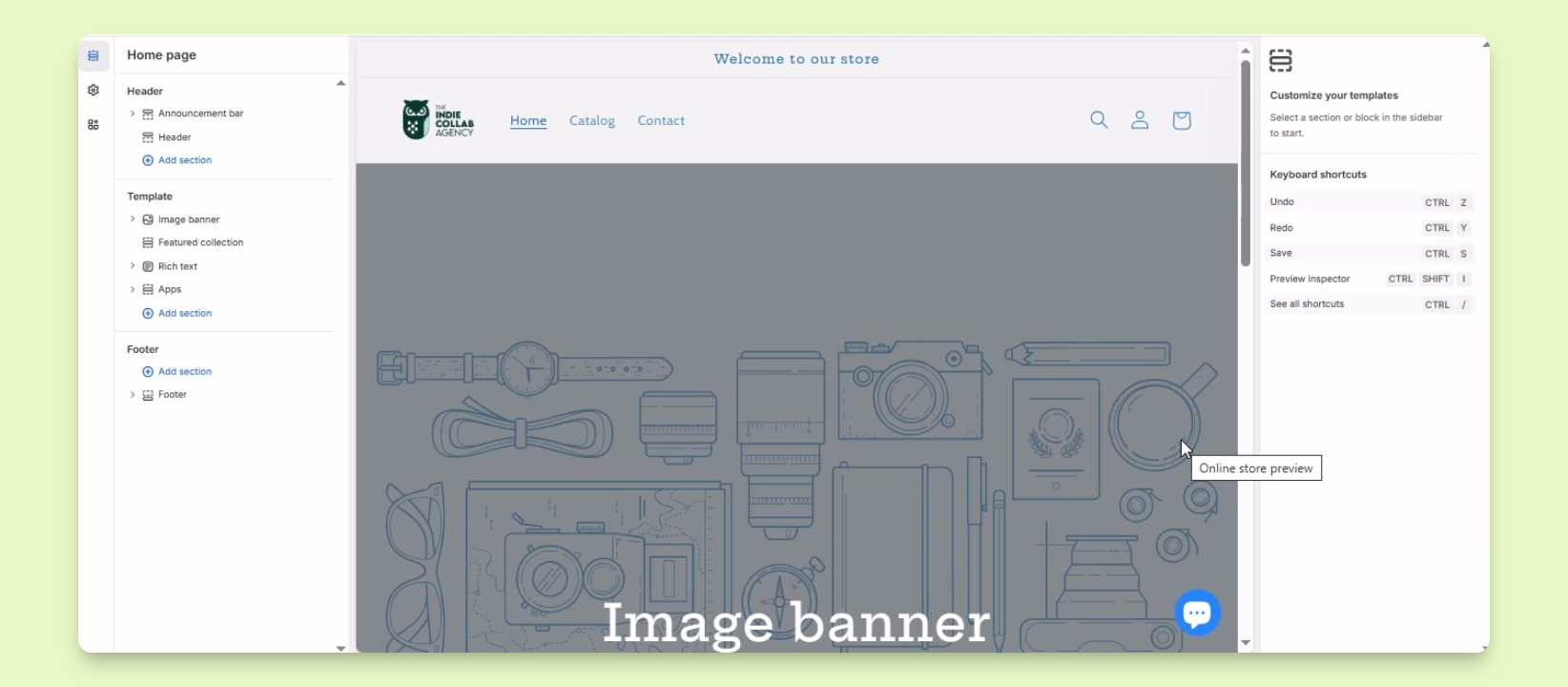
You will be redirected to the theme editor page.
Step 3: Select Collections
In the theme editor, find the drop-down menu at the upper middle part that says homepage.
Click on it and select collections.
Then select the collection page you need to edit.
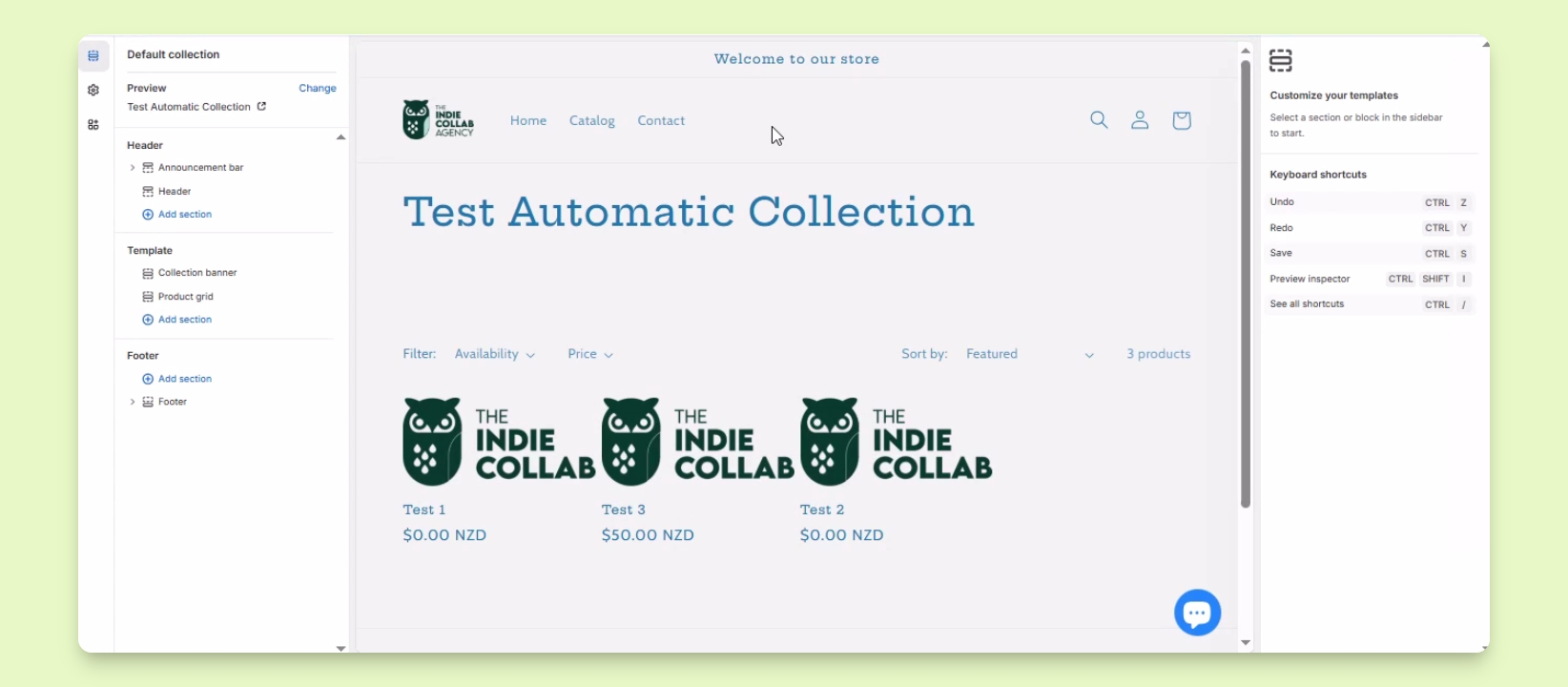
You will be directed to the page for editing the collection template.
Step 4: Edit Collection Template
You can add new sections or edit existing sections in the collection.
Options may vary based on the theme, but most themes allow enabling filtering and sorting.
Other options may include adjusting image sizes and adding helpful information for customers.