

TL;DR
Let's Do It Together!
Step 1: Access Orders
In your Shopify admin, click on Orders.
You will see a list of your orders in your Shopify account.
Select an order from the list to proceed with creating a shipping label.
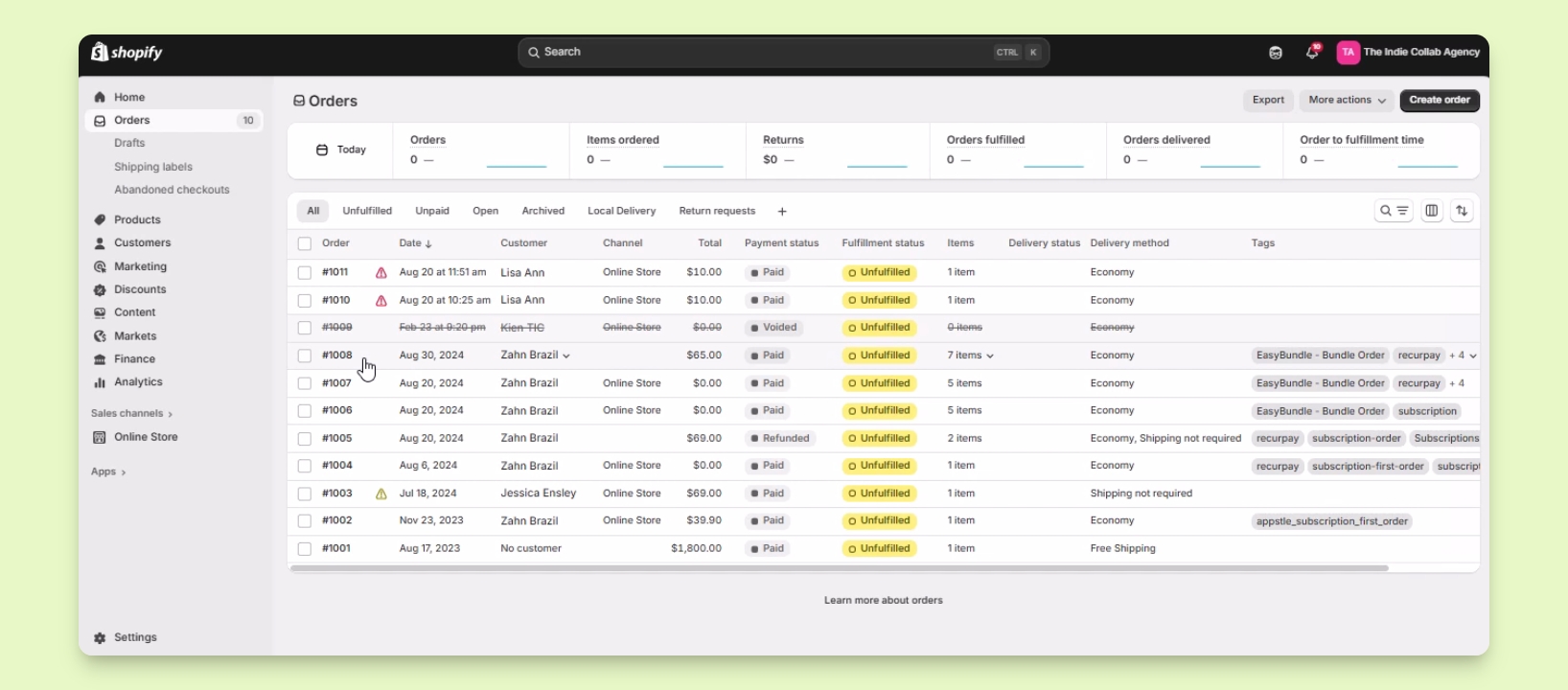
Step 2: Select Order
Click on the order number you want to work with.
Ensure the order has items that can be fulfilled with a shipping label.
The option to create a shipping label will become available.
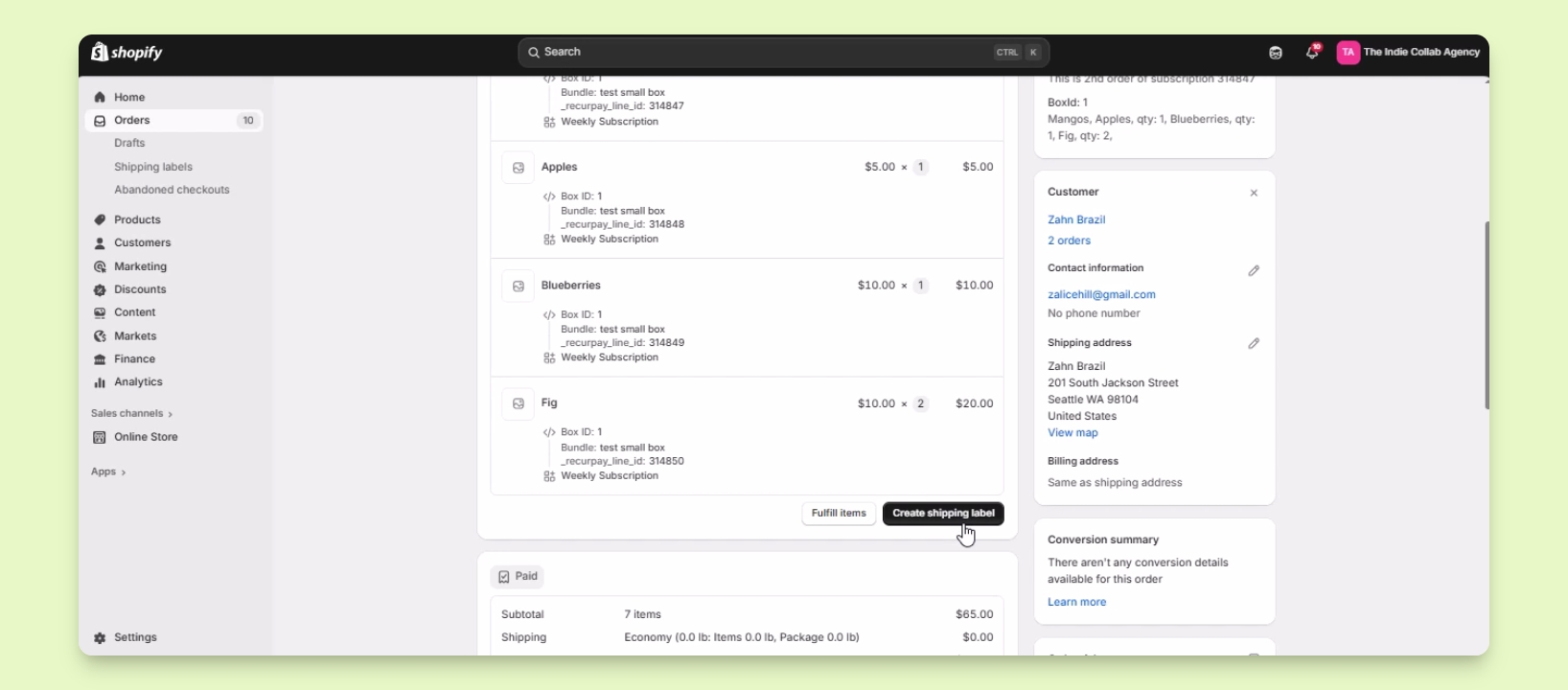
Step 3: Create Shipping Label
Click on Create Shipping Label.
Select the products that need to be fulfilled with the shipping label.
Adjust the quantity and package dimensions as required.
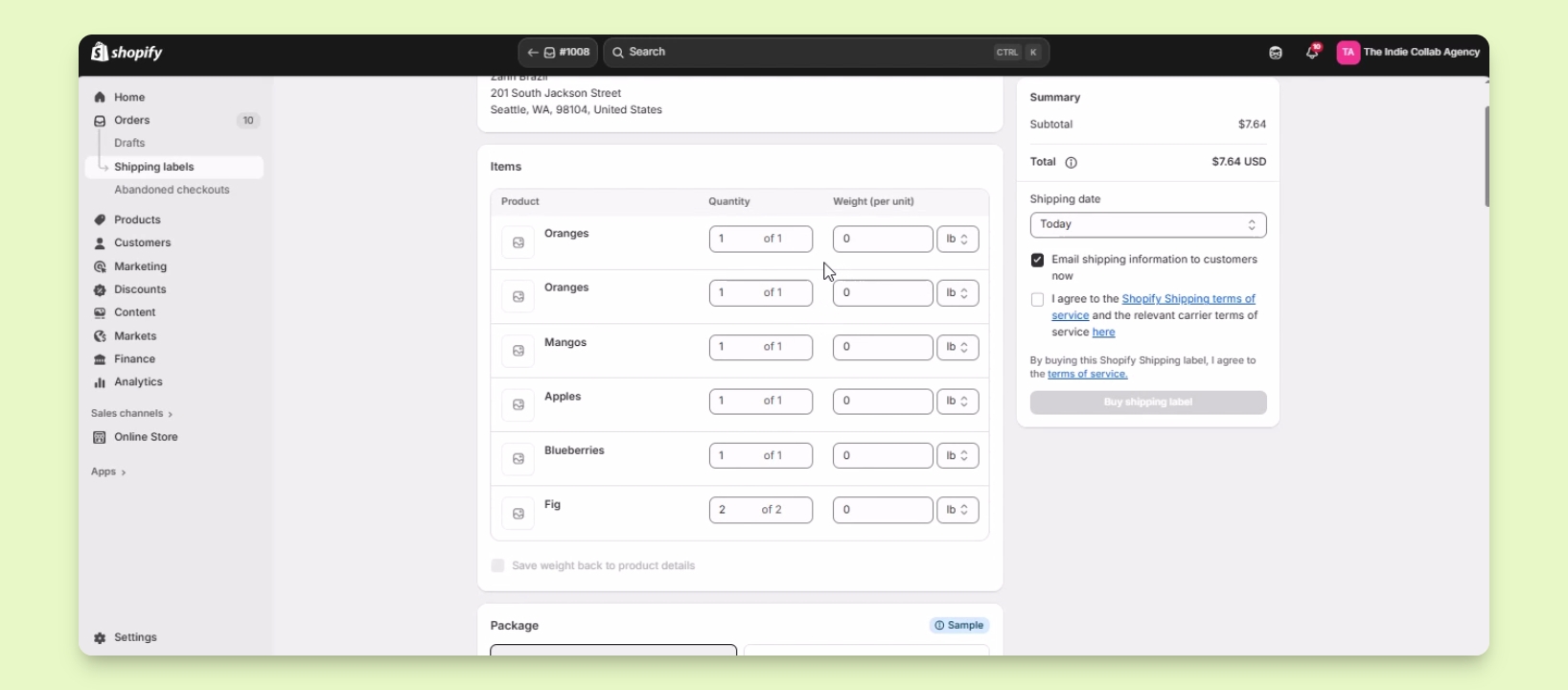
Step 4: Enter Package Details
Enter the total weight of the package, including the items.
Select the shipping service from the available carriers.
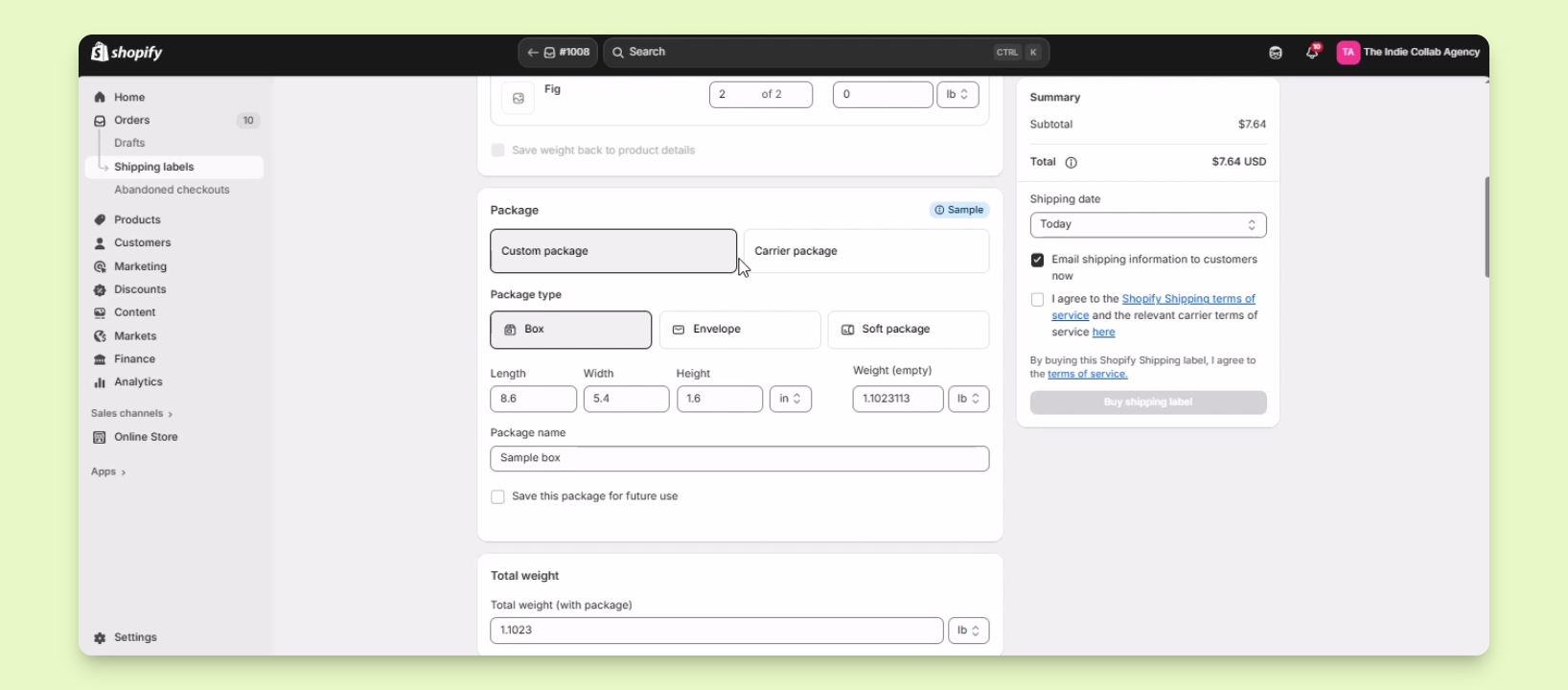
Step 5: Additional Options
Enter coverage amount for your shipment if desired.
Select the shipping date and email shipping information to the customer if needed.
Agree to Shopify's shipping terms and service.
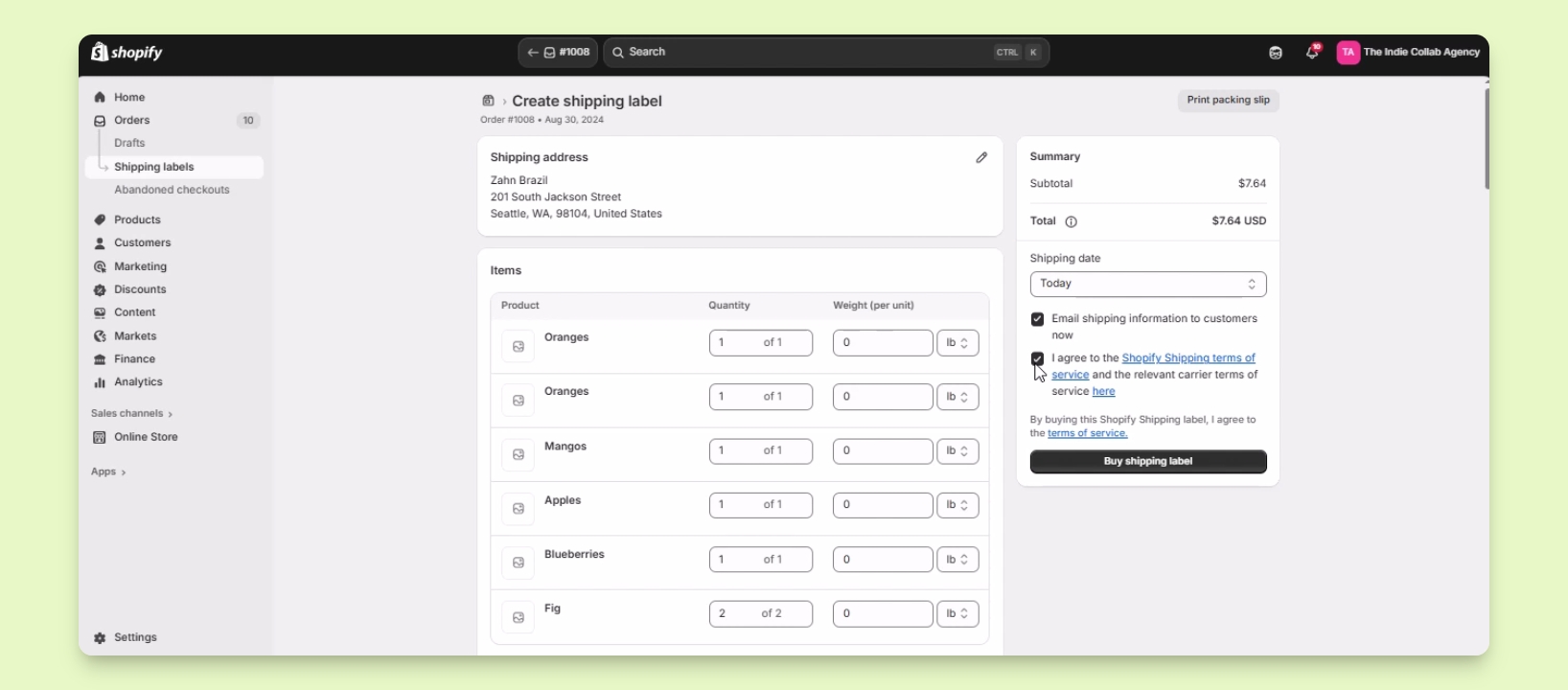
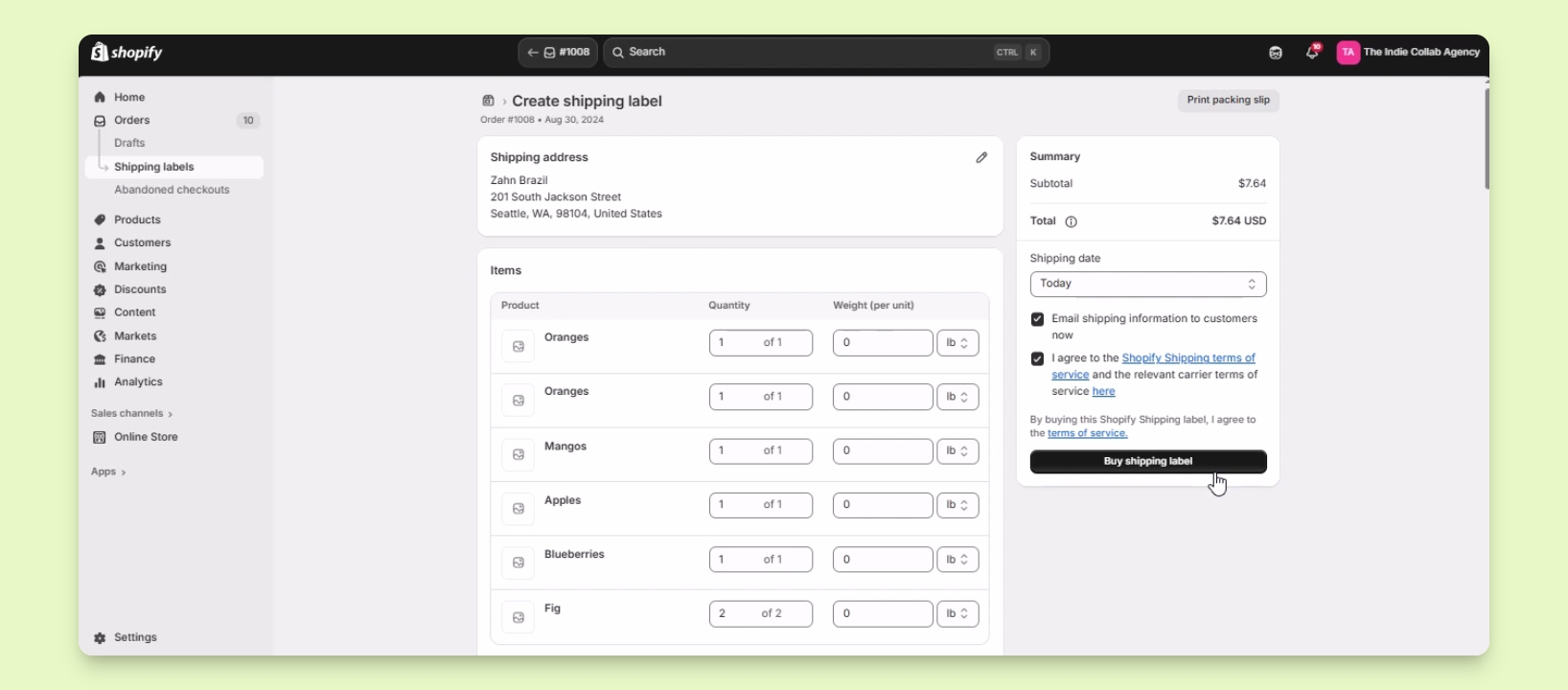
Step 6: Buy Shipping Label
Click Buy Shipping Label to purchase the label.
You will then be redirected to a page to print the shipping label.
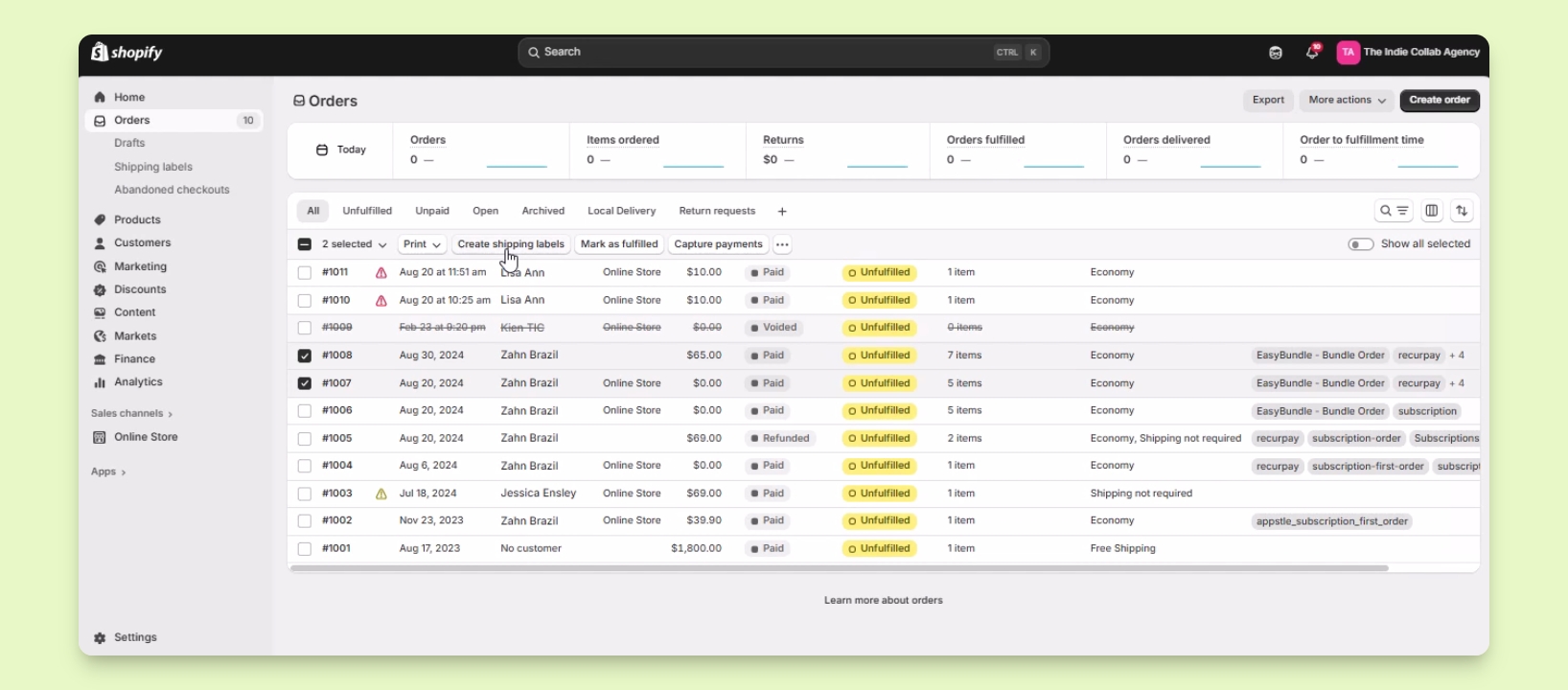
Step 7: Bulk Label Creation
To create labels for multiple orders, check the boxes beside the items.
Click on Create Shipping Label to proceed.
Step 8: Voiding Shipping Labels
You can void shipping labels if necessary.
The amount will be credited to your billing instead of refunded.