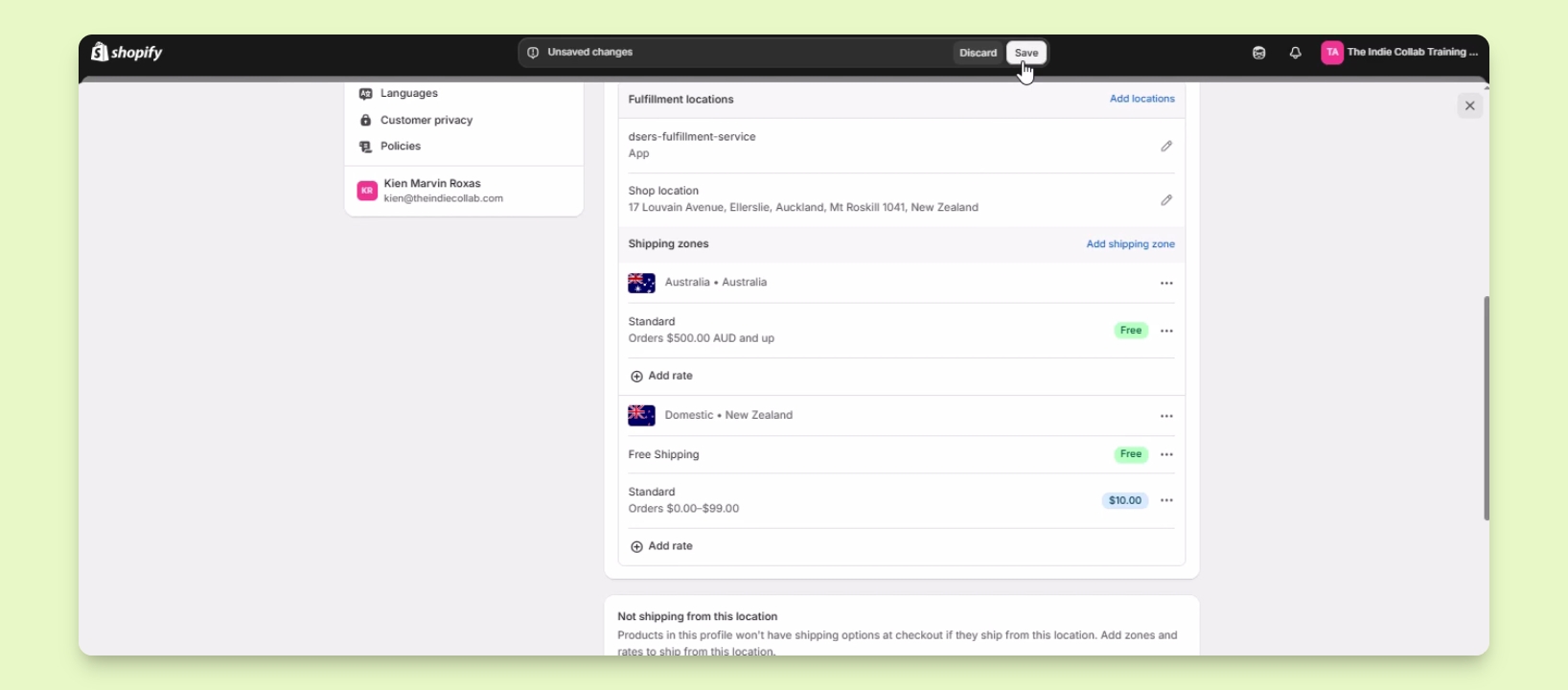

TL;DR
Let's Do It Together!
Step 1: Access Shipping Settings
Open your Shopify admin dashboard.
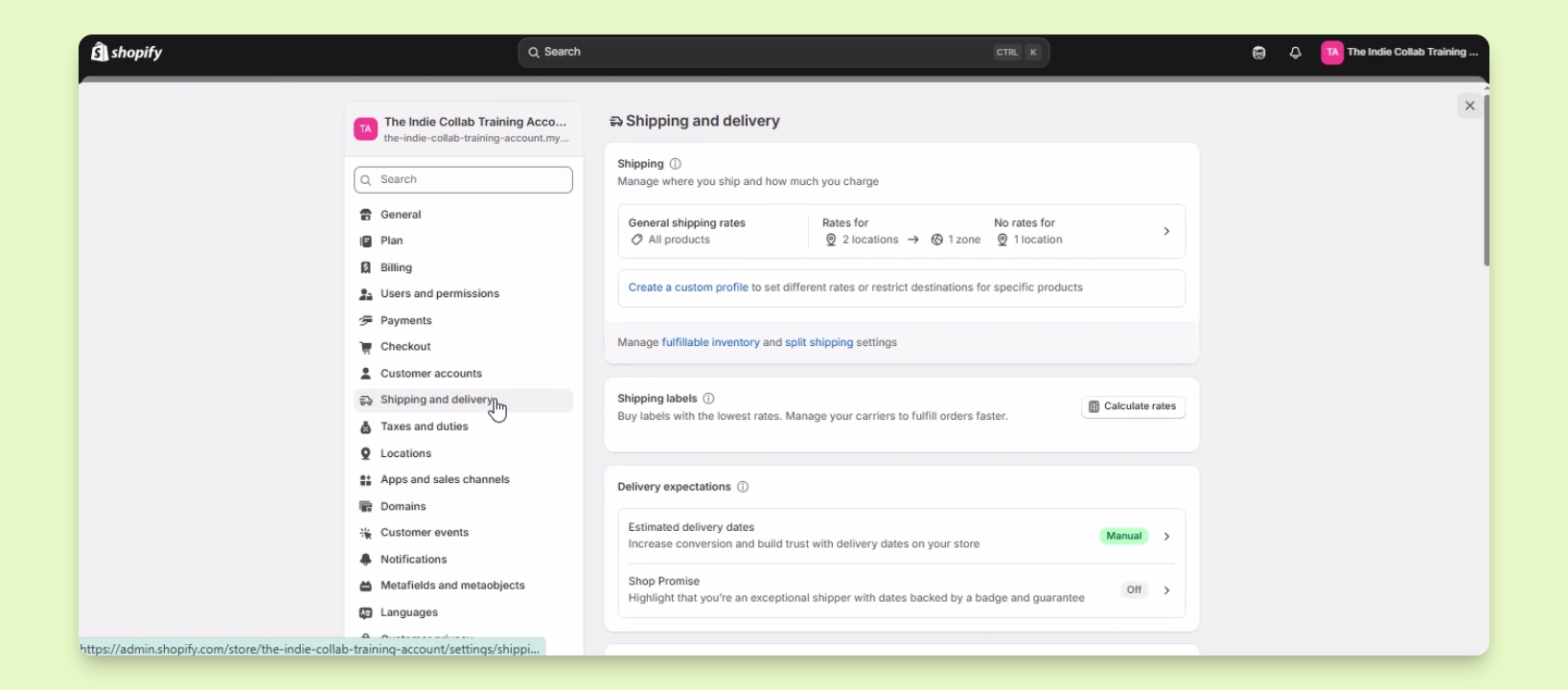
Click on Settings at the bottom left.
Select Shipping and delivery.
Step 2: Navigate to Shipping Rates
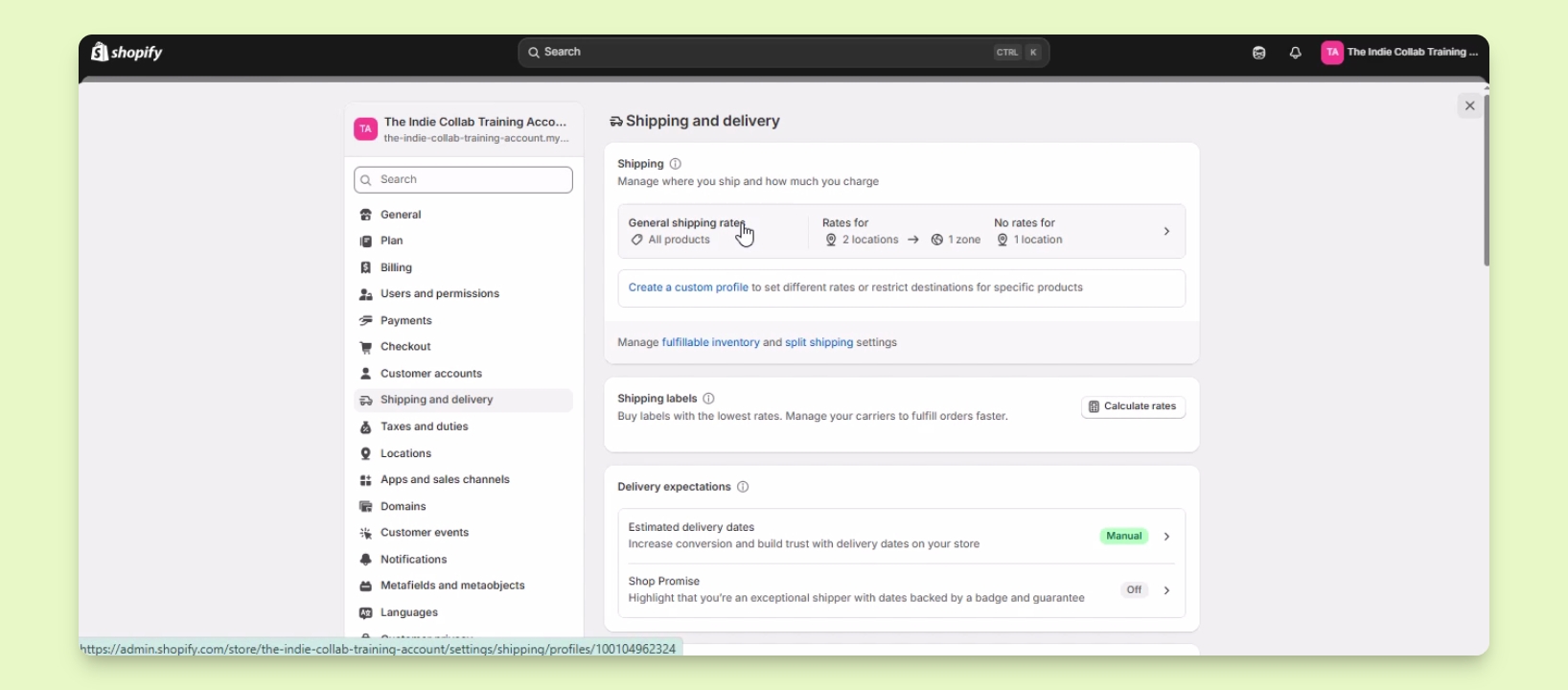
Under Shipping, click on General shipping rates.
This is where you can manage shipping rates for various shipping zones.
You can now set up shipping rates for your designated shipping zones.
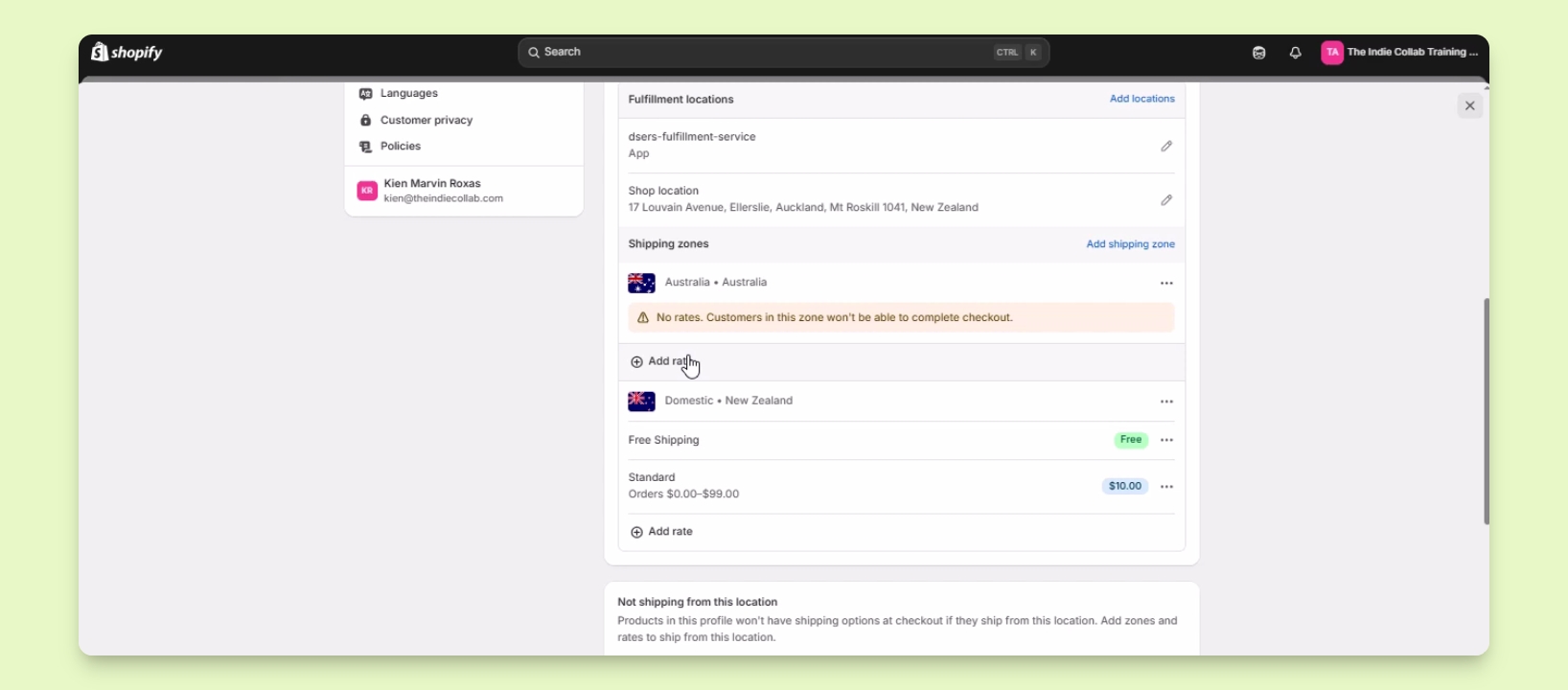
Step 3: Add a Shipping Rate
Locate the Add Rate button and click on it.
Select Flat Rate for this tutorial.
Step 4: Configure the Flat Rate
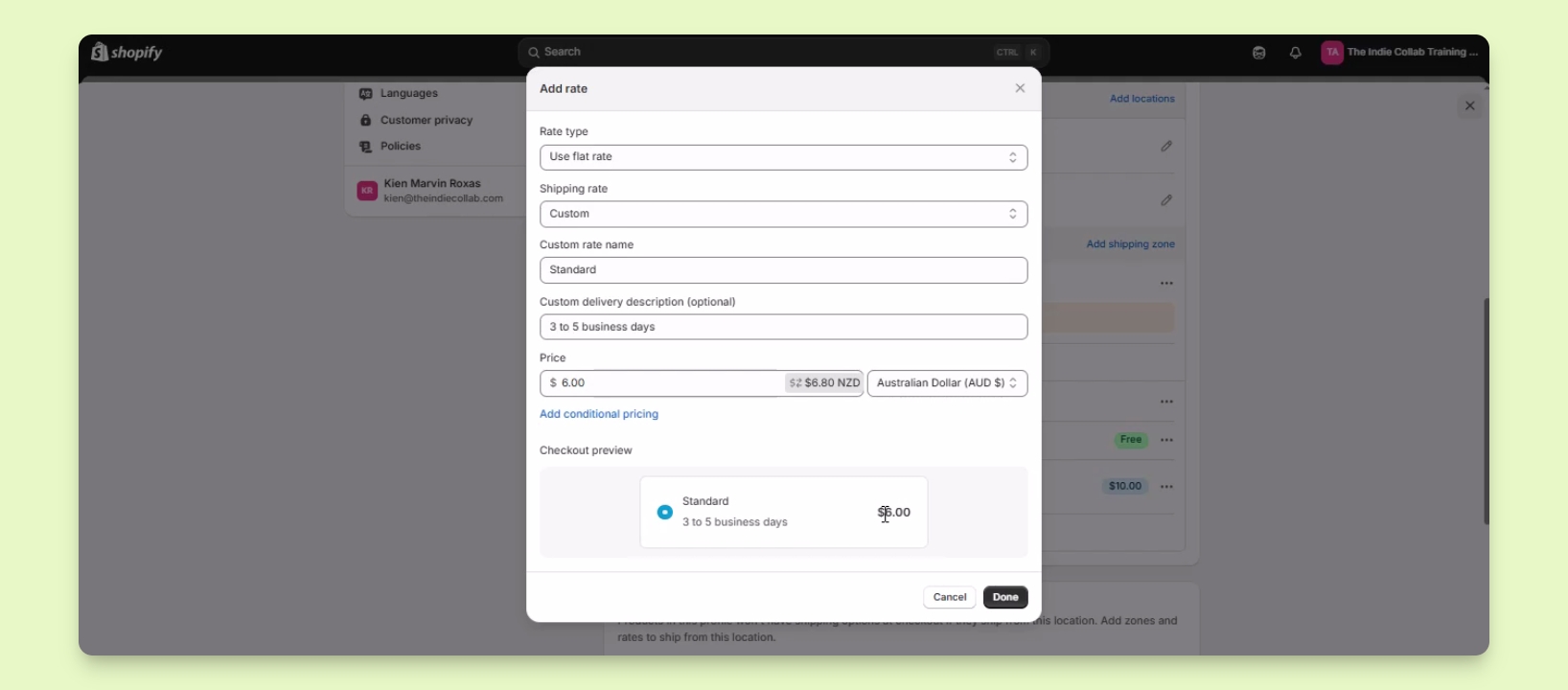
Set the shipping rate to Custom.
Enter a name for the shipping rate, like Standard.
Optionally, add a delivery description.
Set the price for this shipping rate, for example $6.
The shipping rate is now displayed as $6 on the customer's order total.
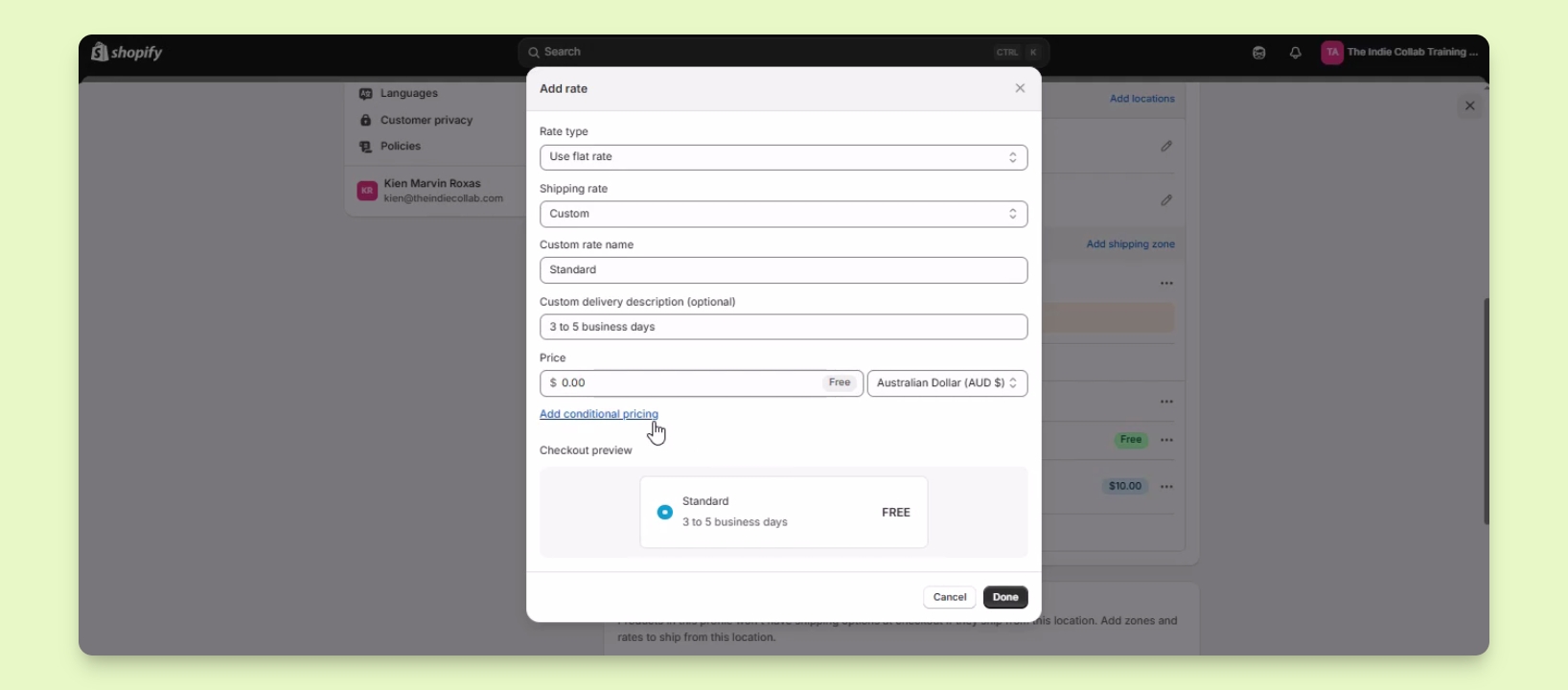
Step 5: Set Up Free Shipping
For free shipping, set the price to 0.
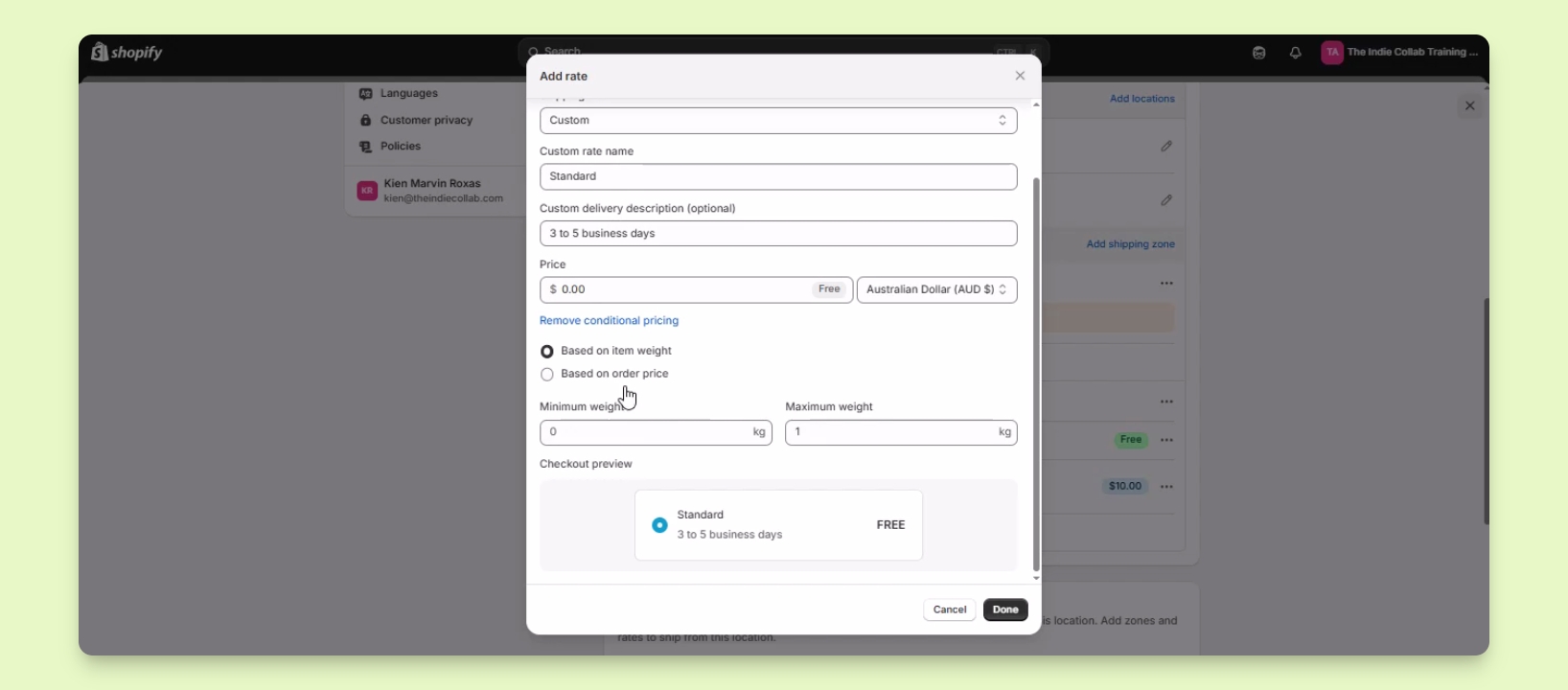
Step 6: Add Conditions to Shipping Rates
To limit shipping based on weight, set a maximum weight (e.g., 1 kg).
For price conditions, set a minimum price (e.g., $500).
Step 7: Save Your Changes
Click the Done button to finalize the shipping rate.
Ensure to save the changes to reflect on your website.