

TL;DR
1
Access Online Store
Log into Shopify and navigate to Online store under Sales Channels.
2
Customize Theme
Select a theme and click the customize button.
3
Add Announcement Bar
Find and add the announcement bar section in the theme editor.
4
Create Announcements
Use the add announcement button to insert and customize announcements.
Let's Do It Together!
Step 1: Access Theme Editor
Log into your Shopify account.
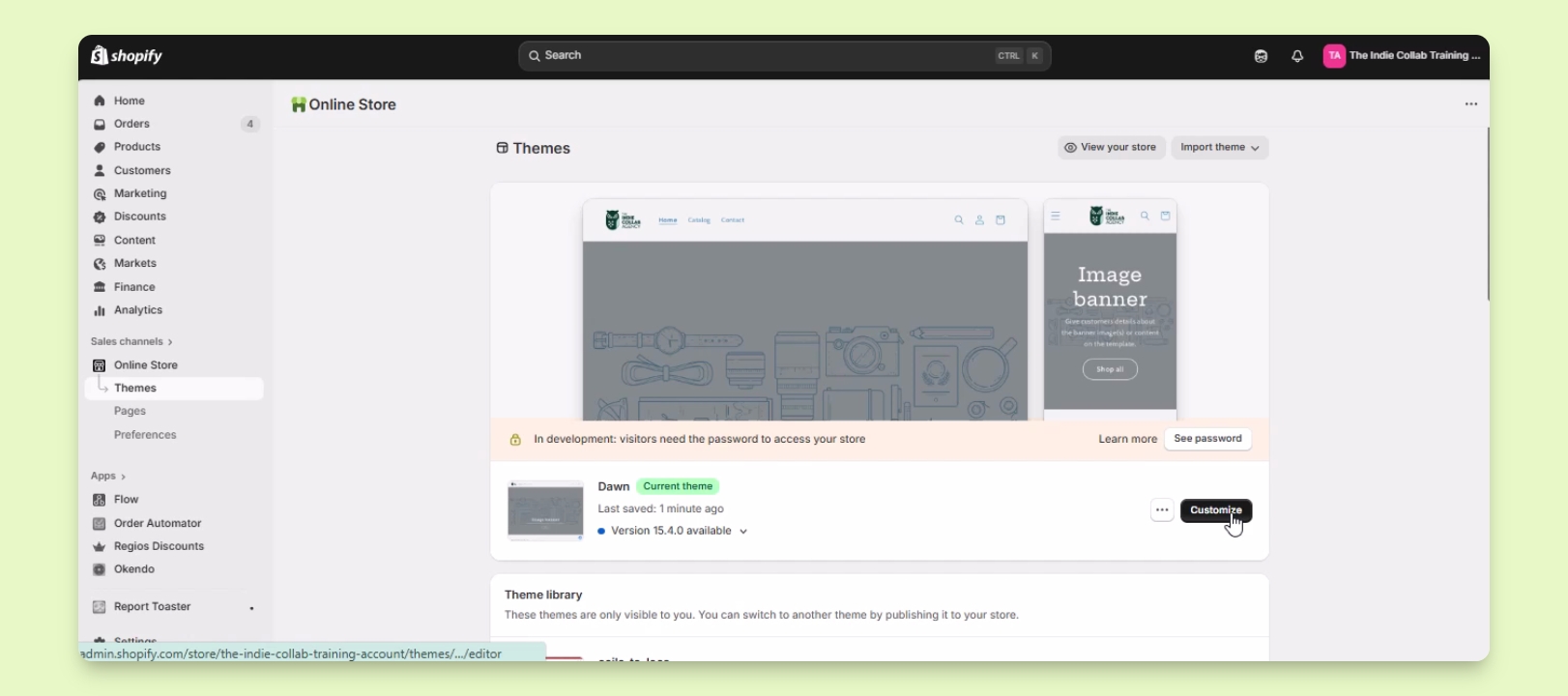
Under Sales Channels, click on Online store.
From the list of themes, find the theme you want to edit.
Click the customize button beside the selected theme.
You will be redirected to the theme editor for your selected theme.
Step 2: Add Announcement Bar
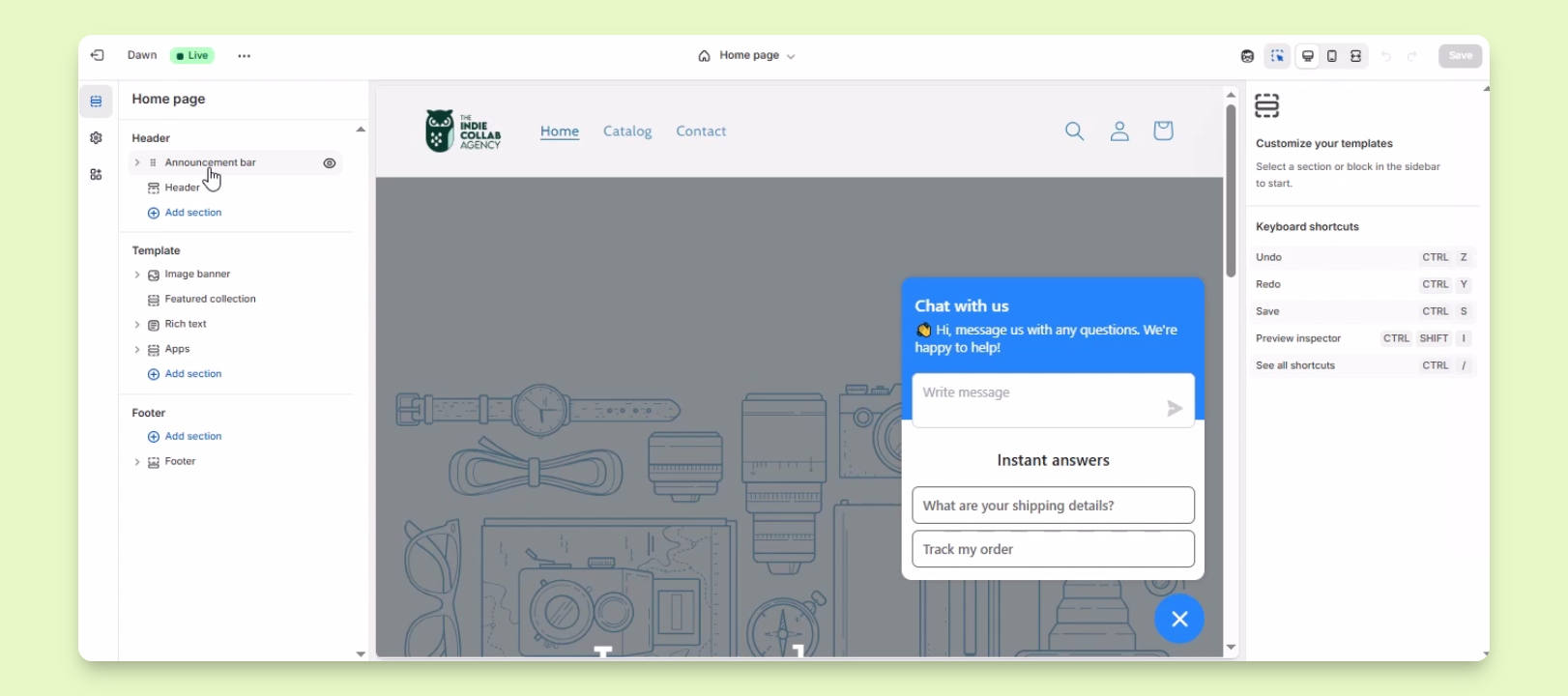
In the theme editor, look for the option to add announcement bar.
If not present, click add section and find the announcement bar option to add it.
Now you have added the announcement bar to your theme.
Step 3: Create Announcements
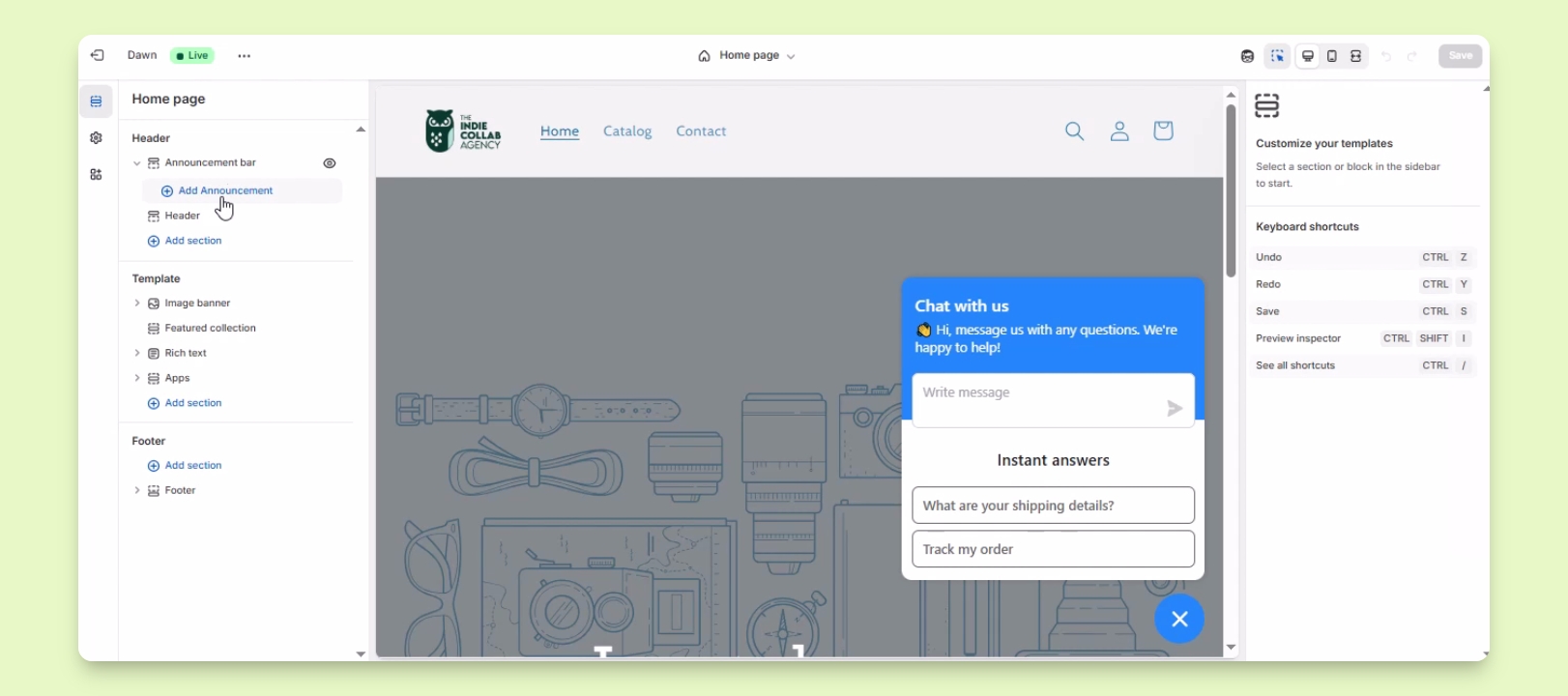
Click on the add announcement button to create multiple announcements.
Edit the announcement text, alignment, color, and add a link if needed.
You can customize the announcement according to your preferences.
Editing options may vary by theme.
Some themes may require coding knowledge for advanced features.
Troubleshooting
Announcement bar not visible
Ensure you added the announcement bar section in the theme editor.
Editing options are limited
Check if your theme supports advanced editing or requires coding knowledge.
FAQ
Can I add multiple announcements?
Yes, you can add multiple announcements using the add announcement button.
Do I need coding skills?
Most themes allow editing without coding, but some may require it for advanced features.