

TL;DR
1
Open Settings
Access your Shopify account settings.
2
Add Staff
Click Add Staff, fill details, and send invite.
3
Confirm Access
Staff accepts invite to log in with granted permissions.
4
Remove Staff
Select staff, click Remove to delete their account.
Let's Do It Together!
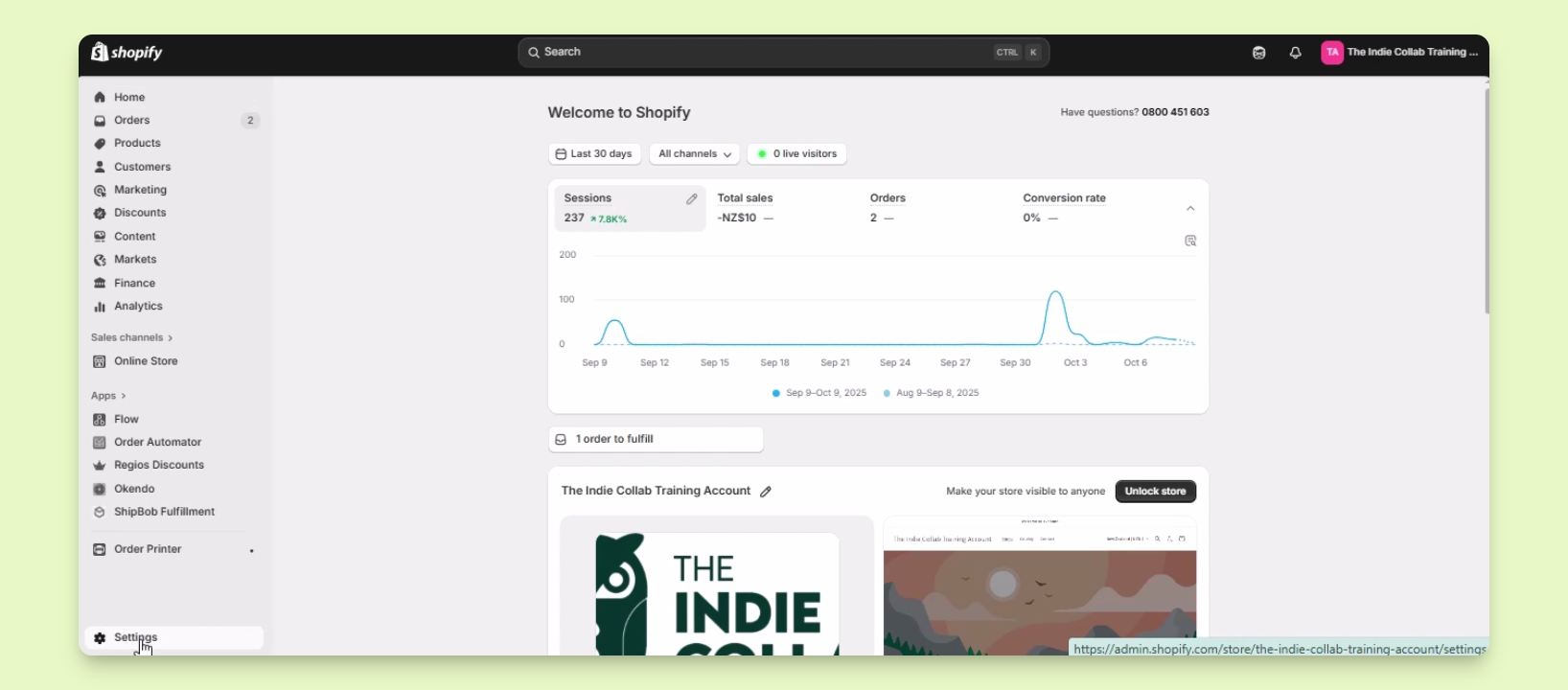
Step 1: Access Settings
Log in to your Shopify account.
Click on Settings located on the lower left.
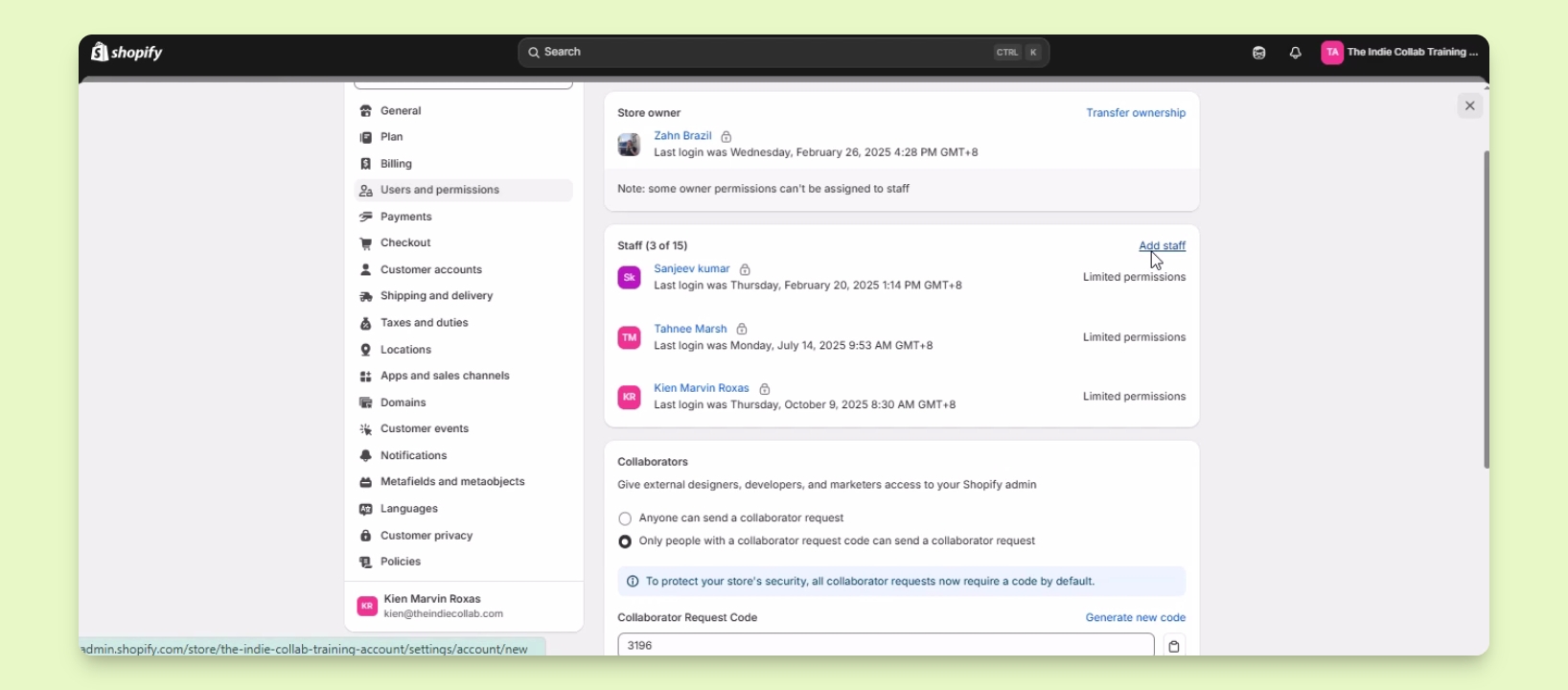
Step 2: Add Staff Account
Click on Users and permissions.
Click the Add Staff button.
Enter the staff's first and last name and email address.
Check the boxes for the Store permissions you want to grant.
Scroll down and click Send Invite.
Shopify sends an invitation email for the staff to create their account.
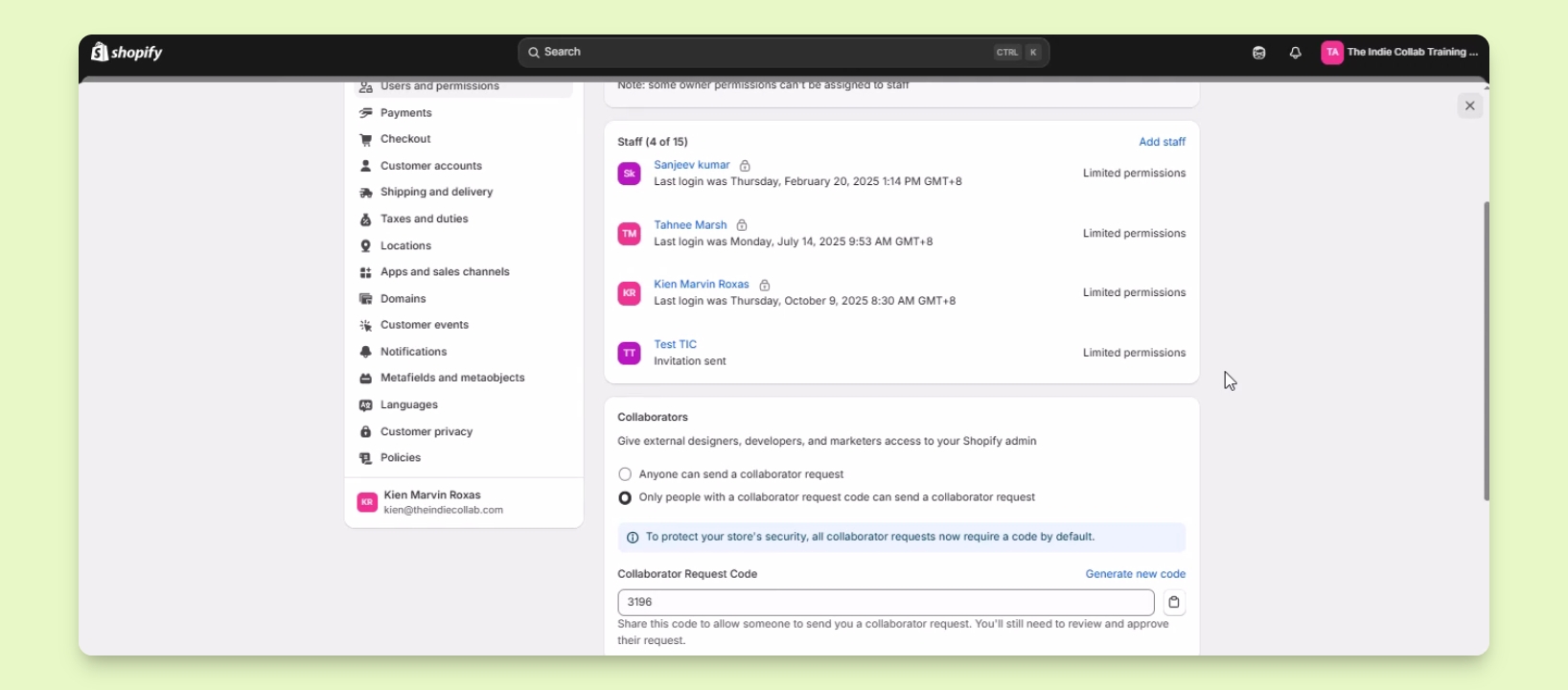
Step 3: Confirm Access
After the staff accepts the invitation, they can log in with their own credentials.
They will only access what you have permitted.
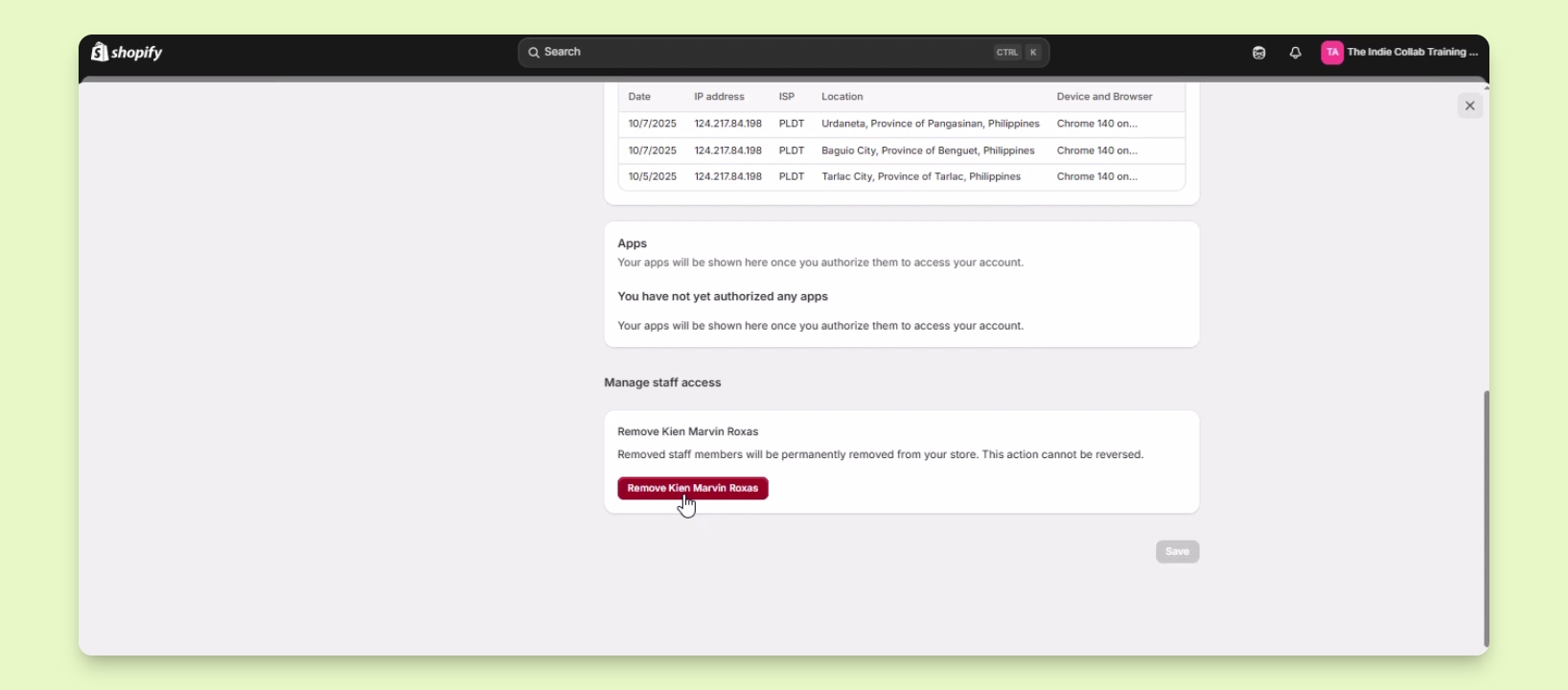
Step 4: Remove Staff Account
Click on the staff's name under the Staff list.
Scroll down to the Remove Staff section.
Click the Remove button to delete the staff from your account.
The staff will be removed from the Shopify account.
Troubleshooting
Staff not receiving invite email.
Check the email address for accuracy or ask them to check spam.
FAQ
Can I edit staff permissions?
Yes, you can edit permissions anytime from the Users and permissions section.
How many staff accounts can I add?
You can add multiple staff accounts depending on your Shopify plan.