
TL;DR
Let's Do It Together!
Step 1: Access Your Orders
Log in to your Shopify account.
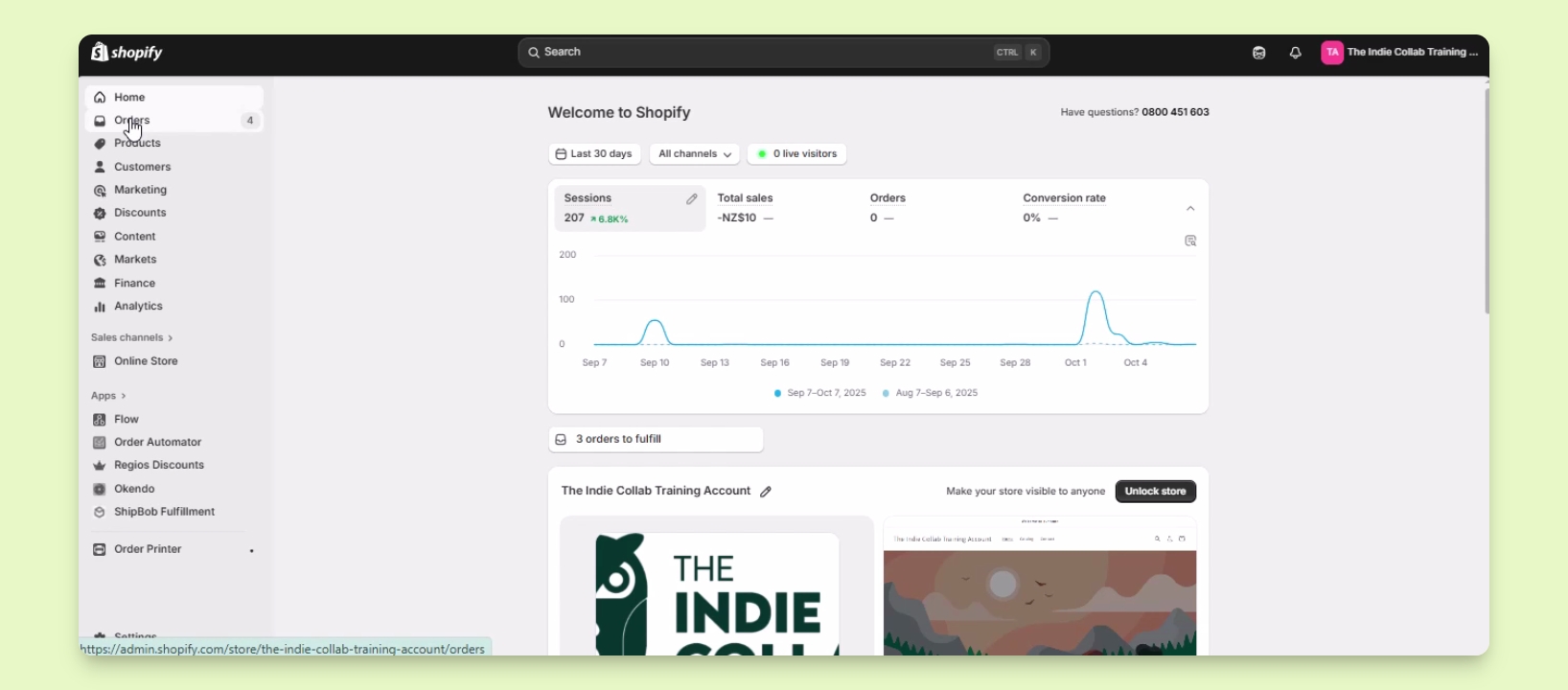
Locate the Orders section and click on it.
This will display a list of your orders.
Step 2: Select the Order to Cancel
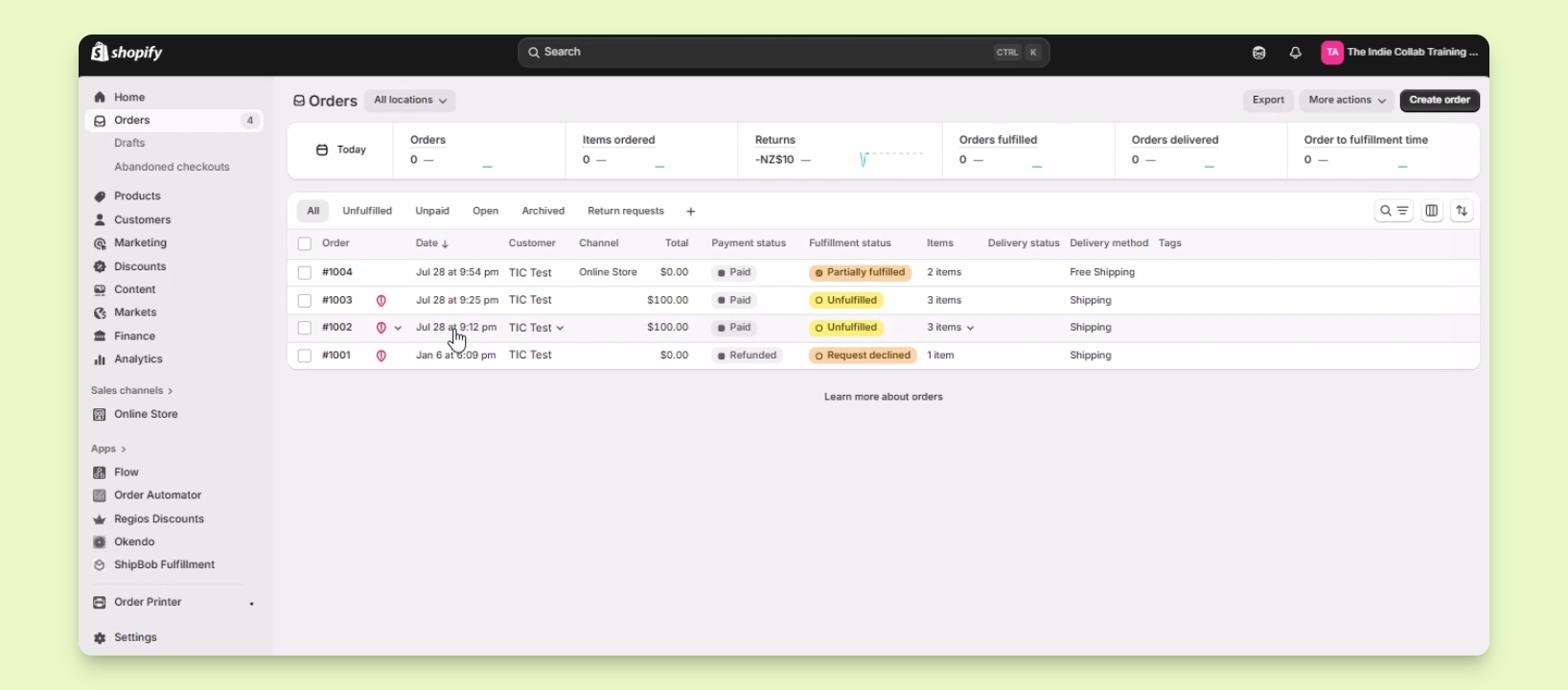
Select the order you want to cancel.
For this example, choose order number 1002 and click on it.
Step 3: Navigate to Order Details
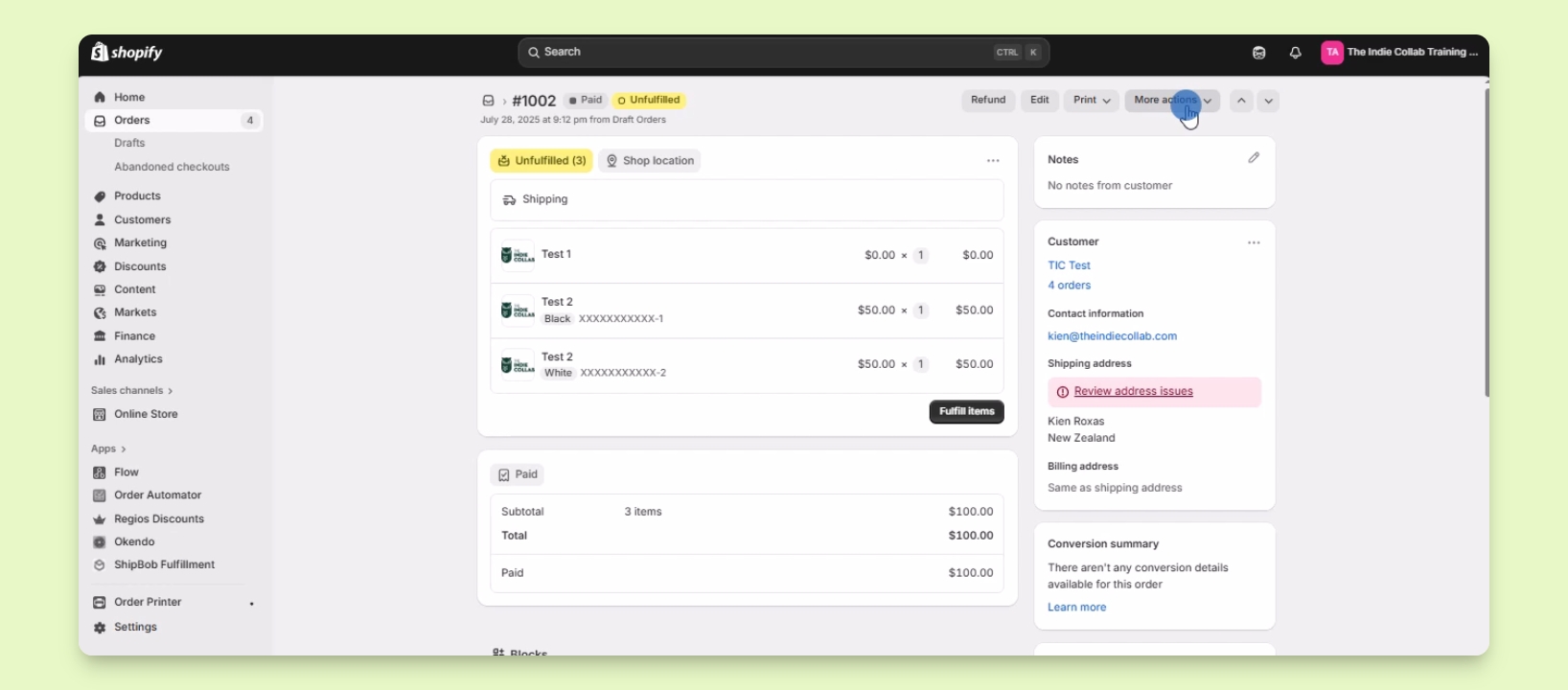
Open the Order Details page.
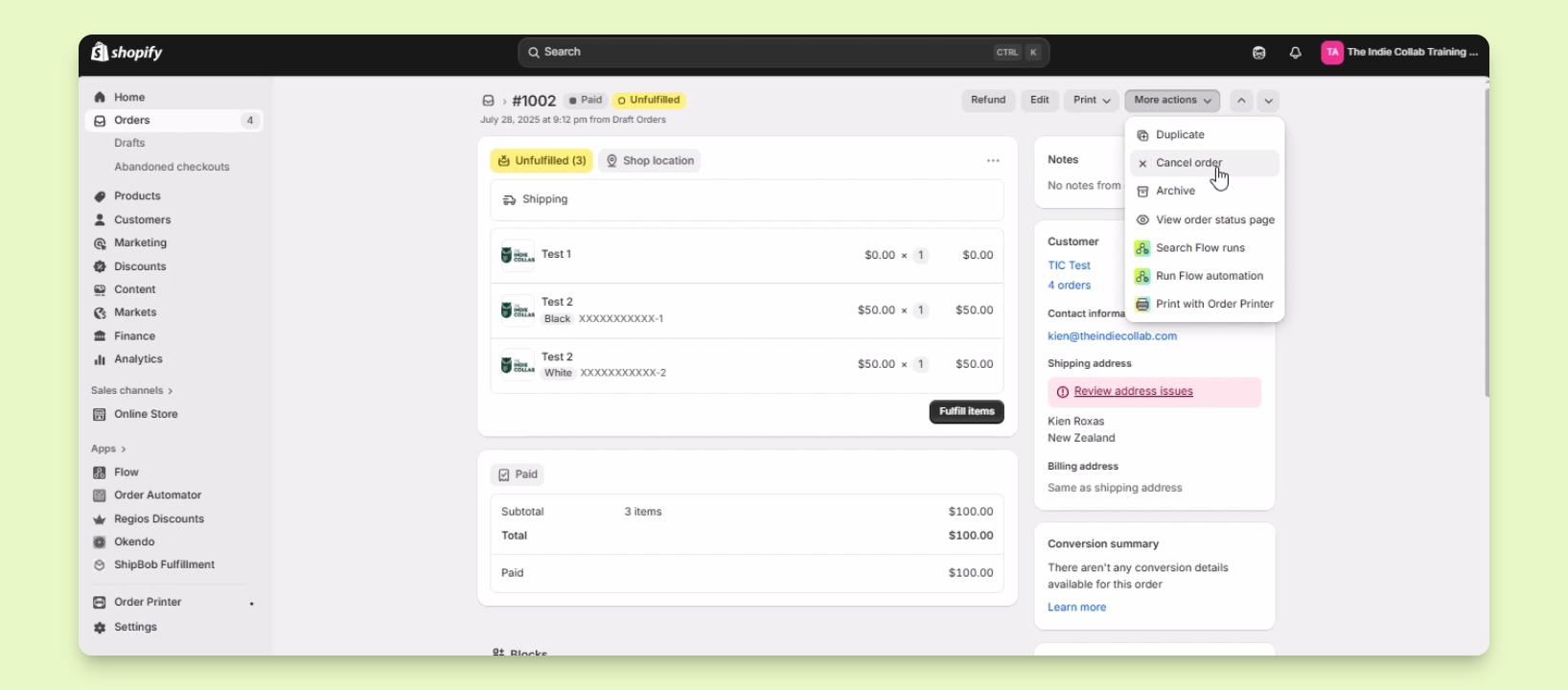
Look for the More Actions option in the upper right corner.
Step 4: Cancel the Order
Click on More Actions and select Cancel Order.
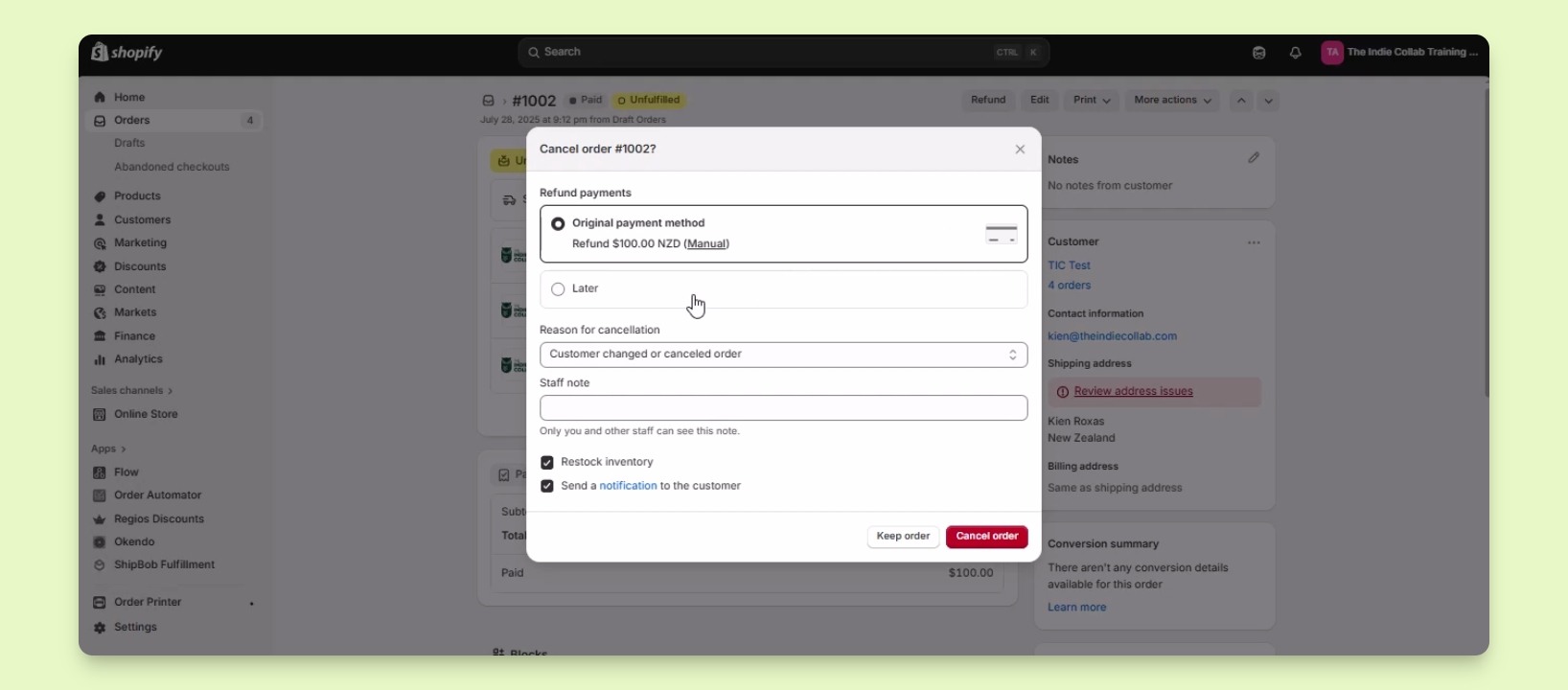
You will have the option to refund the payment or do it later.
Step 5: Provide Cancellation Details
If you don't want to process a refund, select a reason for the cancellation, like payment declined or staff error.
You can also leave an internal note that only you and your staff can see.
If desired, check the boxes to restock inventory and notify the customer.
If you don't want to perform these actions, simply uncheck the boxes.
Step 6: Confirm the Cancellation
Once you've filled out the necessary information, click the Cancel Order button.
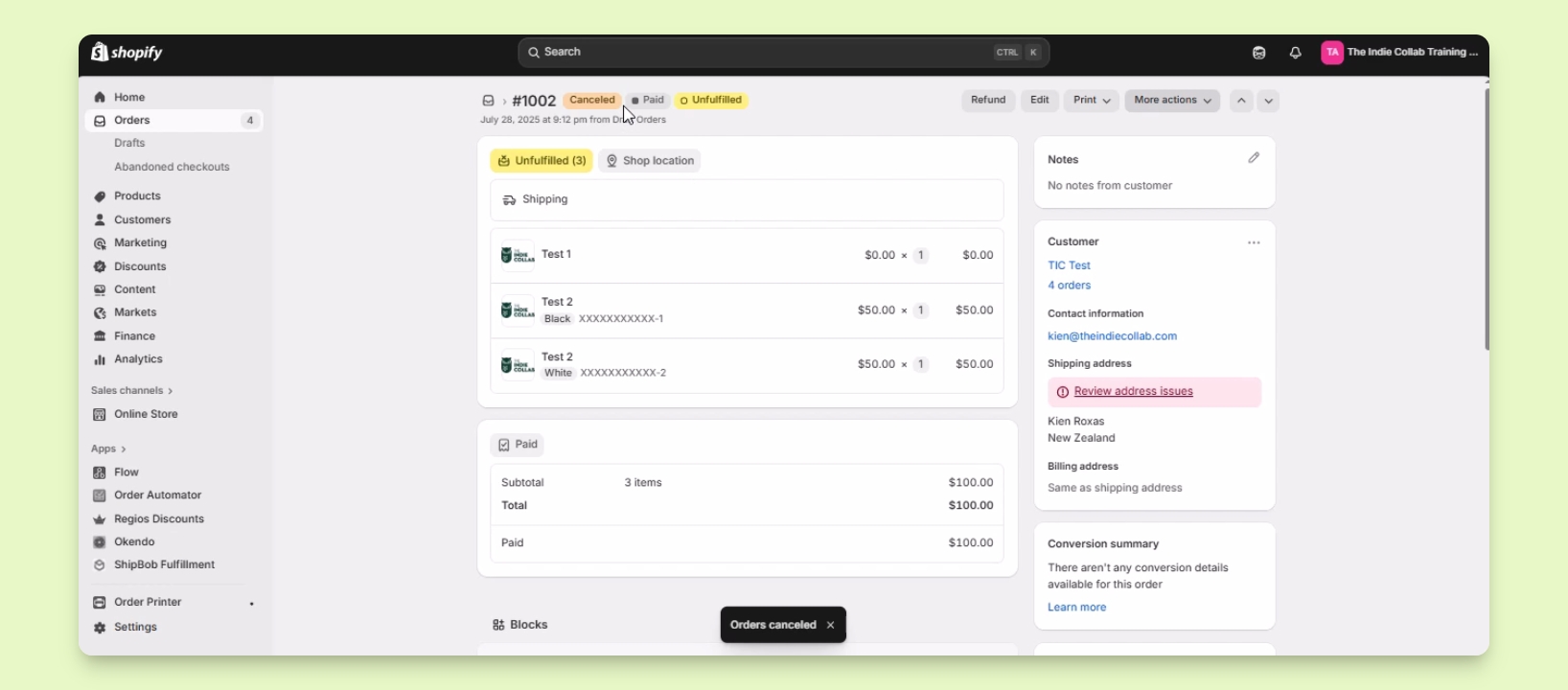
You will see a tag indicating that the order has been cancelled.