

TL;DR
Let's Do It Together!
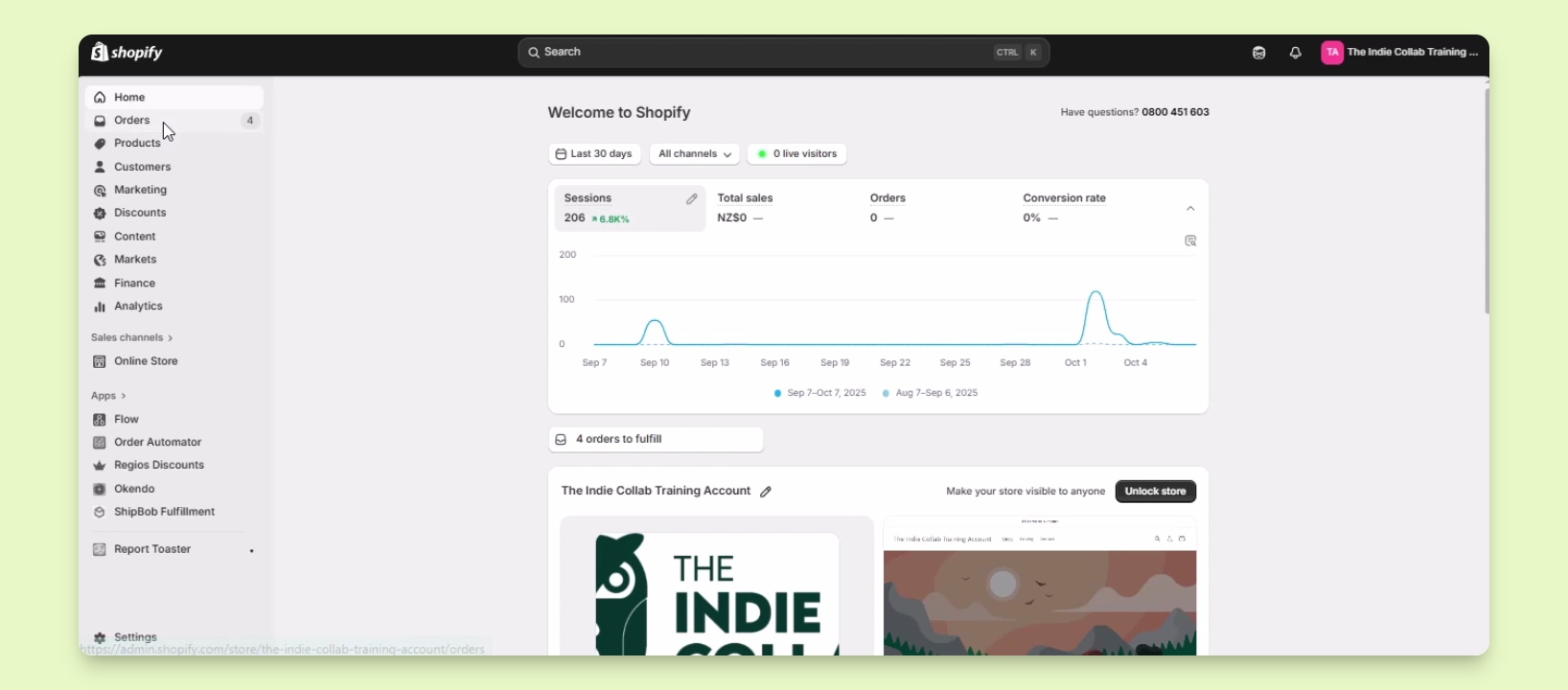
Step 1: Access Orders
In your Shopify admin, locate the Orders section.
Click on it to see the list of orders.
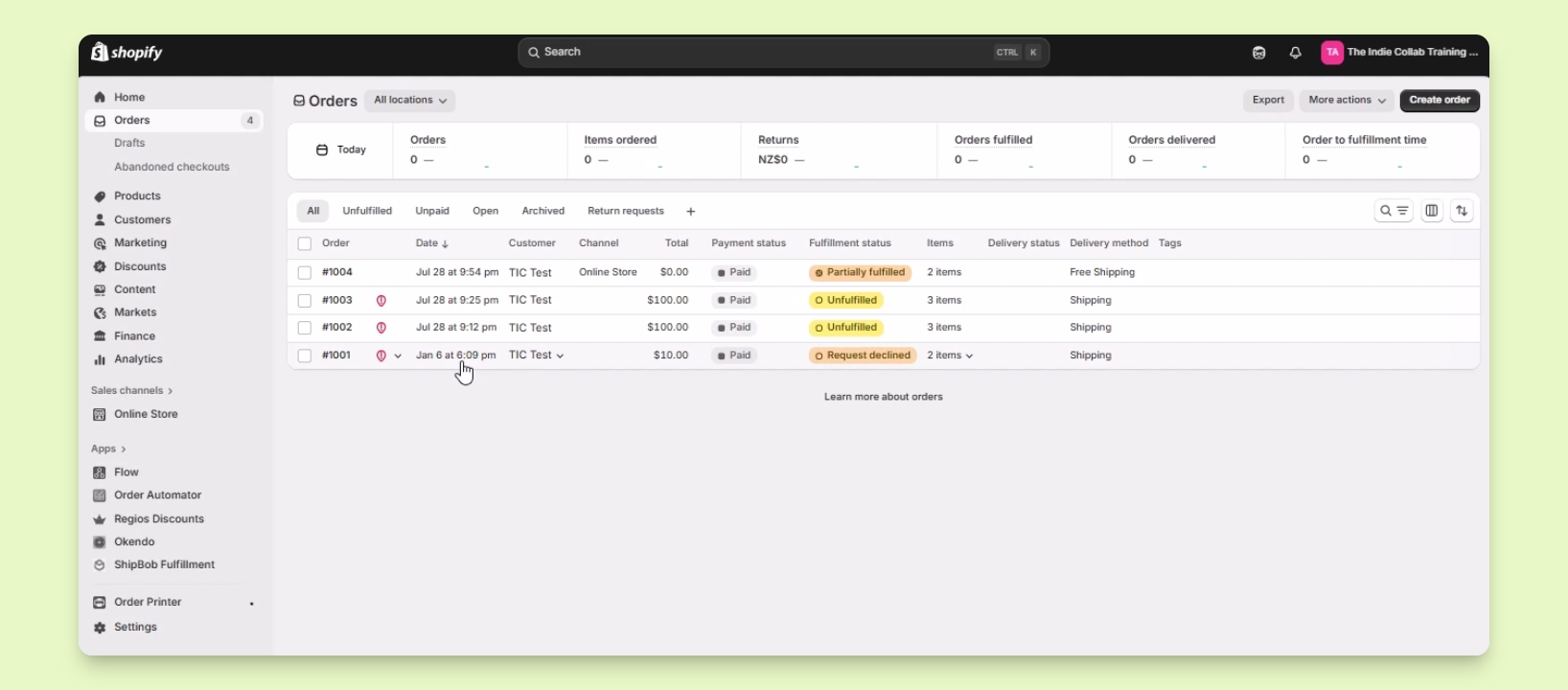
Step 2: Select an Order
Select the order you want to process a refund for, e.g., order number 1001.
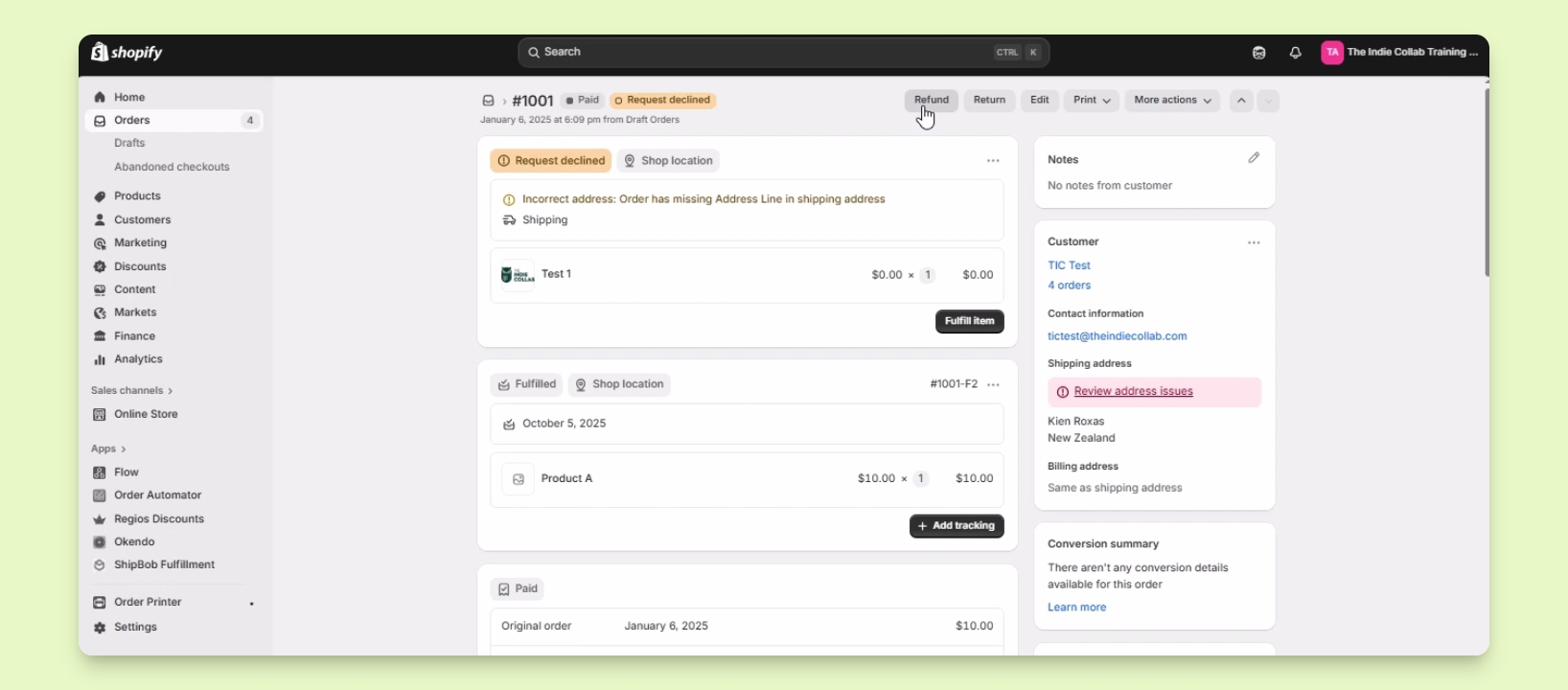
Step 3: Initiate Refund
On the order details page, click the Refund button.
Step 4: Select Products for Refund
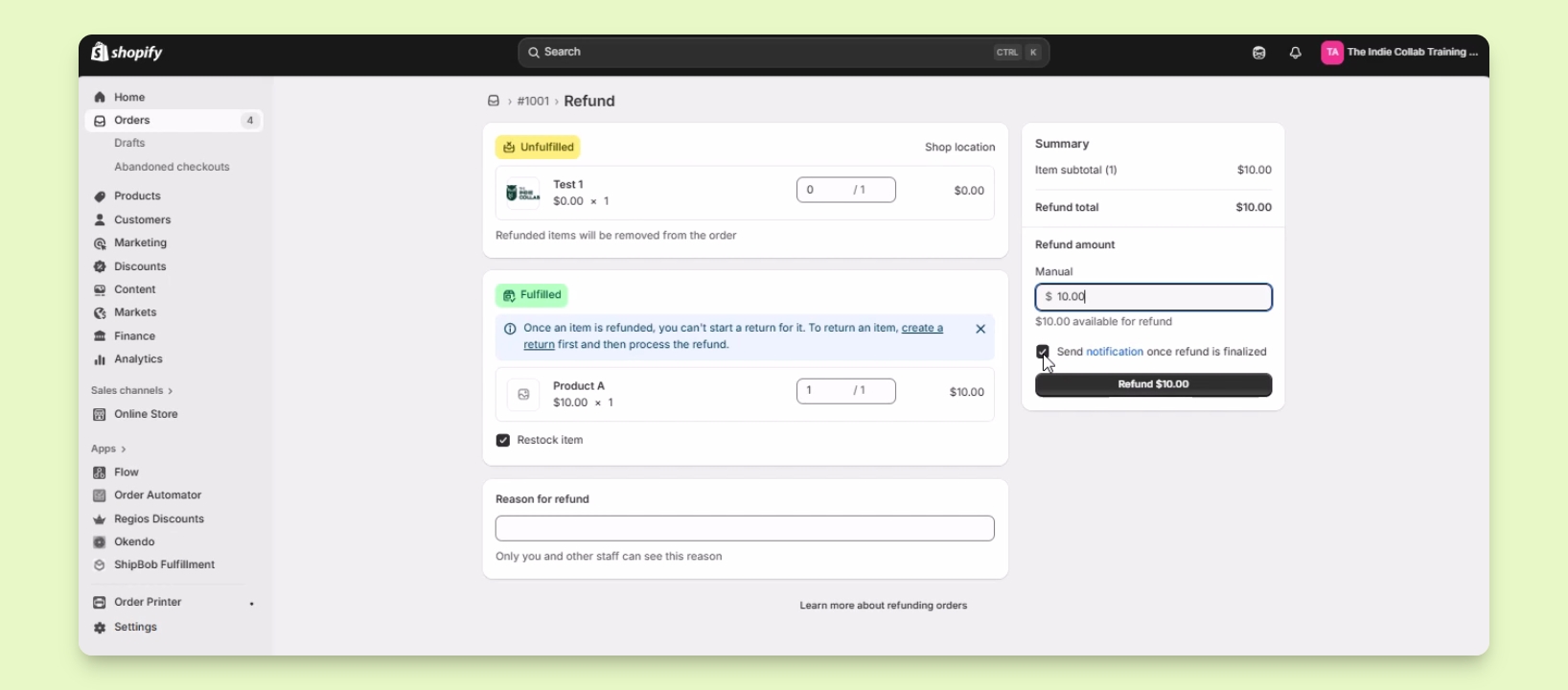
Select the products you need to refund.
Enter the quantity for the product you want to refund.
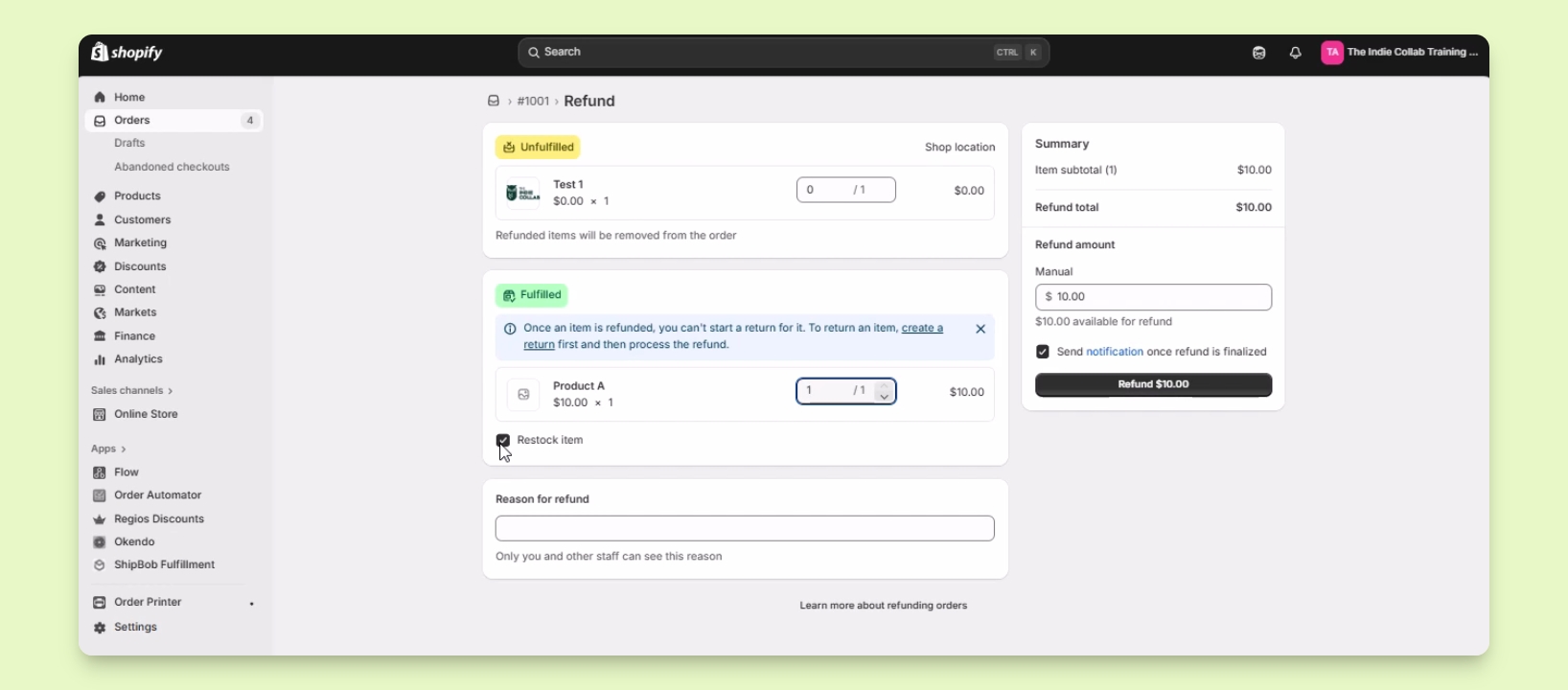
Step 5: Additional Refund Options
Choose to restock the item if desired by checking the box.
Provide a reason for the refund, which will only be visible to staff.
Edit the refund amount if you want to partially refund the customer.
Decide whether to send a notification to the customer upon finalizing the refund.
Step 6: Process the Refund
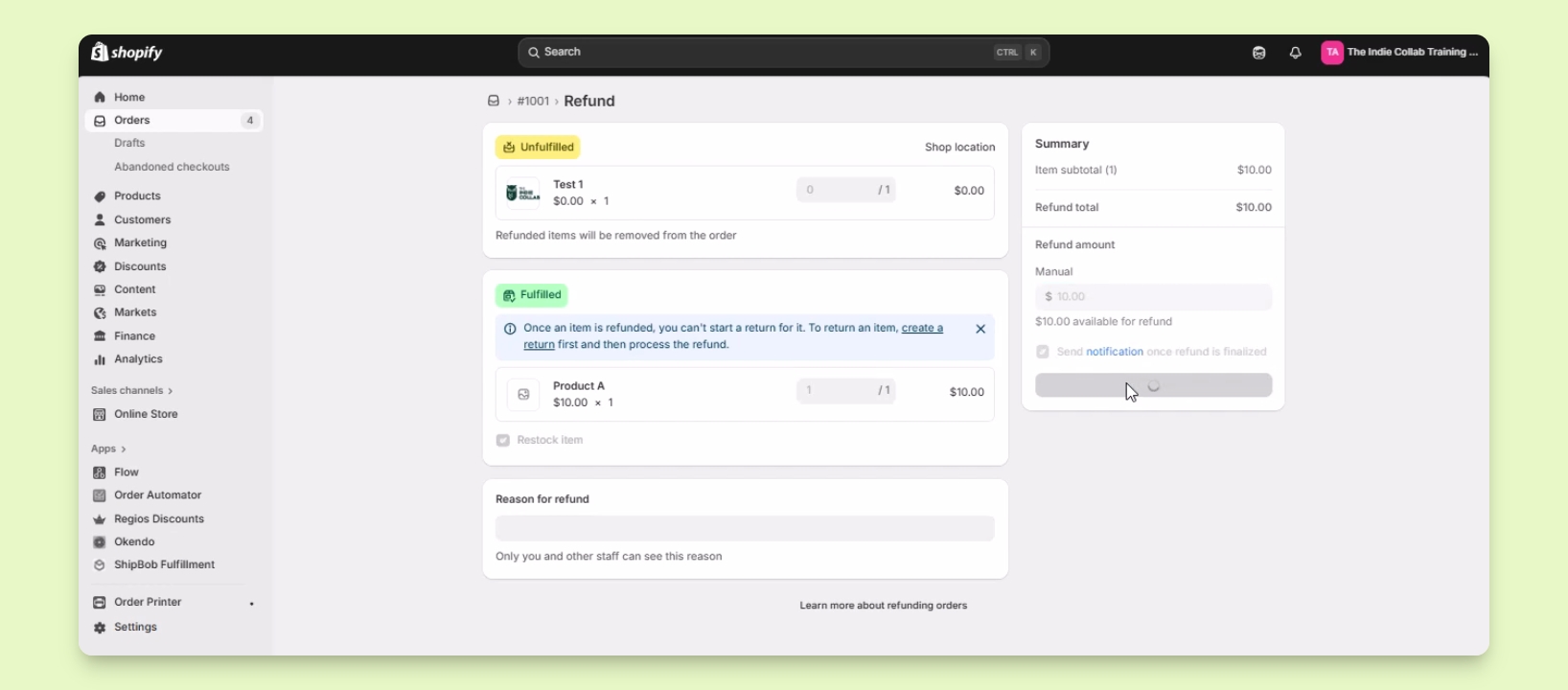
Click the Refund button to process the refund.
Understand that refunds for manual payments will not go to the customer's account.
Step 7: Handling Alternative Refunds
Refunds usually go back to the original payment method.
For alternative processing methods, communicate with the customer.